



Last updated on October 23, 2026
Approver Training 0: What You Do as an Approver (Microsoft Teams)
As an Approver, you decide on leave requests from the people in your Department. This training covers the essentials in nine short articles. Start here to see what you do, where requests reach you, and what you can see.
What You Do
How You Became an Approver
Approver isn't a Role. Your Administrator added you as an Approver on one or more Departments, and you approve leave for the people in those Departments. You still request your own leave like everyone else.
If a Department has more than one level of approval, a request reaches you when it gets to your level.
Where Requests Reach You
Every new request arrives as a message from the Vacation Tracker bot in Microsoft Teams, with buttons to approve or deny it. The same request also waits for you in the Vacation Tracker dashboard, under Waiting on you on your Home page. Answer it in whichever place suits you. When you first become an Approver, the bot sends you a message saying so.
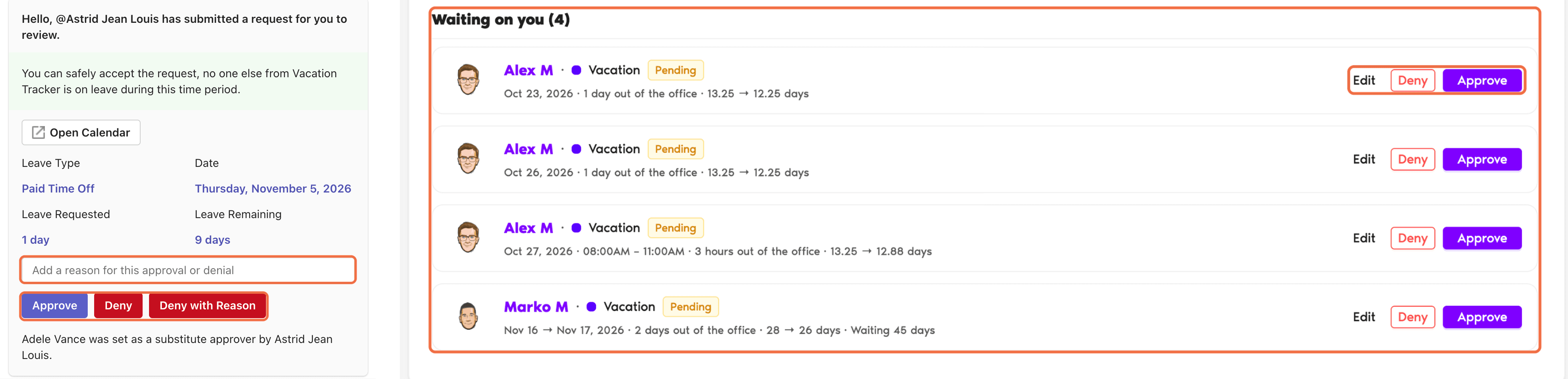
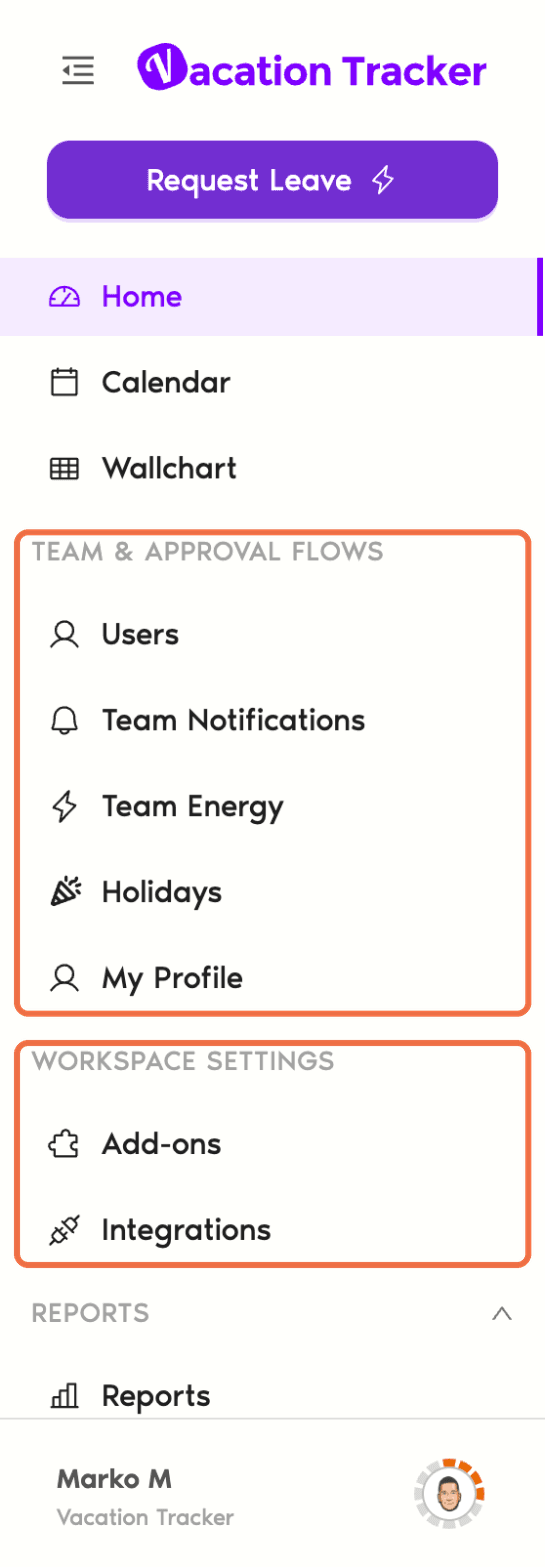
What You Can See in the Dashboard
Your Administrator decides whether Approvers can also see features such as Reports.
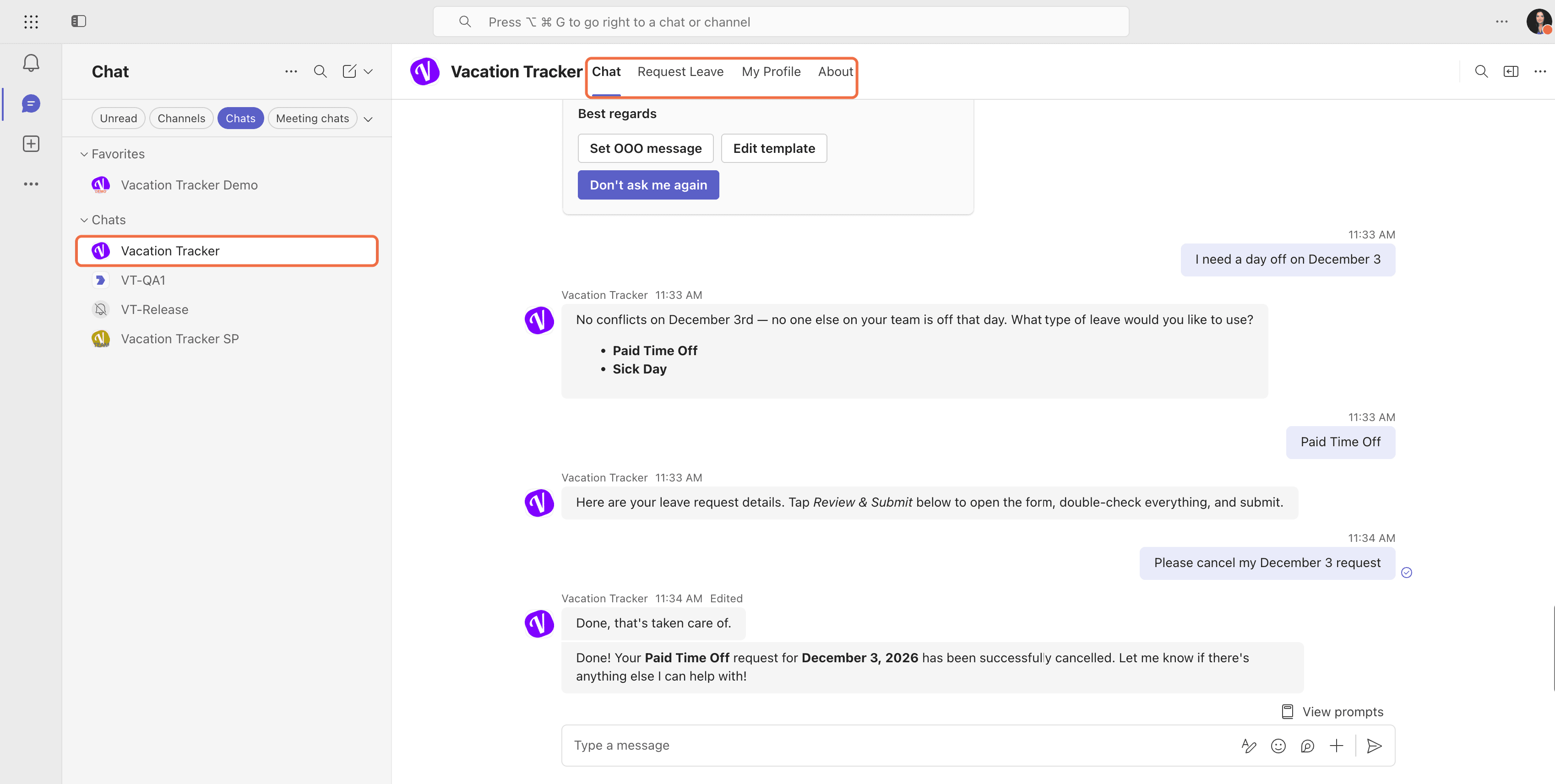
In Microsoft Teams
Open the Vacation Tracker app in Teams. Use these tabs:
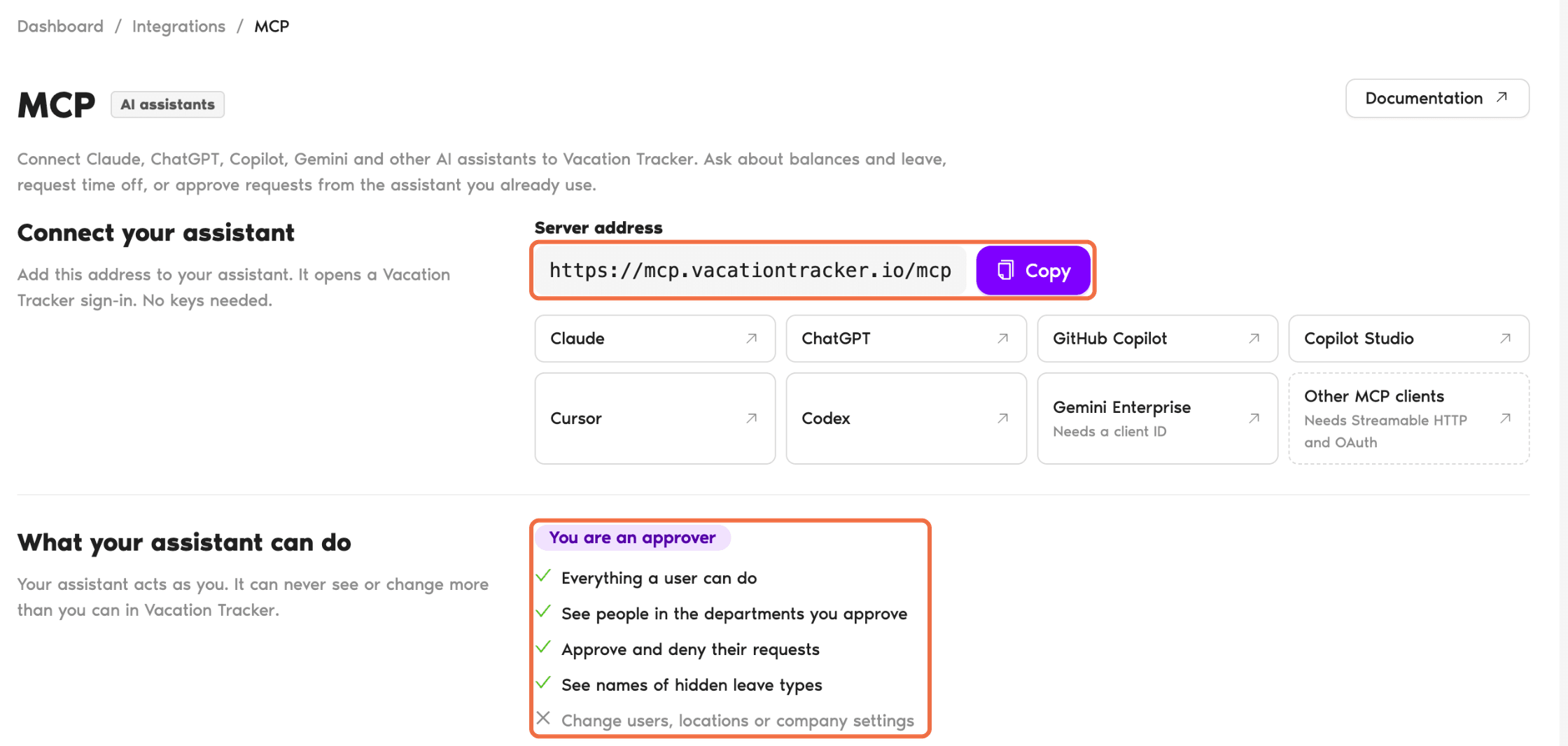
Use Vacation Tracker From an AI Assistant
Under Workspace Settings, click Integrations, then MCP. It shows how to connect Claude, ChatGPT, Copilot and other AI assistants to Vacation Tracker, so you can check leave or approve and deny requests from the assistant. Your assistant acts as you, so it can never see or change more than you can.
The Training Path
Each article covers one job. Follow them in order the first time.
- Approve or Deny Leave Requests in Microsoft Teams: answer requests from Microsoft Teams.
- Approve or Deny Leave Requests in the Dashboard: check the details and decide in the dashboard.
- Change a Leave Request or Cancel Approved Leave: change a request or cancel approved leave.
- Add Leave for a Team Member Who Can't Request It: when someone can't request it themselves.
- Check Who's Off Before You Approve: check coverage in the dashboard or ask the bot.
- Send Your Team Leave Summaries and Birthday Messages: summaries and birthdays in a Teams channel or by email.
- Choose Who Approves Requests While You're Away: who answers requests while you're away.
- Set Leave Rules for Your Team With Automations: rules like blackout dates and maximum users away.
Common Questions
As an Approver, you see the people in the Departments you approve for. Your Administrator manages everyone else.
Yes. Your Administrator can add you as an Approver on as many Departments as needed.
 Book a Call