SOURCE:    Vacation Tracker
TITLE:     Approver Training 1: Approve or Deny Leave Requests in Microsoft Teams
URL:       https://vacationtracker.io/knowledge-base/approver-training-approve-or-deny-leave-requests-in-microsoft-teams/
LANG:      en
PUBLISHED: 2026-10-23
UPDATED:   2026-10-23
READING:   3 min
SUMMARY:   Leave requests reach you as a message from the Vacation Tracker bot in Microsoft Teams. See what it shows and how to approve or deny right there.
Approver Training 1: Approve or Deny Leave Requests in Microsoft Teams
Approver Training 1: Approve or Deny Leave Requests in Microsoft Teams
When someone in your Department requests leave, the Vacation Tracker bot sends you a message in Microsoft Teams. You can answer right there.
What the Message Shows
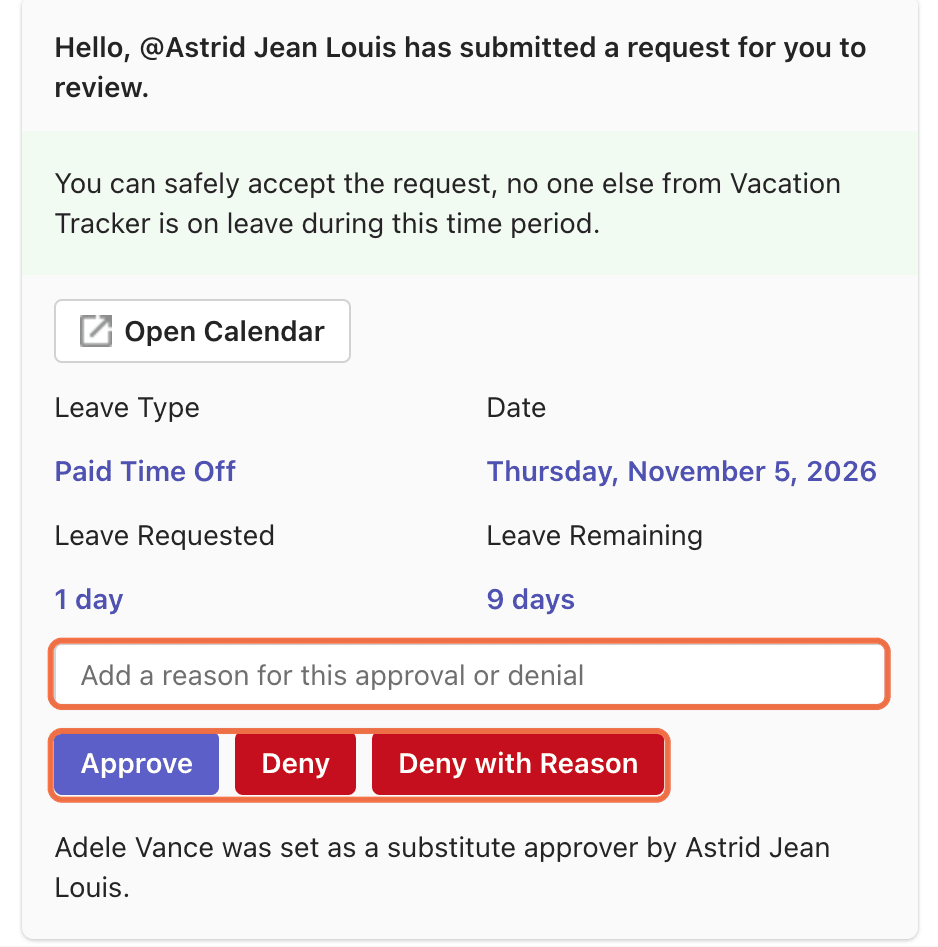
The message starts with Hello, @Name has submitted a request for you to review. and shows:
Whether anyone else from the Department is on leave during that time.
Leave Type, Date, Leave Requested and Leave Remaining.
Reason, if the person added one.
Open Calendar: opens the dashboard Calendar for that Department and those dates.
Answer the Request
In Teams, open the Vacation Tracker app chat.
Check the dates, the balance and who else is away.
To explain your decision, type it in Add a reason for this approval or denial.
Click Approve, Deny or Deny with Reason. Teams shows Your response was sent to the app.
Type the reason first
Deny with Reason uses the text in the reason box. If the box is empty, the request is denied without a reason.
After You Answer
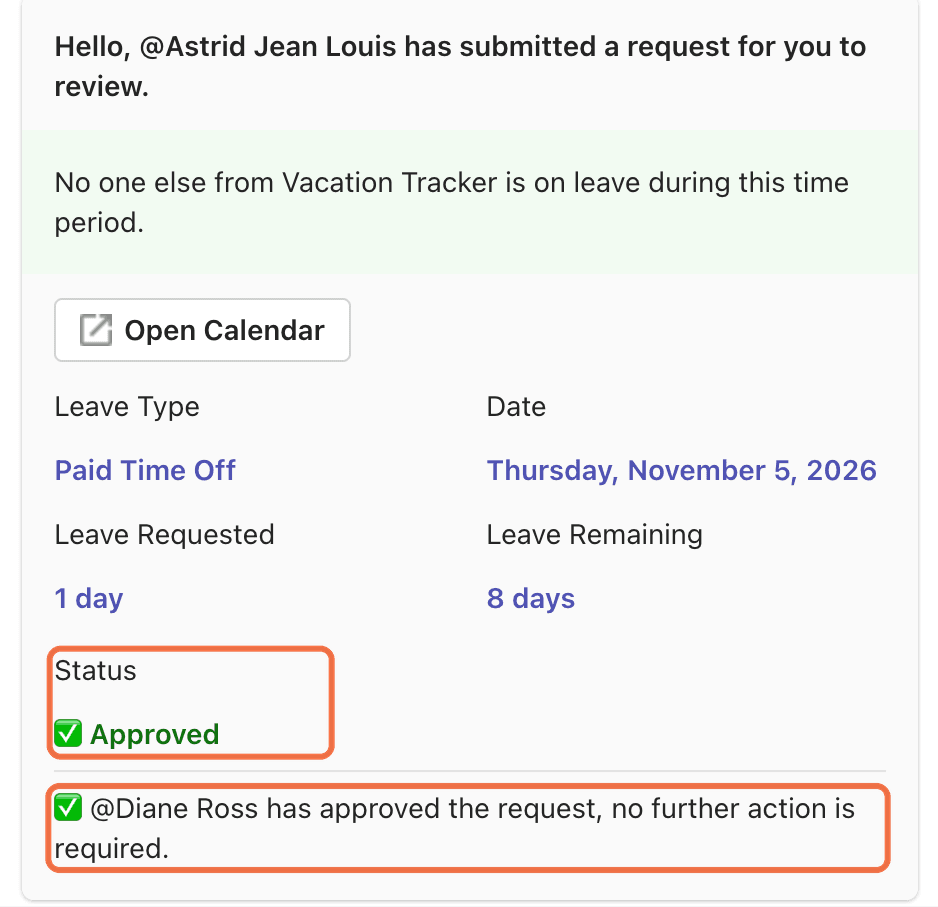
An updated copy of the message appears at the bottom of the chat, with the Status (Approved or Denied) and a line such as "@Name has approved the request, no further action is required."
Leave Remaining shows the new balance.
The request is no longer under Waiting on you in the dashboard.
Other Messages You'll Get
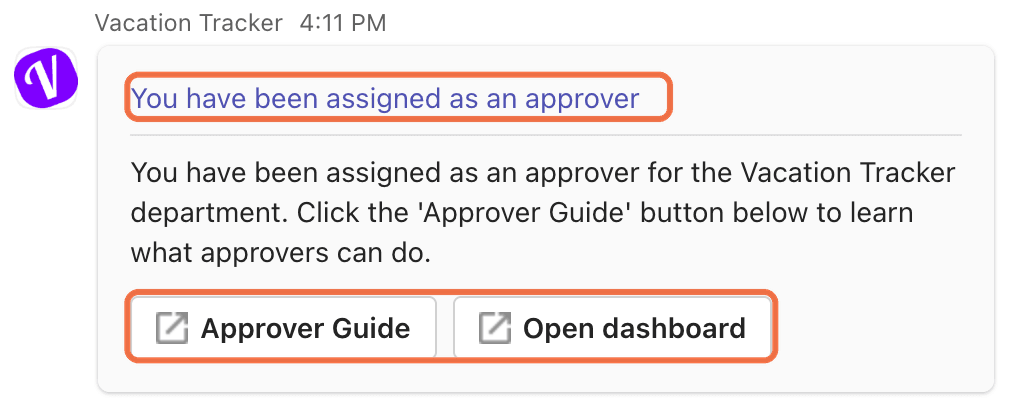
You have been assigned as an approver: sent when you're added to a Department, with Approver Guide and Open dashboard.
Edited: someone changed a request. The message shows the new dates and the original ones.
Canceled: the request card shows that it was canceled.
Reminder: up to three reminders if you haven't answered. Snooze holds back that one reminder for a short time.
Expired: "[Name]'s leave request has expired" when nobody answered in time.
Check It Worked
The updated message shows the status you chose, and the request is gone from Waiting on you on your Home page in the dashboard.
Common Questions
No. Approve, Deny and Deny with Reason all act straight away.
It depends on how your Administrator set up your Department. The request either stays open, or it expires after 7 working days or when the leave end date passes. You get a message when it expires.
Yes. Type a question in the chat, for example "who from my team is off this week?" The bot can't list the requests waiting on you, so use Waiting on you in the dashboard for that.




 Book a Call