



Last updated on October 23, 2026
User Training 4: Change or Cancel Your Leave (Slack)
Plans change. Edit the dates or reason of a request, or cancel leave you no longer need.
Find Your Leave
Go to My Profile and open the Leaves tab.
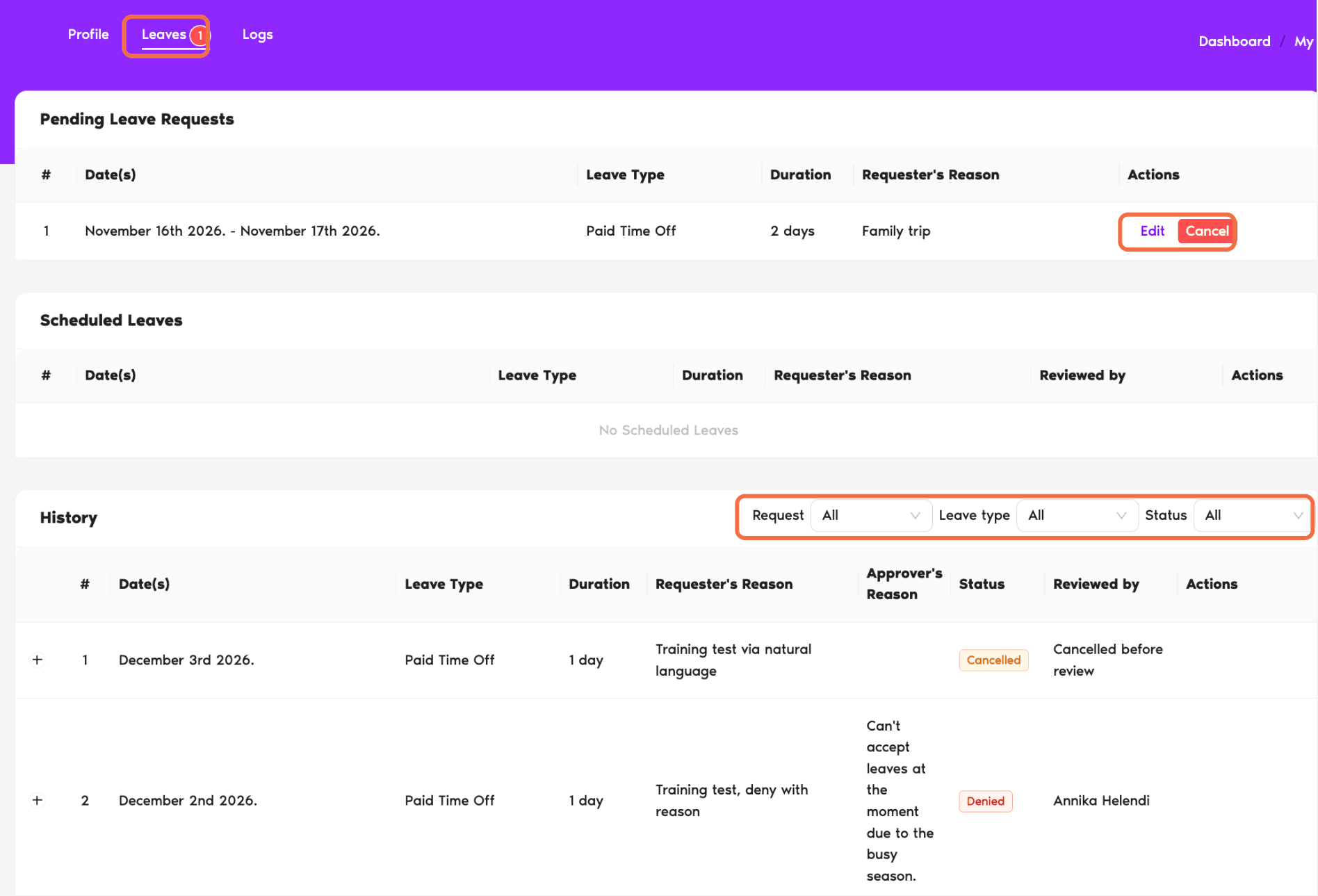
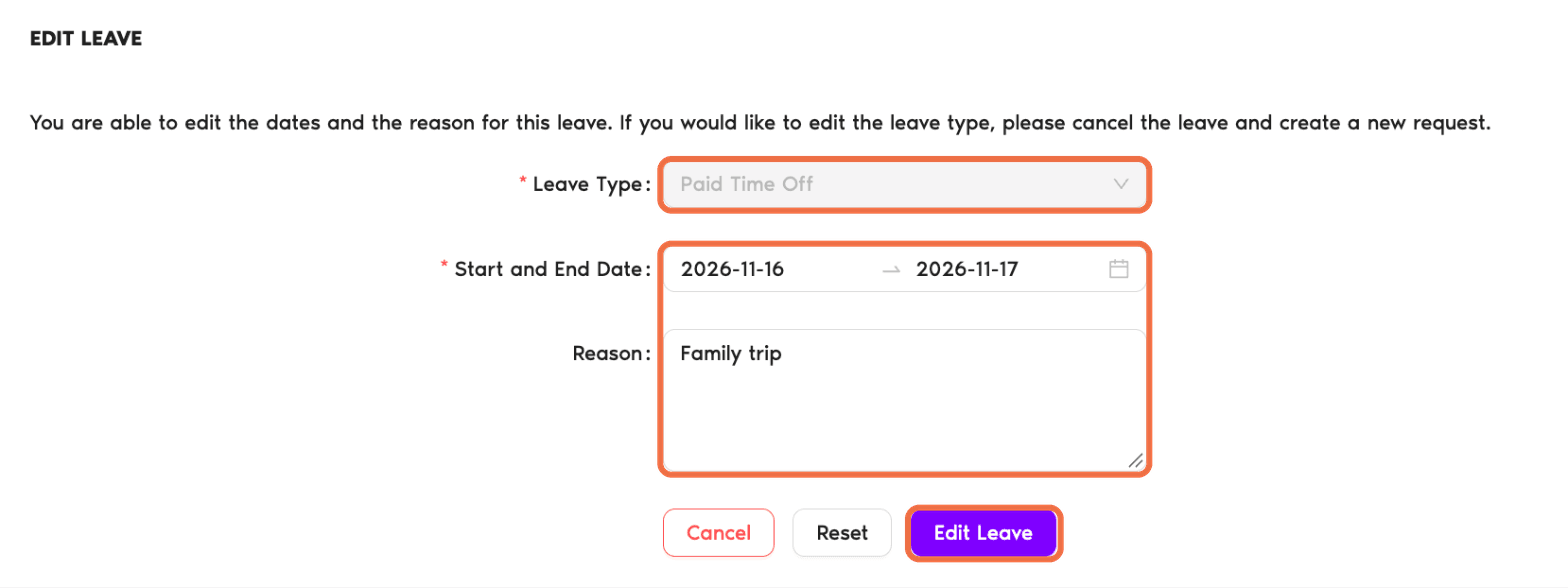
Change the Dates or Reason
- Click Edit next to the request.
- Change the dates or the reason.
- Click Edit Leave.
You can't change the leave type. Cancel the request and send a new one instead.
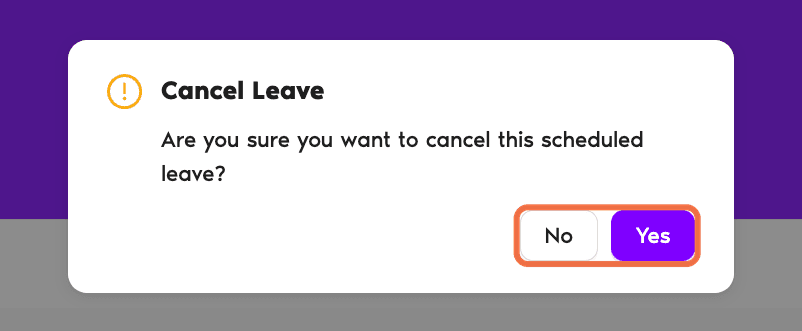
Cancel Leave
- Click Cancel next to the request.
- In Cancel Leave, click Yes.
You'll see Leave cancelled with the details and who your Approver(s) are.
Send an Expired Request Again
If nobody answered a request in time, it shows as Expired under History. Click Re-send request to send it again.
In Slack
Type /vacation, click See more options, then Manage Leaves. You'll see your upcoming leave and pending requests, with Cancel Request. To change dates, use the dashboard.
Check It Worked
The request shows the new dates, or it's listed under History as Cancelled.
Common Questions
No. Cancel the request and send a new one with the right leave type.
No. Vacation Tracker updates the request for them.
 Book a Call