



Last updated on October 23, 2026
User Training 1: Request Leave in Microsoft Teams
Request time off right from Microsoft Teams, using the Request Leave tab or the bot.
Open the Vacation Tracker app in Teams. It has Chat, Request Leave, My Profile and About tabs.
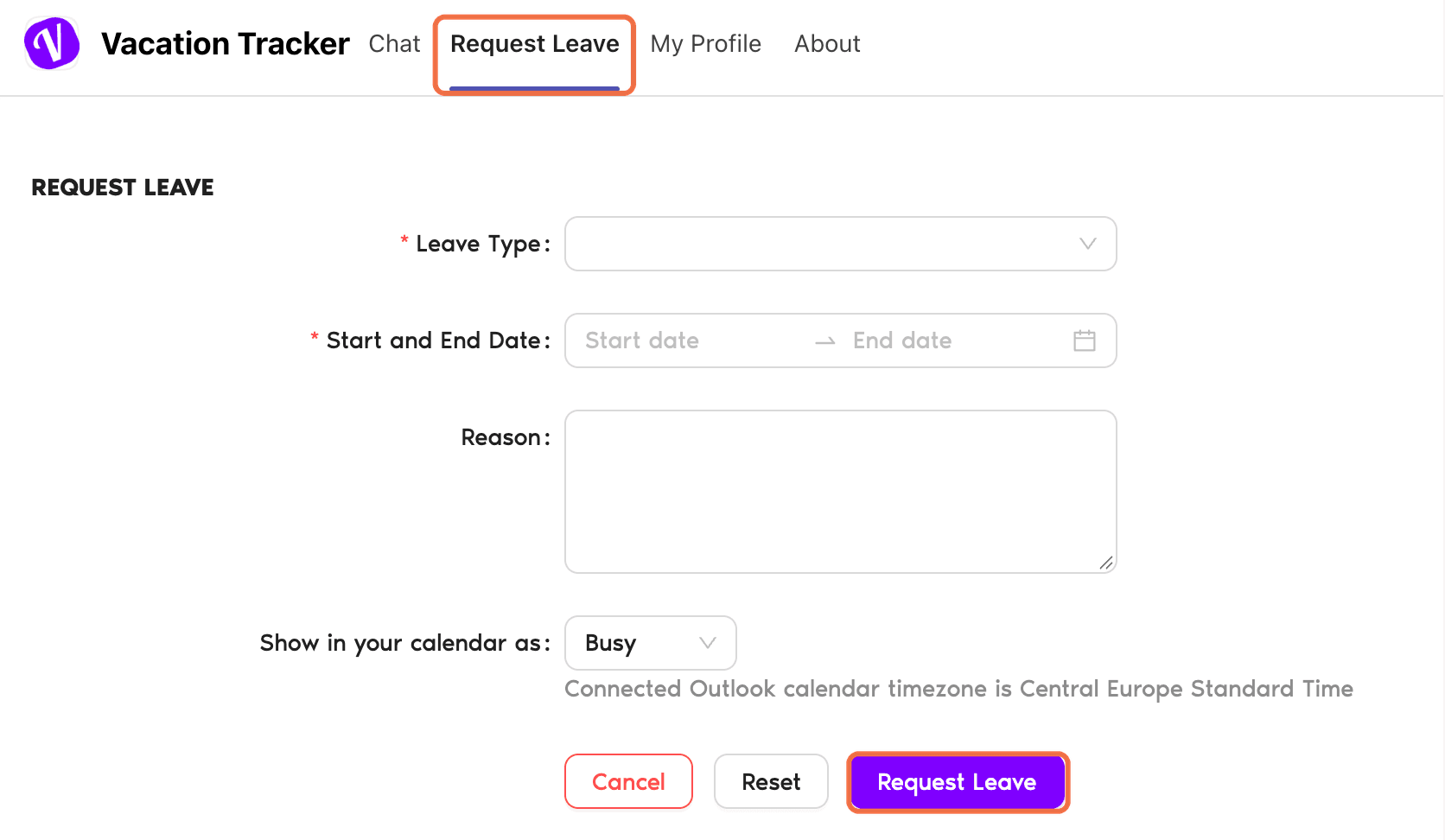
From the Request Leave Tab
- Go to the Request Leave tab.
- Choose the Leave Type, Start and End Date and add a Reason.
- Check who else is off and Your leave balance.
- Click Request Leave.
You'll see Request submitted.
From the Chat
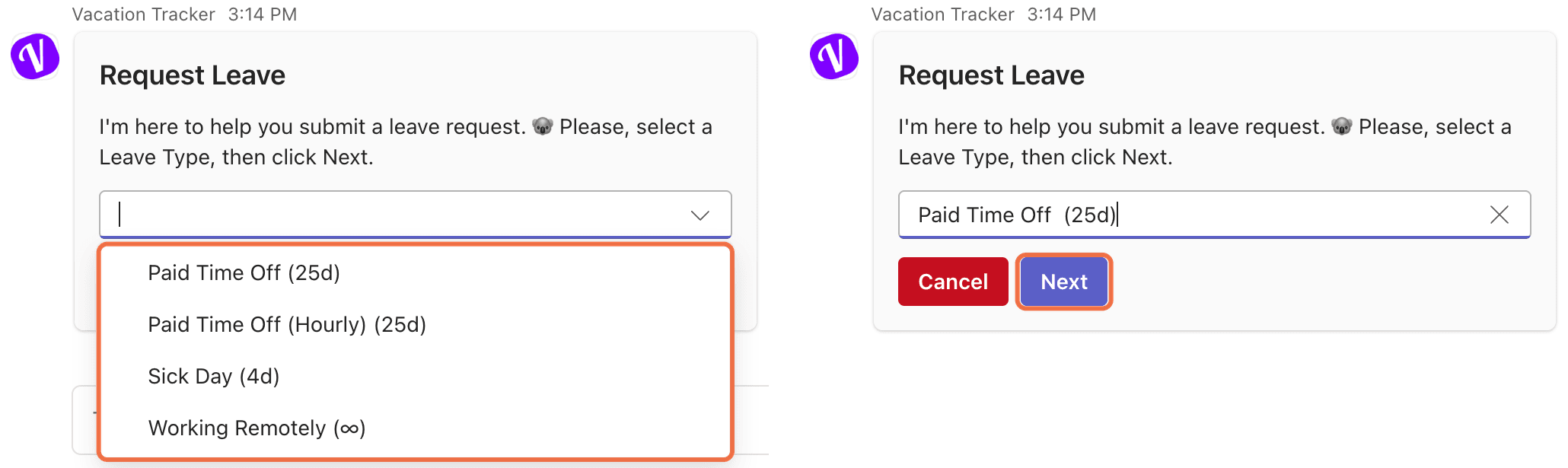
- In the Chat tab, type Request leave or click View prompts and choose Request leave.
- Choose a leave type. Each one shows your balance, for example Sick Day (5d). Click Next.
- Choose the Start Date and End Date, the calendar status, and add a reason if you want.
- Click Submit.
To request time off in lieu, type Request toil instead.
Check It Worked
The bot replies Your request is on its way to the approver with the details of your request.
Common Questions
Type Help. The bot lists what you can do and links to the dashboard and the Knowledge Base.
No. Use the dashboard. The confirmation card has an Open dashboard button.
 Book a Call