



Last updated on October 23, 2026
Admin Training 1: Connect Vacation Tracker to Microsoft Teams
Sign up with your Microsoft account, then add the Vacation Tracker app to Teams so your team can request and approve leave without leaving Teams.
Before You Start
Your Microsoft Teams settings must allow installing apps. If they don't, ask your IT admin to approve Vacation Tracker first.
Sign Up
- Go to app.vacationtracker.io/signup and click Sign up with Microsoft.
- Sign in with your Microsoft 365 account and approve the permissions.
- Enter your company details and click Continue.
- Choose who to import: everyone from your directory, or specific people. You can add more later.
- Click Continue, check the number of users, and start your free trial.
Add the App in Teams
- In Teams, click Apps in the left bar and search for Vacation Tracker.
- Open the app and click the arrow next to Add.
- Choose where to add it:
- Click Set Up Bot. The channel shows a message that the bot was added.
One install per team
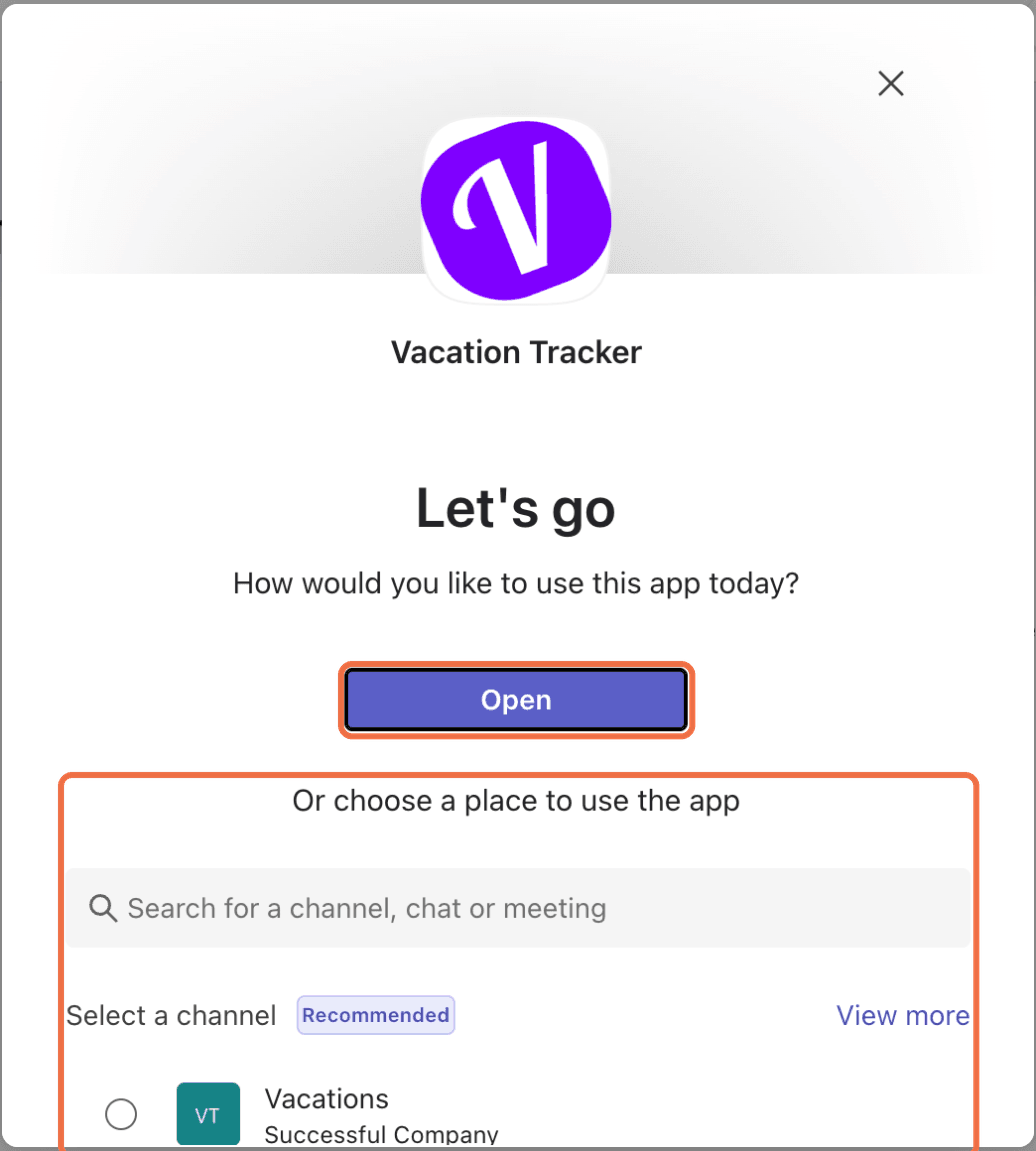
Add the app to each Team where you want Vacation Tracker. If the app is already added, the store shows Open and lets you choose a place to use it instead.Check It Worked
Common Questions
Under Apps, and in their chat list, where Vacation Tracker shows up as its own chat. The app has Chat, Request Leave, My Profile and About tabs.
 Book a Call