






Last updated on November 6, 2026
How Do I Respond to a Leave Request?
As an Approver (or Admin), where you respond to a leave request depends on which integration your workspace uses. Slack workspaces respond through the Slack bot. Microsoft Teams workspaces respond through the Teams bot. Google Workspace and Email Only workspaces respond via email. The dashboard is available to all four, and is always there as a fallback.
From Slack or Microsoft Teams
When someone in your Department submits a leave, the Vacation Tracker bot sends you a message containing the request details (requester, dates, leave type, reason) and three action buttons:
Click any of the three from the bot message, you don't need to open the dashboard. The bot also offers a Snooze action that suppresses the next reminder for this request without committing to a decision.
From Email
Email notifications are the response channel for workspaces on the Google Workspace and Email Only integrations. The email contains the request details and the same three action options (Approve, Deny, and Deny with Reason) as links. Clicking takes you to a confirmation page in your browser; confirm and you're done.
From the Dashboard
- Sign in at app.vacationtracker.io.
- On Home, switch the view to Team Calendar and look under Waiting on you.
- Each card shows who's asking, the Leave Type, the dates, how many days they'll be out of the office and their balance before and after the leave.
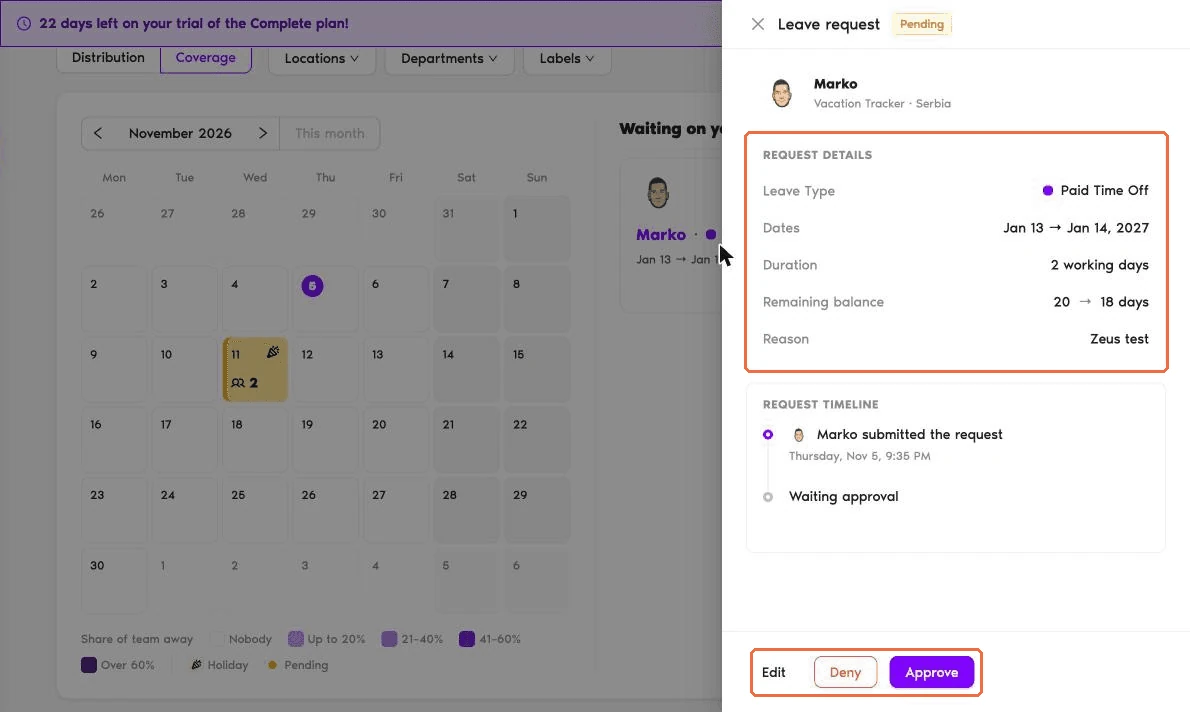
- Click a card to open the Leave request panel. It shows the request details (Leave Type, Dates, Duration, Remaining balance, Reason) and the request timeline.
- Click Approve, Deny or Edit, on the card or in the panel. Deny opens a Reason (optional) field. The requester sees the reason with the denial.
Reminders if You Don't Act
If you don't approve or deny within the reminder window, Vacation Tracker sends up to 3 reminders before the request auto-expires. The expiration timing depends on a few variables:
For the full breakdown, see Reminder Schedule and What happens if a leave isn't responded to right away?
Multi-Level Approvals
If the Department is configured with Multi-level Approval (Complete plan), each request moves through First Level, then Second Level, in sequence. Where you fit in depends on which level you're on:
So as a Second Level Approver: if a request lands on you, that's confirmation that First Level has already approved. Your job is the final yes/no. See How To Set Up Multi-Level Approvals for the full flow.
Common Questions
No. The bot, email, and dashboard all read and write to the same record. Approving from Slack or Teams updates the dashboard at the same time; the request disappears from Waiting on you the moment you act.
No. Expired requests are closed records, the buttons aren't available anymore. The User has to submit a new request for the same dates if they still want the time off.
Two possibilities. Either nobody in your Department has submitted a request lately, in which case nothing's wrong. Or you might not be assigned as an Approver on any Department. Open Departments and check that you're listed in the Approver(s) field of at least one. If you're on Multi-level and on Second Level only, you also won't see requests until First Level has acted on them.
Admins and Approvers: You can reach us via live chat Monday to Friday, 9 AM – 5 PM EST, or email us anytime at hello@vacationtracker.io.
 Book a Call