
Last updated on January 27, 2026
Connecting to a Shared / Existing Calendar
Push your team's approved leaves into a Google Calendar or Outlook calendar that already exists. Once connected, every approved request lands as an event on that shared calendar within minutes — no extra steps for the people who already check that calendar daily.
How to Open the Shared Calendar Settings
- Sign in at app.vacationtracker.io.
- In the left-hand menu, click Calendar.
- At the top of the Calendar page, click Sync with your calendar (Google, Outlook, etc.).
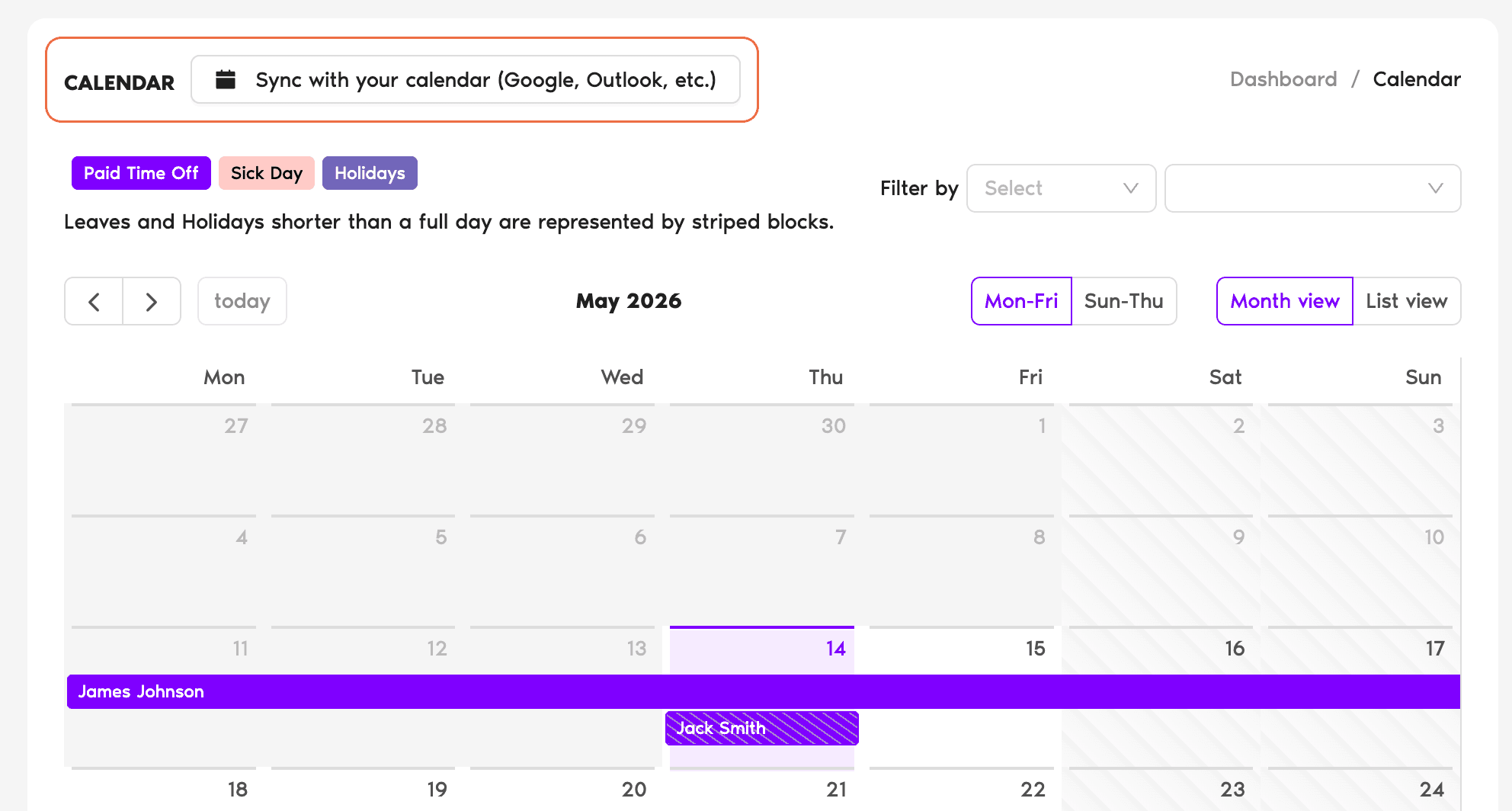
You'll land on the Sync Your Team Calendar page. It shows a table of every existing connection (yours and any external calendars currently being shared with you), plus a Connect Calendar button at the top-left for creating a new one.
Create a New Connection
- Click Connect Calendar. A small menu opens with three provider options:
- Pick the provider for the shared calendar you already have.
From here the flow splits by provider. Pick the one you're connecting to:
Google Calendar
Connecting to Google Calendar pushes Vacation Tracker leaves into an existing Google Calendar. You need to either own that calendar or have it shared with you with edit permissions. (Need a brand new calendar instead? Use the iCal option.)
- Click Connect your Google Calendar.
- Sign in with your Google credentials and approve the requested permissions.
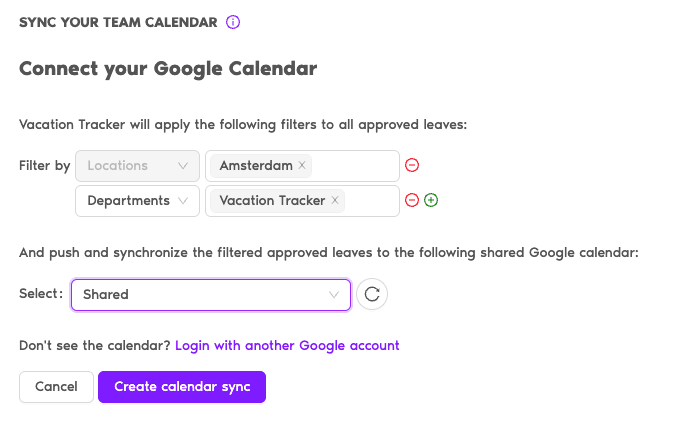
- Back in Vacation Tracker, the connection screen shows a Filter By row — optionally narrow the leaves that get synced by Locations, Departments, or Labels. Leave it blank to sync everything.
- Use the Select: dropdown to choose which existing Google Calendar to push leaves into. If the calendar you want isn't listed, click the refresh button next to the dropdown to pull a fresh list. If it lives in a different Google Workspace account, you can sign in with that other account to access its calendars.
- Click Create Calendar Sync. You'll see a confirmation when the connection is live.
Outlook Calendar
Same pattern, with Microsoft instead of Google. The shared/existing Outlook calendar must already exist; for a brand new one, use the iCal option.
- Click Connect your Outlook Calendar.
- Sign in with your Microsoft credentials and approve the requested permissions.
- Apply Filter By preferences (Locations, Departments, Labels) — optional.
- Pick the destination calendar from the Select: dropdown.
- Click Create calendar sync.
Filter By: What It Does
The optional Filter By step lets you scope which leaves go to a given calendar. You can mix and match these dimensions on the same connection:
Locations
Only sync leaves from Users assigned to specific Locations. Useful when one shared calendar covers a single office.
Departments
Only sync leaves from Users in specific Departments. Common for Department-specific calendars (e.g. Engineering's "Out of Office" calendar should only show Engineering leaves).
Labels
Only sync leaves from Users carrying the labels you pick (e.g. Full-Time, Contractor, Manager). Lets you slice across Departments and Locations.
Leaving every Filter By field empty means the connection syncs every approved leave from every User. If you want different views — e.g. one calendar per Department — create one connection per filter combination.
Manage and Disconnect Existing Syncs
Every connection on the Sync Your Team Calendar page is a row in the table with these columns:
To remove a connection, click the trash icon on the right-hand side of its row. Only the User who originally created the connection can fully disconnect it — when the creator removes it, Vacation Tracker stops pushing new events and removes all the leaves it had previously added to that calendar.
Common Questions
They solve different problems. Shared / Existing Calendar (this article) is a view-only push from Vacation Tracker into a team calendar — leaves appear as events for anyone subscribed to that calendar. Personal Calendar Connection blocks time on the requesting User's own calendar so meeting tools see them as out of office. See How Do I Connect My Personal Calendar to Vacation Tracker?
Within a couple of minutes. New approvals, edits, and cancellations on the Vacation Tracker side flow through to the shared calendar that quickly. There's no scheduled delay or daily batch.
Two things to try, in order:
1) Hit the refresh button next to the dropdown — it re-fetches the list immediately. New shares often need a refresh before they show up.
2) If the calendar lives in a different account (e.g. a Google Workspace different from the one you signed in with), the dropdown gives you the option to sign in with that other account to access the calendars there. Use that, then pick the shared calendar from the refreshed list.
 Book a Call