
Last updated on January 20, 2026
Adding a New Calendar (Using iCal Connection)
Vacation Tracker can generate a feed URL for your team's leaves, then any calendar app that speaks iCal — Google Calendar, Outlook, Apple Calendar, Notion, Fantastical, you name it — can subscribe to it. Unlike connecting to a calendar you already own, the iCal route creates a brand-new dedicated calendar in your client.
iCal vs. Shared / Existing Calendar — Pick the Right One
Both flows live behind the same Connect Calendar button on Vacation Tracker, so it's worth being clear on which you want before you start.
iCal (this article) — adds a NEW calendar
Vacation Tracker generates a URL. You paste it into your calendar app, which creates a brand-new subscribed calendar showing the leaves. Available on both Core and Complete, accessible to Admins, Approvers, and Users. Sync delay: up to 24 hours, controlled by Google / Microsoft on their end.
Shared / Existing Calendar — pushes into a calendar you already have
Vacation Tracker writes leaves as events into a Google or Outlook calendar you already own (or have both sharing and editing access to). Requires the Complete plan. Sync delay: a couple of minutes — much faster.
Generating the iCal URL in Vacation Tracker
- Sign in at app.vacationtracker.io.
- In the left-hand menu, click Calendar.
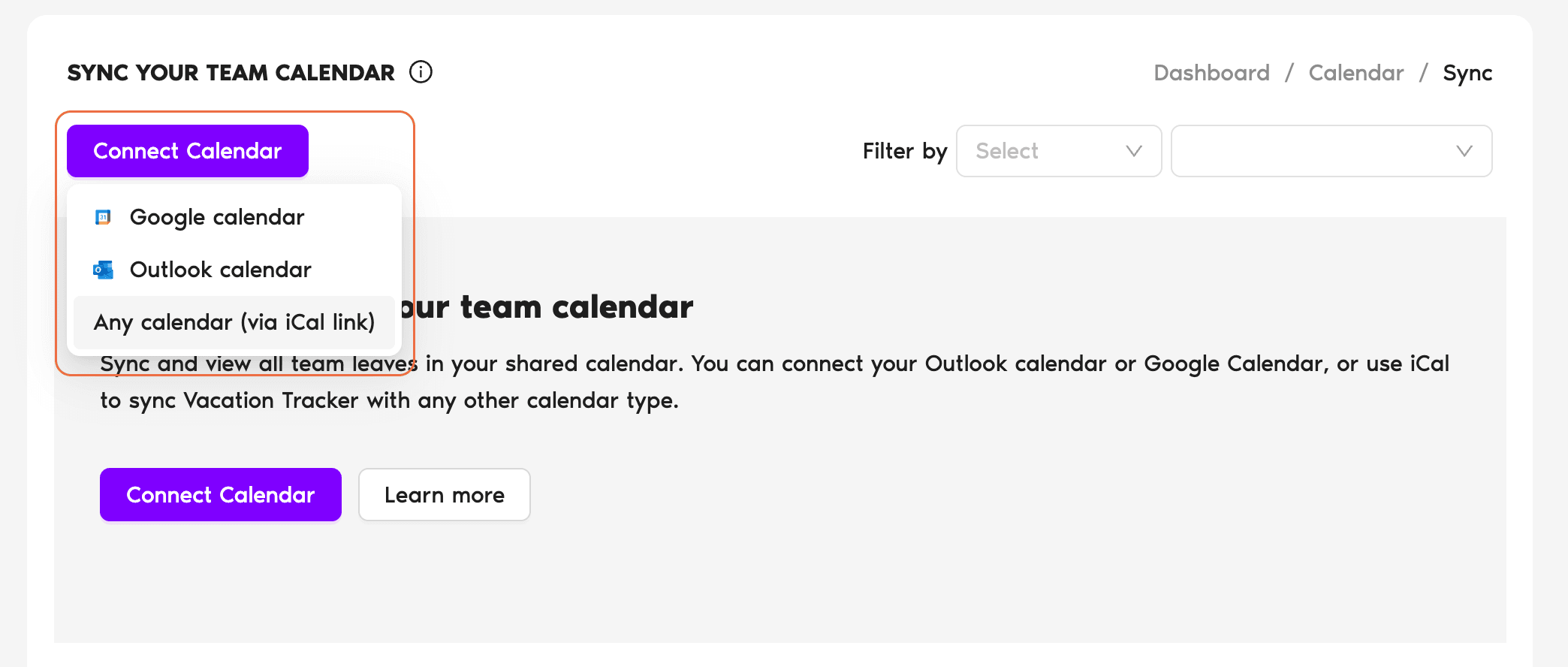
- At the top of the Calendar page, click Sync with your calendar (Google, Outlook, etc.). You're taken to the Sync Your Team Calendar page.
- Click Connect Calendar in the top-left and pick Any calendar (via iCal link) from the dropdown.
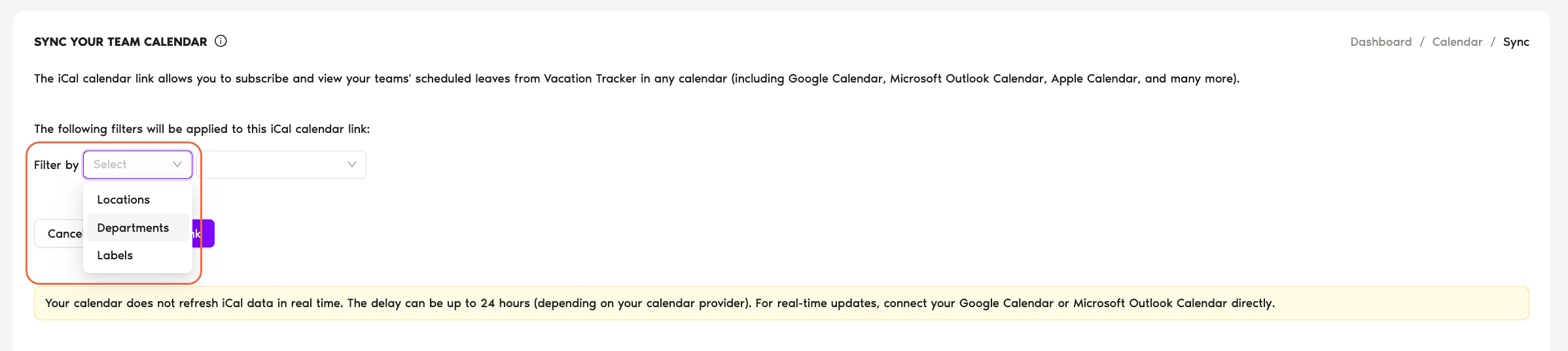
- (Optional) Use the Filter By field to limit which leaves the feed includes — by Department, Location, or Label. Leaving every filter empty means the feed covers every approved leave for the whole organization.
- Click Create iCal link. The next page shows a summary of what's included plus the generated URL.
Copy the URL and you're ready to add it to your calendar app.
Adding the URL to Your Calendar App
Once you have the iCal URL, the steps depend on which calendar app you're adding it to. Three of the most common:
Google Calendar
- Open Google Calendar.
- In the left sidebar, find Other calendars and click the + next to it.
- Choose From URL (sometimes labeled Add by URL).
- Paste the iCal URL Vacation Tracker gave you.
- Click Add calendar. Google imports the events — first sync may take up to 24 hours to populate.
Outlook (web / desktop)
- Sign in to Outlook and open the Calendar view from the bottom of the navigation pane.
- Choose Add Calendar → From Internet.
- Paste the iCal URL and confirm.
Apple Calendar (iCal)
- Open Apple Calendar on macOS.
- From the menu bar, choose File → New Calendar Subscription.
- Paste the iCal URL.
- Click Subscribe, give the calendar a name and color, and confirm. The events flow in.
What's Inside the Feed
The link works regardless of which integration your Vacation Tracker workspace uses. So a Slack-integrated workspace can hand the URL to a teammate who lives in Outlook, and it just works — there's no per-User authorization, no OAuth, just a public-but-unguessable URL.
Removing the Synced Calendar
Removal happens in two places, depending on what you want gone:
Common Questions
That refresh interval is set by Google and Microsoft, not Vacation Tracker. Both providers re-fetch external iCal feeds on their own schedule — typically every few hours up to a day — and Vacation Tracker doesn't have a way to push them to refresh sooner. If you need near-real-time updates, the Shared / Existing Calendar connection (Complete plan) propagates within a couple of minutes because it writes events into the calendar directly via API instead of relying on the consumer to poll a feed.
Technically yes — the URL works for anyone who has it, even if they don't have a Vacation Tracker account. That's useful for sharing to an external partner or a board member who needs visibility but doesn't need access to the dashboard. The trade-off is the URL is the access control: anyone with it can read the feed. Treat it carefully and recreate it if it leaks.
Yes. The feed is dynamic — it re-evaluates the filter against current data on every refresh. So if you add new Users to the Engineering Department, their leaves start showing up in an iCal feed that's filtered to Engineering. The filter scope is locked at creation; if you want to change the filter (e.g. switch from Engineering to All), you'd delete the existing connection and create a new one.
 Book a Call