
Last updated on July 3, 2026
How Do I Disable or Delete Notifications?
Two flavors of "off" for Team Notifications: disable pauses a notification without losing the configuration (handy for seasonal or temporary notifications), while delete removes it entirely. Both live on the Team Notifications page, both take a single click — but only one is reversible.
Disable a Notification
Disabling pauses the notification without losing any of its settings. Useful if you want to stop a notification temporarily — e.g. while a team is on a hiring freeze, or during a holiday period when nobody's around to read it.
- Sign in at app.vacationtracker.io.
- In the left-hand menu, under Team & Approval Flows, click Team Notifications.
- Find the notification you want to pause.
- Click the Active toggle on the left of that row. Purple means enabled; grey means disabled.
- That's it — the change saves automatically. No Save button to click.
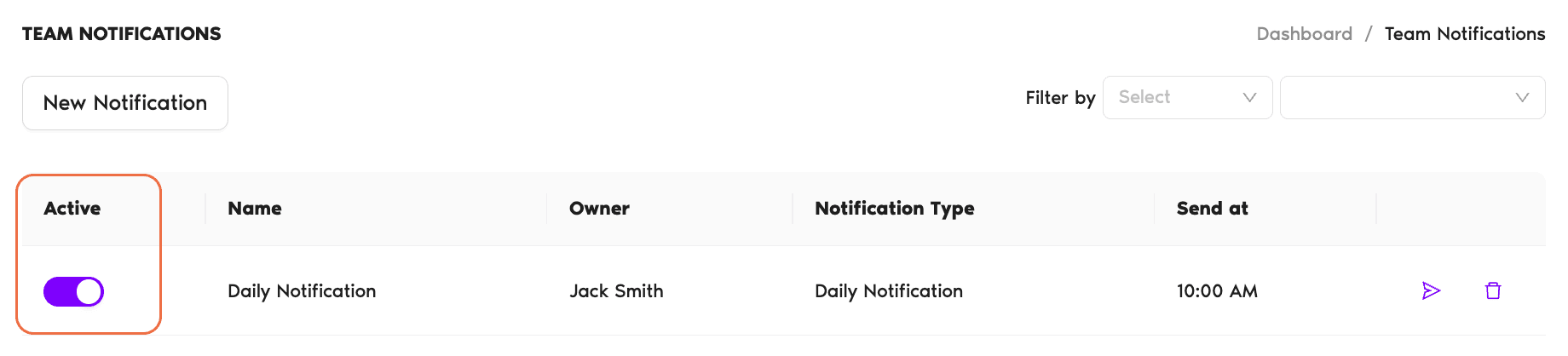
To turn the notification back on later, click the toggle again. The schedule, channel, filters, and everything else are preserved exactly as they were.
Delete a Notification
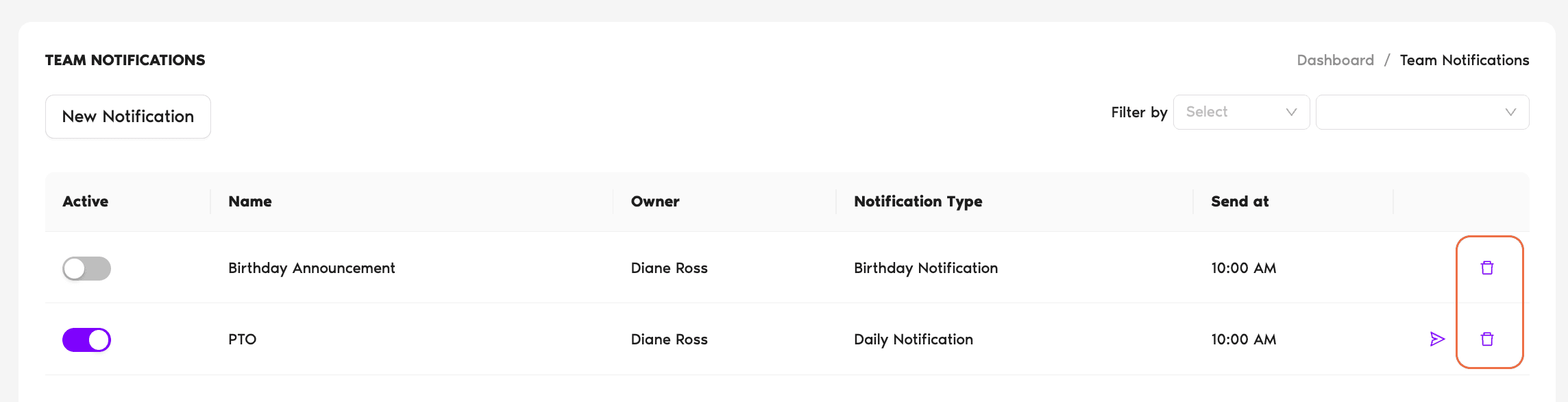
Deleting removes the notification permanently. The schedule, channel, filters — all of it — are gone. To bring it back you'd have to recreate it from scratch.
- Sign in at app.vacationtracker.io.
- In the left-hand menu, under Team & Approval Flows, click Team Notifications.
- Find the notification you want to remove.
- Click the trash icon on the right end of that row.
- Confirm if prompted — the notification is removed immediately.
Who Can Disable or Delete
Admins
Full control. Can disable, re-enable, or delete any notification, regardless of who originally created it.
Approvers
Limited to their own notifications. Can disable, re-enable, or delete only the notifications they personally created. Notifications created by an Admin or by another Approver are read-only for them.
Regular Users
No access. The Team Notifications page sits in the Admin/Approver-only section of the menu and isn't visible to regular Users.
Common Questions
Yes — disable is non-destructive. The notification stays on the Team Notifications page with all its configuration (schedule, channel, filters, language, etc.) preserved. Click the toggle back on whenever you want to resume.
No. Delete is permanent. If you want a temporary "off" without losing the configuration, use the disable toggle instead. If you've already deleted the notification, you'll need to recreate it from the New Notification form.
Approvers can only manage notifications they themselves created. Notifications set up by an Admin or by another Approver are read-only for you. If one needs to be removed and you're not the owner, ask an Admin or the original creator to handle it.
 Book a Call