
Last updated on February 13, 2026
How Do I Import Users Profile Data?
Bulk-update User profiles in Vacation Tracker — Department, Location, Start/End dates, Employee ID, and Birthday — by uploading a spreadsheet, instead of clicking through profiles one by one.
What Gets Imported
Vacation Tracker pulls basic info from your workspace directory: first name, last name, and avatar. The User Profile Data import handles everything else — fields the directory doesn't carry, or fields you want to populate at scale:
It's much faster than editing each User profile by hand — especially right after onboarding, after a reorg, or when you're cleaning up old data.
Before You Start
You need Admin access in Vacation Tracker. Approvers and Users won't see the Bulk Uploads option in the menu.
Steps
- Sign in at app.vacationtracker.io as an Admin.
- In the left menu, expand Workspace Settings and click Bulk Uploads.
- On the Bulk Uploads page, click View on the User Profile Data card.
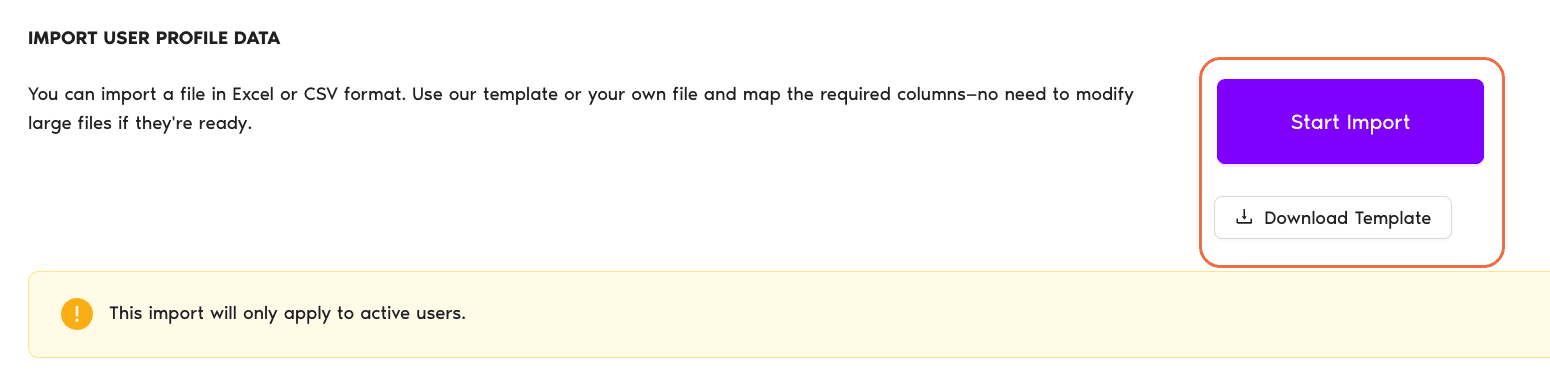
- Click Download Template to grab a file with the correct headers.
- Open the template, fill in one row per User you want to update, and save.
- Back on the User Profile Data page, click Start Import.
- Walk through the wizard: drop or select your file → Select header row → Match Columns → Validate data → Confirm.
Fields in the Template
| Field | Required | Notes |
|---|---|---|
| Mandatory | The match key — must match the email on file in Vacation Tracker. | |
| Department | Optional | Must match an existing Department name exactly. |
| Location | Optional | Must match an existing Location name exactly. |
| Start Date | Optional | Employment start date. |
| End Date | Optional | Employment end date — leave blank for active Users. |
| Employee ID | Optional | Free-text. Used for integration with other systems. If using Excel, format the cell as Text so leading zeros aren't truncated. |
| Birthday | Optional | Format: YYYY-MM-DD |
The 4-Step Wizard
- User Profile Data — drop your file or click Select file. Accepts
.xlsx,.xls,.csv. - Select header row — confirm the first row of your file is the header.
- Match Columns — map your file's headers to Vacation Tracker fields. With our template, columns match automatically.
- Validate data — fix any rows the wizard flags in red, then click Confirm.
 Book a Call