
Last updated on June 10, 2025
How Can I Import My Leave Data into Vacation Tracker (Leave Data Import)?
If you're switching from another tool or starting Vacation Tracker mid-year, the Leaves import lets Admins bulk-load existing leave history. Use the pre-built template or upload your own spreadsheet and map the columns.
Where to Find Bulk Uploads
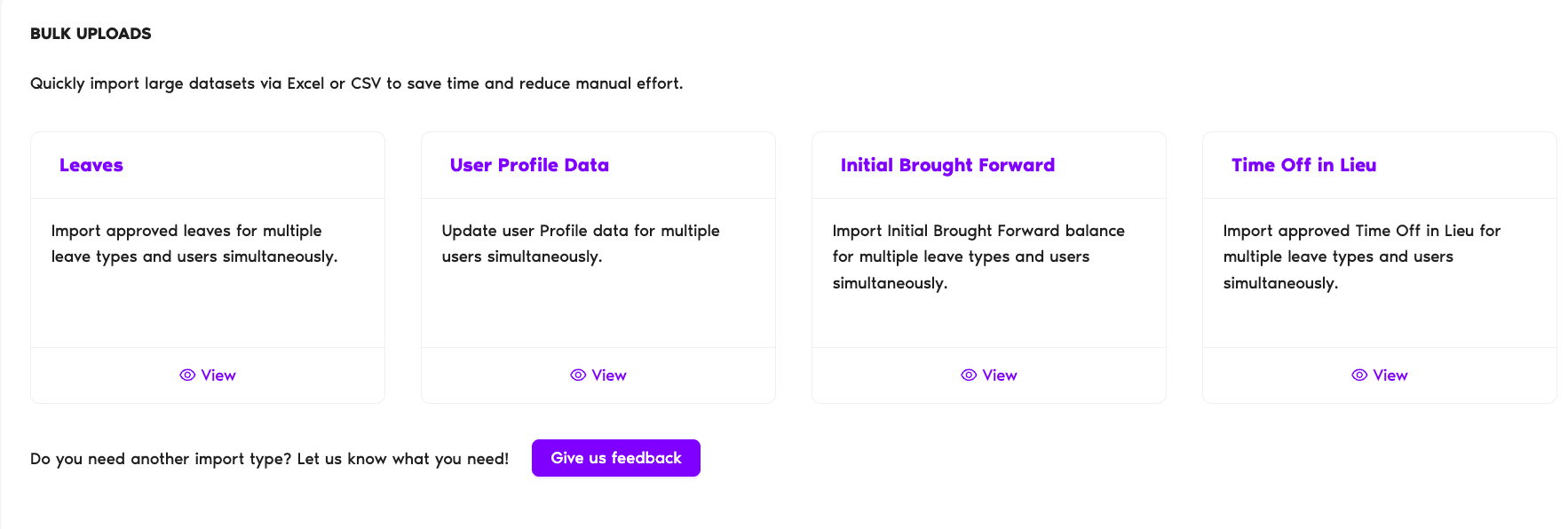
The import lives under Workspace Settings → Bulk Uploads in the left menu. Only Admins see this option. The Bulk Uploads page shows four import cards:
Before You Start: Prep Checklist
Set up your workspace properly first — the import is only as accurate as the structure it lands in.
- All Users you want to import for are active
- Your Leave Types are configured (the import references them by exact name)
- Your Locations are created and Users are assigned to them
- Your Departments are created and Approvers are assigned
- Your Holidays are imported into each Location
For each prerequisite:
How to Get to the Leaves Import
- Sign in at app.vacationtracker.io as an Admin.
- In the left menu, expand Workspace Settings and click Bulk Uploads.
- On the Bulk Uploads page, click View on the Leaves card.
- From there: click Download Template to use our pre-built file, or click Start Import if you've already prepared your own file.
Two Ways to Import
Use our template — easiest path. The template ships with the correct headers and column mapping already in place. Download it, paste your leave history into the rows, save, and upload.
Use your own file — for when you've already exported leave data from your old HRIS or PTO tool. Your file must have a header row, and you'll need to map each of your columns to a Vacation Tracker field during the upload.
Either way, see the dedicated guides for the full walkthrough:
 Book a Call