
Last updated on January 20, 2026
How Do I Set an Administrator within Vacation Tracker?
An Administrator has full access to your workspace's settings — Locations, leave policies, billing, integrations, the lot. Promoting a User to Admin takes about ten seconds: open their profile, edit, switch the Role dropdown to Administrator, save. The same form is where you'd revert them later if needed.
Promote a User to Administrator
- Sign in at app.vacationtracker.io.
- In the left-hand menu, under Team & Approval Flows, click Users.
- Find the user you want to promote (use the search field at the top if your team is large) and click their name to open the profile.
- In the User Profile box at the top of the profile, click Edit in the upper-right corner. The Update User modal opens.
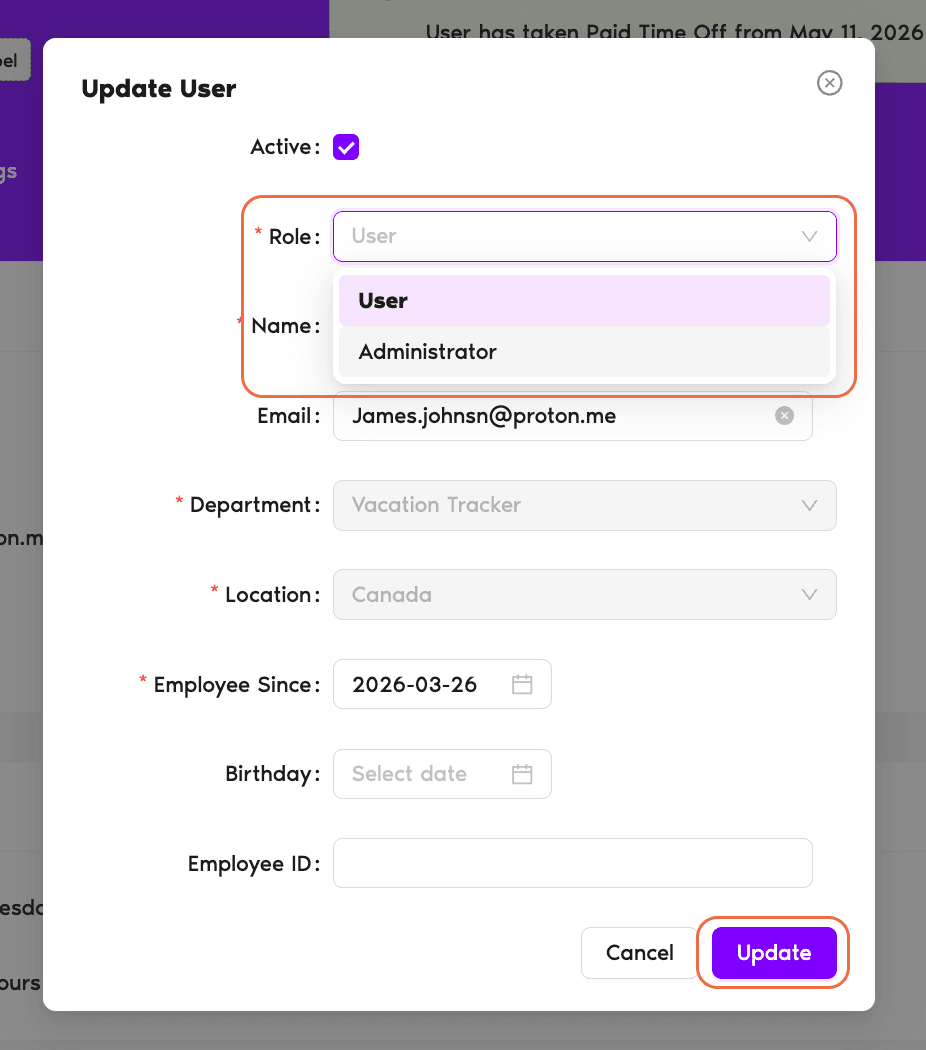
- In the modal, open the Role dropdown and select Administrator. The other fields (Name, Email, Department, Location, Employee Since, Birthday, Employee End Date, Employee ID) can stay as-is — you only need to touch Role.
- Click Update at the bottom of the modal to save.
Reverting an Admin Back to User
The path is identical — open the user's profile, click Edit, change Role from Administrator to User, click Update. Same form, same workflow.
Common Questions
Existing Administrators. Approvers and regular Users can't change roles — the Edit button on a user's profile is restricted to Admin-level access.
There's no hard limit. You can have one Admin or twenty. Most teams keep two or three so account access doesn't depend on a single person being available, but the system doesn't restrict the count.
An Admin manages the workspace's settings — Locations, leave policies, leave types, billing, users. An Approver acts on leave requests for the Department(s) they're assigned to. They're independent: someone can be one, the other, or both. Promoting to Admin doesn't grant approval rights, and being an Approver doesn't grant settings access.
 Book a Call