
Last updated on February 13, 2026
How Do I Set an Approver within Vacation Tracker?
Approvers are the people who sign off on leave requests for a Department. Setting one takes about thirty seconds — you edit the Department and add the User or Admin into the Approver(s) field. You can add as many as you need, mix Users with Admins, and assign the same person across multiple Departments.
Set an Approver on a Department
The Approver role is configured per Department. If you want the same person to handle approvals across several Departments, add them to the Approver(s) field on each one — they can be assigned to as many as you need.
- Sign in at app.vacationtracker.io.
- In the left-hand menu, under Team & Approval Flows, click Departments.
- Find the Department you want to update, hover its row, and click the three-dot menu (...) on the right. Select Edit Department.
- In the Approval Flow section, click into the Approver(s) field and start typing the name of the User or Admin. Pick them from the suggestions that appear.
- Repeat for any additional Approvers. Each person shows as a removable chip with an × next to their name, so you can add or remove without reopening menus.
- Scroll to the bottom of the form and click Update Department to save.
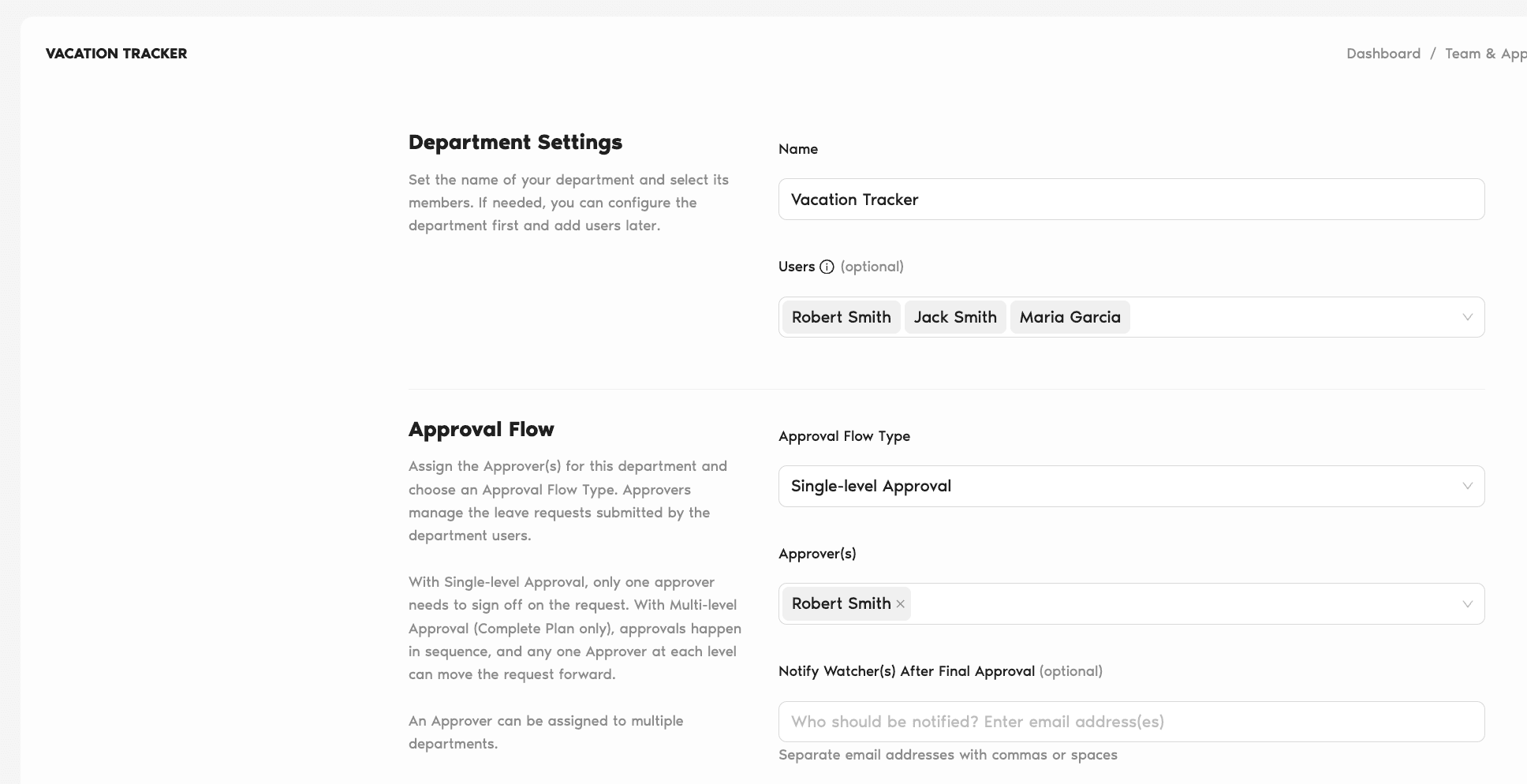
Choosing an Approval Flow Type
Right above the Approver(s) field, the Approval Flow Type dropdown controls how multiple Approvers interact.
Single-level Approval (default)
Only one Approver needs to sign off on each request. If the Department has three Approvers, any one of them can approve or deny — whichever acts first. This is the standard setup and works on every plan.
Multi-level Approval (Complete plan only)
Approvals happen in sequence. Each level is its own Approver group, and the request moves to the next level once someone at the current level approves. At any given level, any Approver in that group can move the request forward.
Remove or Change an Approver
The same path covers removals and swaps. Open the Department's three-dot menu, pick Edit Department, click the × on the chip of the person you're removing (and/or type in a new name), then click Update Department.
Common Questions
Admins. The Departments page and the Edit Department form are in the Admin-only Team & Approval Flows section of the left menu, so regular Users and Approvers don't see them.
Yes — the Edit Department form states this explicitly: "An Approver can be assigned to multiple departments." Add them to each Department's Approver(s) field and they'll receive approval requests from every one of those Departments.
Yes. The Approver(s) field suggests any active User or Admin in the workspace. Admins don't get auto-assigned as Approvers — you pick them the same way you'd pick a regular User.
 Book a Call