
Last updated on February 13, 2026
How To Set Up Multi-level Approvals
Some leave requests need more than one set of eyes. A direct manager might sign off on the day-to-day, and a department head or Operations lead needs to validate anything bigger or longer. Vacation Tracker's Multi-level Approval flow lets you route each request through two sequential levels — second level only sees it once the first has approved.
Switch a Department to Multi-level Approval
- Sign in at app.vacationtracker.io.
- In the left-hand menu, under Team & Approval Flows, click Departments.
- On the Department you want to configure, click the three-dot menu (...) and pick Edit Department.
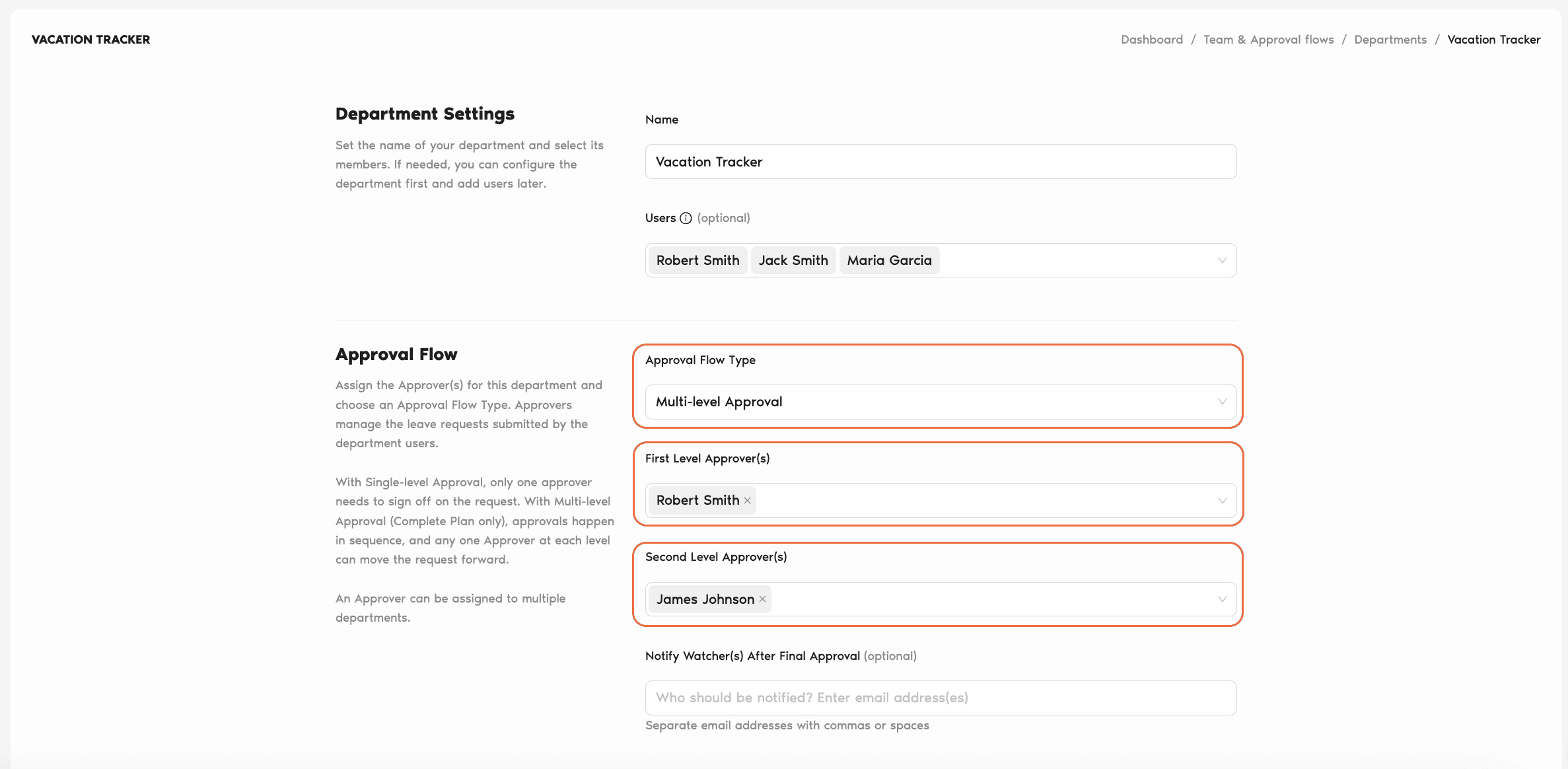
- Scroll to Approval Flow, open the Approval Flow Type dropdown, and choose Multi-level Approval. The Approver(s) field is relabelled First Level Approver(s), and a new Second Level Approver(s) field appears right below it.
- Add one or more people to First Level Approver(s) — these are the people who see each request first.
- Add one or more people to Second Level Approver(s) — these are the people the request advances to once the first level has approved.
- Optionally add email addresses to Notify Watcher(s) After Final Approval — these are copied once the full chain is complete.
- Click Update Department at the bottom to save.
How Multi-level Flow Actually Works
Once Multi-level is set up, leave requests submitted for that Department move through two stages, in order.
1. First level is notified
When a user in the Department submits a leave request, only the First Level Approver(s) are notified. Any one of them can approve or deny. The second level sees nothing yet.
2. First level decides
If any First Level Approver denies the request, it's rejected immediately — the second level is never notified. If any First Level Approver approves, the request advances to the next level.
3. Second level is notified
The Second Level Approver(s) now get the notification, along with context about who approved at the first level. Any one of them can approve or deny.
4. Second level decides (final)
If approved at this level, the leave is fully approved — quotas are deducted, calendars are updated, Watchers (if any) are notified, and the user receives their confirmation. If denied, the request is rejected.
What Users and Approvers See
On the request side, the submission flow doesn't change at all — users pick dates, Leave Type, and reason the same way. The difference is in the notifications and the approval queue:
Going Back to Single-level
If Multi-level isn't working out, you can revert it in the same form. Edit the Department, open the Approval Flow Type dropdown, pick Single-level Approval, and the Second Level field is hidden again. The Approver(s) field holds whoever was at the first level. Click Update Department to save.
Common Questions
Not currently. The Approval Flow Type tops out at two levels — First Level and Second Level — and there isn't a way to extend it. Subdepartments don't help here either: each subdepartment runs its own independent approval flow with its own First/Second Level Approvers, so nesting Departments doesn't chain approvals together. If you need three or more sign-offs, the cleanest option is the Notify Watcher(s) After Final Approval field on the Department, which loops in additional people on completion as a notification rather than a hard gate.
The request is rejected and the Second Level is never notified. There's no way for the Second Level to override a denial from the First Level — a rejection at stage one ends the chain.
No. Within a single level, any one Approver can move the request forward. Put three people on First Level and the first one to act decides — the other two don't need to also weigh in. This is the same logic as Single-level Approval with multiple Approvers.
 Book a Call