
Last updated on October 10, 2025
How Do I Hide a Requested Leave Type Name?
Some leave types are more personal than others — Sick Day, Mental Health Day, Bereavement. The Hide Leave Type setting lets you keep the type of leave private while still showing that someone is away. Admins, Approvers, and the requester always see the full picture; everyone else just sees that the person is out.
How to Turn On Hide Leave Type
This setting sits on each leave policy, which means you configure it per Location, per Leave Type. You could hide Sick Day on every Location but leave Vacation visible — the toggles are independent.
- Sign in at app.vacationtracker.io.
- In the left-hand menu, expand Leave Setup and click Locations.
- On the Location you want to configure, click Edit Leave Policies.
- Find the leave policy you want to hide and click the edit (pencil) icon on its row.
- In the policy editor, tick the Hide Leave Type checkbox.
- Click Update at the bottom of the page to save your changes.
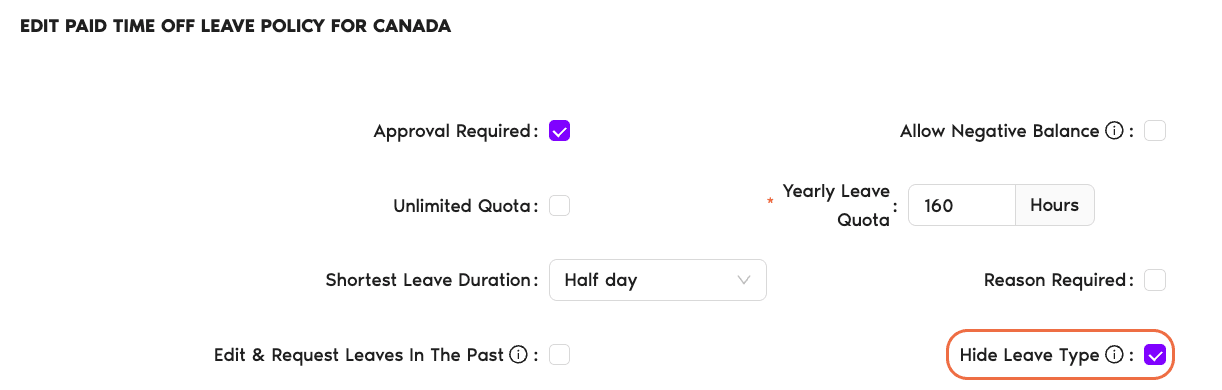
Who Sees What
Once Hide Leave Type is on for a given leave policy, here's how visibility breaks down across your team.
Regular Users (teammates) Hidden
See only that the person is away — no leave type name on the Calendar, no leave type in notifications. The informational pop-up on the Calendar no longer reveals what the leave was.
The Requester Visible
Always sees their own leave type in full. Hiding it from others doesn't hide it from the person who submitted the request.
Approvers Visible
Need to know what they're approving — they still see the leave type on the request and in approval notifications.
Administrators Visible
Retain full visibility across the Dashboard, Calendar, and reports. The setting is about regular-user privacy, not admin oversight.
When to Use It
A few patterns that tend to work well:
Common Questions
No. Teammates still see that the person is away on that date — only the leave type name is hidden. The pop-up that normally shows what kind of leave it is simply doesn't include that detail anymore for regular users.
Three groups: Administrators, Approvers, and the requesting User. Everyone else sees only that the person is out, not why.
Yes — the hiding applies to the Calendar view inside Vacation Tracker and to notifications sent out to regular users. Admins and Approvers still receive the details in their own notifications.
 Book a Call