
Last updated on January 27, 2026
How Do I Set Notifications Within Vacation Tracker?
Notifications keep your team in the loop on who's away — without anyone needing to check a calendar or ask. Pick a Slack channel, Microsoft Teams channel, or a list of email addresses, set a daily or weekly schedule, and Vacation Tracker handles the rest. The whole thing is configured under Team Notifications, lives at the workspace level, and takes about a minute to set up.
Who Can Set Notifications
Both Admins and Approvers can create Team Notifications. Each notification is owned by whoever created it, and the rules for editing or deleting are role-based:
Create a Notification
- Sign in at app.vacationtracker.io.
- In the left-hand menu, under Team & Approval Flows, click Team Notifications.
- Click New Notification at the top of the page. A dropdown opens with the available notification types — pick Daily/Weekly Notifications.
- Fill out the form (covered field-by-field below).
- Click Create Notification at the bottom to save. Cancel exits without saving; Reset clears the form back to defaults.
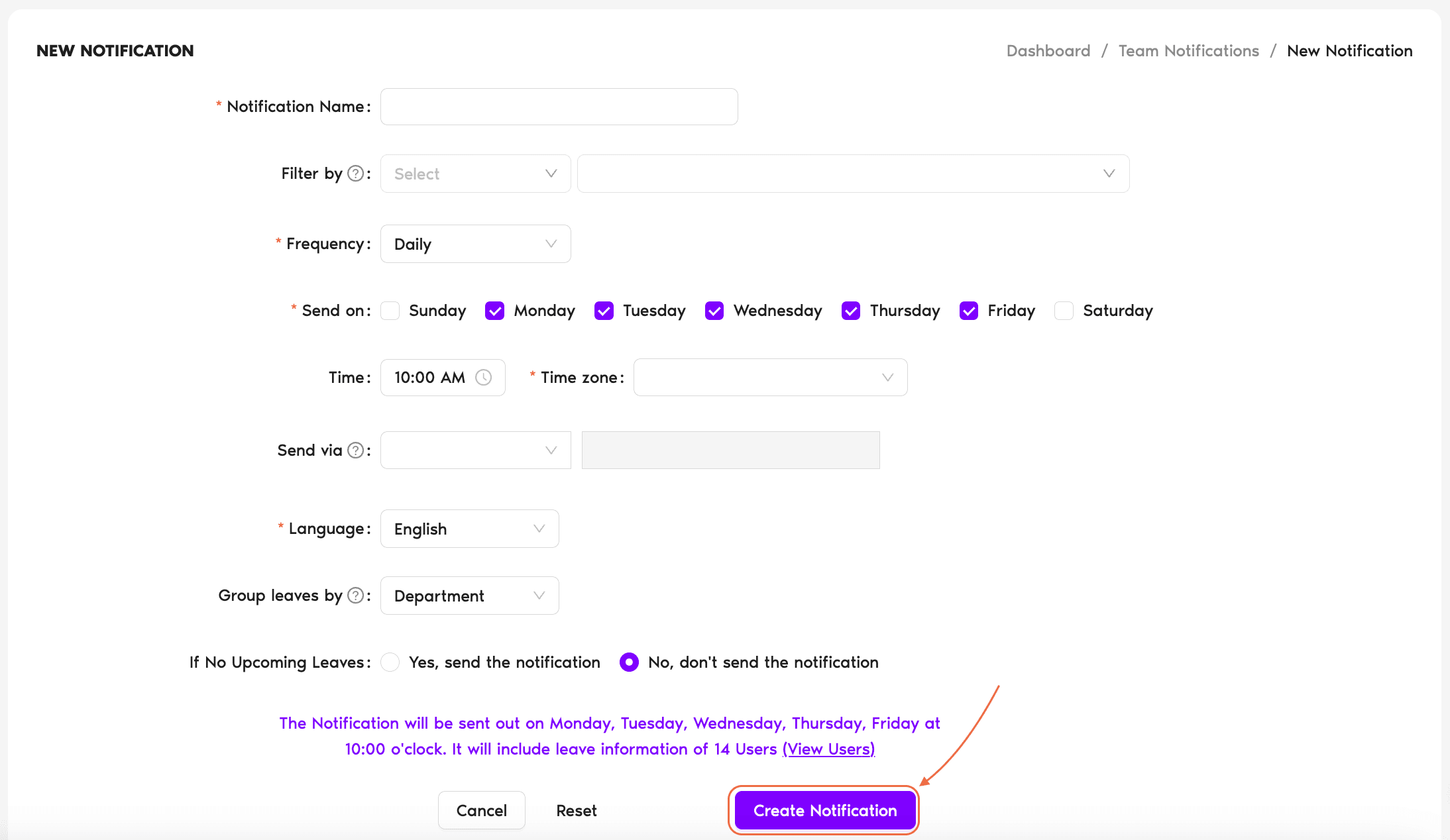
Field-by-Field
Notification Name
A label for your reference only. Visible on the Team Notifications page so you can tell similar notifications apart — your team won't see it in the actual delivered notification. Examples: "Daily team standup", "Sales weekly digest", "HR Friday roundup".
Filter By
Picks the slice of users the notification covers. The first dropdown chooses the filter type, the second lets you pick one or more values within that type. You can mix and match by adding multiple filter rows.
Frequency
How often the notification is sent.
Daily
Reveals a Send on row with checkboxes for each day of the week. Tick the days you want a notification on (Monday–Friday is selected by default). The notification fires once per ticked day at the time you set.
Weekly
Sends once a week. You'll get options to pick the day the week starts on, which day of the week the notification is sent on, and whether the leave information should cover the Current Week or Next Week. Pick Next Week if you'd rather see what's coming up — useful for planning.
Time and Time Zone
The clock-time at which the notification is sent and the time zone that applies. The default is 10:00 AM. Leave time zones unset and the notification will use your workspace default; otherwise pick a specific zone if you want it to fire on a specific local time for the recipients.
Send Via
Where the notification is delivered. Options depend on the integration your workspace uses:
Language
The language the delivered notification is rendered in. Defaults to English. Useful if your team uses Vacation Tracker in a different primary language.
Group Leaves By
Controls how the leaves are grouped inside the notification body.
If No Upcoming Leaves
Tells Vacation Tracker what to do on a quiet day. Two options:
After You Save
The new notification appears on the Team Notifications page with columns for Active, Name, Owner, Notification Type (Daily Notification or Weekly Notification), and Send at. Each row has actions:
Other Notification Types
The New Notification dropdown also surfaces a couple of additional notification types:
Birthday Notifications
Sends a celebratory notification on each user's birthday. Setup follows a similar form (filters, time, send-via channel) — pick this option from the New Notification dropdown to configure it.
Anniversary Notifications (Coming soon)
Marked as Coming soon in the dropdown. Will recognize work anniversaries the same way Birthday Notifications recognize birthdays. Watch the changelog for the launch.
Plan Differences
Common Questions
No. Only Admins and Approvers can create notifications. The Team Notifications page sits in the Admin/Approver-only Team & Approval Flows section of the menu.
Leave reminders are automated nudges sent to Approvers about pending leave requests they haven't acted on yet (the system runs them on a fixed schedule and they can't be disabled). Team Notifications are scheduled digests about approved leaves, sent to whichever channel or inbox you choose. Different audience, different content, different control level.
Yes. Each notification is independent, so you can run a daily one for the Sales channel, a weekly one for the leadership team, and a separate one for HR — all at once. Each shows up as its own row on the Team Notifications page with its own toggle, owner, and settings.
 Book a Call