Last updated on May 7, 2026
Can I choose which leave types have the Out of Office (OOO) message?
Yes. The Automatic Out-of-Office (OOO) Reply runs on a per-Leave-Type allow list that each User controls themselves from their own settings. By default it covers every active leave type, but you can drop the ones that don't make sense for an OOO autoreply (Working from Home, half-day medical, etc.) so you only get prompted to set up an OOO message for the absences that actually warrant one.
How to Open the Setting
- Sign in at app.vacationtracker.io with your own account.
- Go directly to app.vacationtracker.io/app/settings/personal, or click your avatar (or the Vacation Tracker logo, depending on integration) and choose Personal Settings.
- On the Account Settings tab, scroll to the Configure Automatic Out-of-Office (OOO) Reply section.
The section header on the live page reads "Configure Automatic Out-of-Office (OOO) Reply". Below it sits the helper text:
The Two Controls
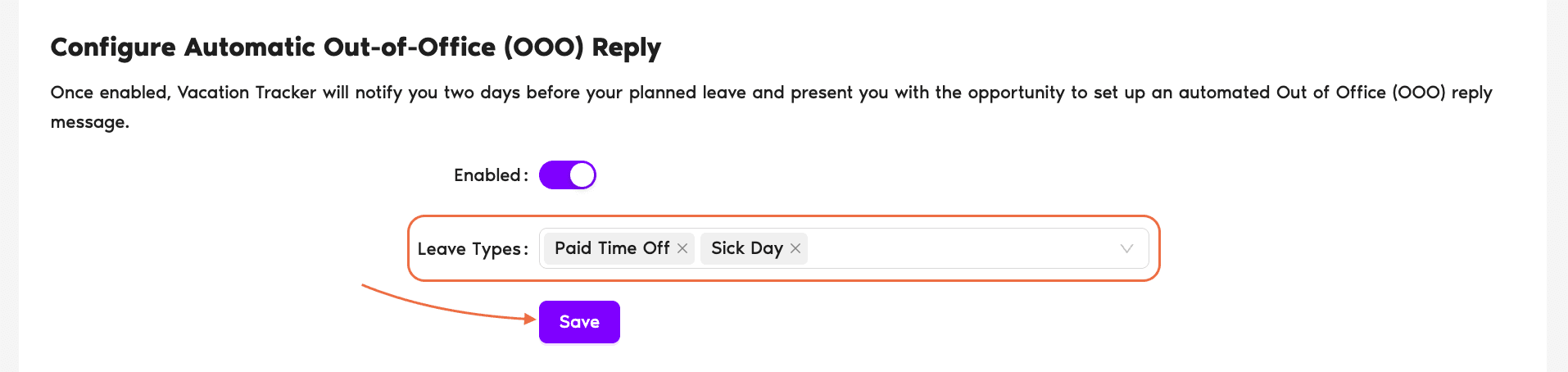
There are two settings in this block:
Enabled — a toggle that turns the OOO reply prompt on or off entirely. When off, no prompts fire and the Leave Types row below is hidden. When on (the default), Vacation Tracker watches your approved leaves and fires the 2-day-out reminder for any leave whose type is in the list below.
Leave Types — a multi-select chip list. By default it's pre-populated with every active leave type on your Location. Each chip has an × on its right side; click it to remove that type from the OOO list. To add a type back, click into the empty space inside the field and pick from the dropdown of available leave types.
- Make your edits — remove leave types you don't want OOO prompts for, add any back that you do want.
- Click Save. The setting is per-User, so your edit only affects your own OOO prompts.
How the List Affects Behavior
Removing a type from the list doesn't affect leave tracking, balances, calendar events, or the Slack Status Update mapping — just the OOO prompt for that type. Everything else continues to work normally.
Common Questions
Just you. The Configure Automatic OOO Reply section lives on the Personal Settings page (Account Settings tab), so each User configures it for themselves. There's no workspace-wide setting an Admin can use to bulk-edit OOO leave-type lists or turn OOO on/off for other Users — every part of OOO setup is per-User by design, because it requires the User to grant their email provider permissions (Gmail / Outlook) themselves. See Can a Vacation Tracker Admin or Approver Turn On/Off the OOO Feature?
<div class="accordion-item">
<button class="accordion-trigger" onclick="toggle(this)">
<span class="dot"></span>
<span class="label">What's the default if I never touch the list?</span>
<svg class="chevron" viewBox="0 0 24 24" fill="none" stroke="currentColor" stroke-width="2.5"><path d="M6 9l6 6 6-6"/></svg>
</button>
<div class="accordion-content"><div class="accordion-inner"><p>OOO prompts fire for <strong>every active leave type on your Location</strong>. So a fresh User will get the 2-day-out OOO setup prompt for Vacation, Sick Day, Maternity, Personal Day, Working from Home, and any other type their Location has enabled. Trimming the list is the way to cut down on prompts you don't need.</p></div></div>
</div>
<div class="accordion-item">
<button class="accordion-trigger" onclick="toggle(this)">
<span class="dot"></span>
<span class="label">Does removing a leave type stop the leave from showing up elsewhere?</span>
<svg class="chevron" viewBox="0 0 24 24" fill="none" stroke="currentColor" stroke-width="2.5"><path d="M6 9l6 6 6-6"/></svg>
</button>
<div class="accordion-content"><div class="accordion-inner"><p>No. This list only affects the OOO autoreply prompt. The leave still hits your balance, appears on the team calendar, fires the standard approval flow, sets your Slack status (if mapped), and shows up in reports — exactly like a leave on a type that's <em>in</em> the OOO list. Removing a type only suppresses the OOO setup nudge.</p></div></div>
</div>
<div class="accordion-item">
<button class="accordion-trigger" onclick="toggle(this)">
<span class="dot"></span>
<span class="label">What if I add a new leave type to the workspace later — does it show up automatically in my OOO list?</span>
<svg class="chevron" viewBox="0 0 24 24" fill="none" stroke="currentColor" stroke-width="2.5"><path d="M6 9l6 6 6-6"/></svg>
</button>
<div class="accordion-content"><div class="accordion-inner"><p>If you've never edited your list, new leave types will be eligible by default — the "all active leave types" rule kicks in. If you've already trimmed the list manually, the new type won't auto-add itself; open the dropdown and add it from there if you want OOO prompts for it.</p></div></div>
</div>
<div class="accordion-item">
<button class="accordion-trigger" onclick="toggle(this)">
<span class="dot"></span>
<span class="label">My OOO replies don't seem to actually be sending — what's going on?</span>
<svg class="chevron" viewBox="0 0 24 24" fill="none" stroke="currentColor" stroke-width="2.5"><path d="M6 9l6 6 6-6"/></svg>
</button>
<div class="accordion-content"><div class="accordion-inner"><p>The leave-type list and the Enabled toggle only control whether you get <em>prompted</em> to set up an OOO reply two days before a leave. For the autoreply itself to actually send, you also need to authorize Vacation Tracker to access your Gmail or Outlook account through that provider's OAuth flow. If you've never granted those permissions, OOO prompts can fire while no reply ever lands in your inbox. See the <a href="https://vacationtracker.io/helpdesk/guide-automatic-out-of-office-ooo-reply-autoreply/">Automatic OOO Reply Guide</a> for the connection step.</p></div></div>
</div>
<div class="accordion-item">
<button class="accordion-trigger" onclick="toggle(this)">
<span class="dot"></span>
<span class="label">Does this affect the actual OOO message I send, or just whether I get prompted?</span>
<svg class="chevron" viewBox="0 0 24 24" fill="none" stroke="currentColor" stroke-width="2.5"><path d="M6 9l6 6 6-6"/></svg>
</button>
<div class="accordion-content"><div class="accordion-inner"><p>Just whether you get prompted. The leave-type list controls when the 2-day-out setup notification fires; the actual content and delivery of the OOO reply is configured at that point (or in your email/calendar's native OOO settings if you've connected them). Removing a type stops the nudge but doesn't delete or alter any OOO message you've already set up.</p></div></div>
</div>
<div class="accordion-item">
<button class="accordion-trigger" onclick="toggle(this)">
<span class="dot"></span>
<span class="label">When exactly does the OOO prompt fire?</span>
<svg class="chevron" viewBox="0 0 24 24" fill="none" stroke="currentColor" stroke-width="2.5"><path d="M6 9l6 6 6-6"/></svg>
</button>
<div class="accordion-content"><div class="accordion-inner"><p>Vacation Tracker's helper text says "two days before your planned leave" — so the prompt lands two days ahead of an approved leave's start date, on a leave whose type is in your OOO list. If the leave is approved less than two days before it starts, the prompt fires as soon as the approval lands.</p></div></div>
</div>