
Last updated on January 20, 2026
How Can I Create and Configure Leave Types?
A Leave Type is a category of time off — Vacation, Sick Day, Working from Home, Bereavement, Maternity, and so on. The Leave Type holds the basic identity (name, color, calendar status); the rules around it — quota, approval, accruals, rollover — live on Leave Policies, which tie a Leave Type to a Location.
Step 1: Create the Leave Type
- Sign in at app.vacationtracker.io with an Admin account.
- In the left-hand menu, expand Leave Setup and click Leave Types.
- Click the Create a Leave Type button at the top-left of the Leave Types table.
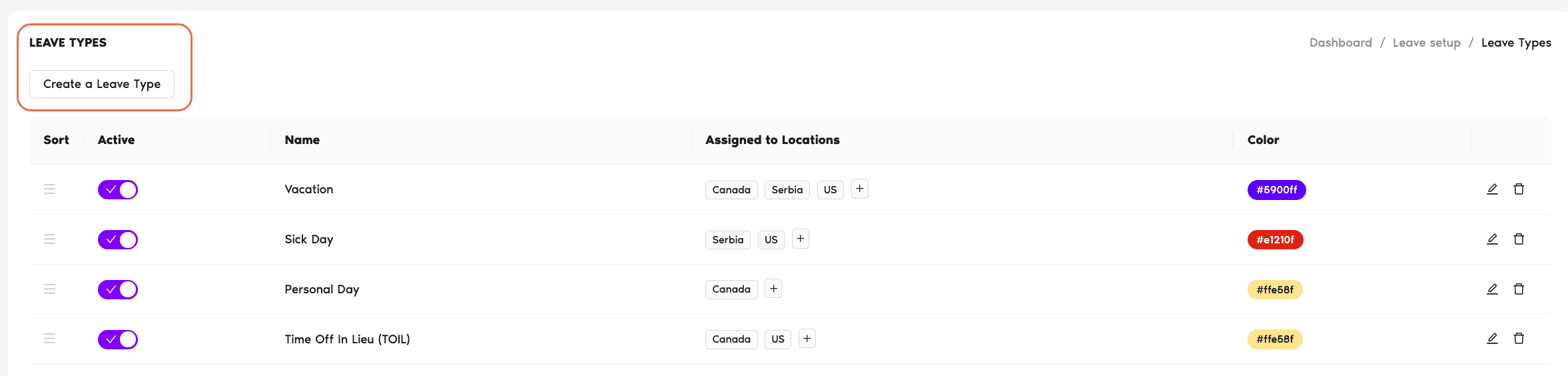
The Create Leave Type & Assign Leave Policy wizard opens. Step 1 (Create Leave Type) has these fields:
Name
What the Leave Type is called everywhere in the app — request forms, calendar, reports, notifications. Pick something employees will instantly recognize (Vacation, Sick Day, Personal Day).
Color
The colour used to display this Leave Type on the Calendar and Wallchart so it's visually distinguishable from other types. Click the colour box to pick.
Show this leave type in your calendar as
A dropdown with two options that controls how the leave appears on connected personal calendars (Google Calendar, Outlook, iCal):
Set Slack Status
A toggle that's only meaningful if your account is connected to Slack. Turn it on and a follow-up field appears that maps this Leave Type to a Slack status emoji + text (e.g. "🌴 On Vacation"). When approved leave starts, Vacation Tracker will set the User's Slack status automatically; when it ends, it clears it.
- Click Next to move to the Leave Policy setup.
Step 2: Assign to Locations and Set the Initial Policy
This is where you tie the new Leave Type to one or more Locations and configure the starter rules. The header reads "Assign [Leave Type Name] to all locations or a specific location."
Locations
Required. A multi-select that lists every Location on your account; all are pre-selected. Remove any where you don't want this Leave Type to apply. The same rules you configure below will be used as the starter policy on each Location you keep — you can fine-tune per-Location later from Leave Setup → Locations → Edit Leave Policies.
Leave Policy fields
Checkbox, on by default. When on, requests need an Approver to approve them before they're counted against the balance. When off, requests are auto-approved the moment they're submitted.
Lets a User submit a request even after they've used up their full quota — useful when you want to support borrowing against future leave. Combined with Negative Brought Forward (on the rollover settings), the deficit can carry into the next year.
Removes the cap on this Leave Type — turn it on for things like Working from Home where there's no fixed annual count. When this is on, the Yearly Leave Quota field is hidden because there's no number to set. Approval rules still apply.
 Book a Call