
Last updated on January 20, 2026
How Do I Sort the Order of Leave Types?
The order of leave types in Vacation Tracker isn't fixed — it's whatever you set it to. Drag the most-used types to the top of the list and they'll show up that way everywhere a user picks a leave type, including the Request Leave dropdown. Reordering is a quick drag-and-drop, takes effect immediately, and Admins can change it whenever.
Reorder Your Leave Types
- Sign in at app.vacationtracker.io.
- In the left-hand menu, expand Leave Setup and click Leave Types.
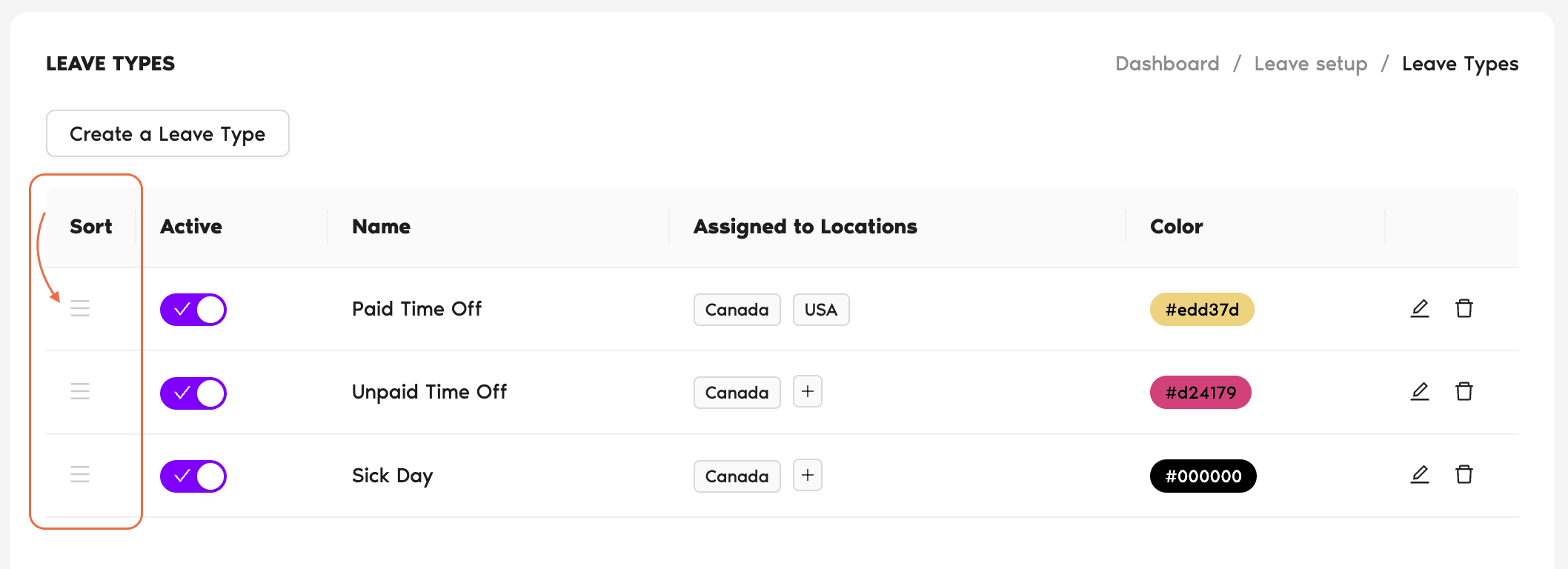
- You'll see a table with the columns Sort | Active | Name | Assigned to Locations | Color. Each row is one leave type.
- In the Sort column on the far left, click and hold the drag-handle icon (≡) on the row of the leave type you want to move, then drag it up or down to its new position and release.
- The change saves immediately. The new order applies everywhere users see leave types — most visibly in the Request Leave form's Leave Type dropdown.
Picking a Useful Order
There's no "right" order — pick what helps your team find the leave type they want quickly. A few approaches that work:
Most-used first
Put Vacation or PTO at the top, then Sick Day, then everything else. Cuts the average click count on the Request Leave form down for the leaves people actually take.
Group by similarity
Cluster all the time-off types (Vacation, PTO, Personal Day) at the top, the medical/family types (Sick Day, Maternity, Bereavement) in the middle, and edge cases (Jury Duty, Unpaid Leave) at the bottom. Easier to scan when there are many leave types.
Alphabetical
If your team has many leave types and personal preferences vary, plain alphabetical can feel the most "neutral." Drag the rows into A–Z order once and you're done.
Common Questions
Admins. The Leave Types page sits under the Admin-only Leave Setup section of the menu. Approvers and regular Users see the resulting order on the Request Leave form, but they can't reorder it themselves.
No. There's no Save button on the reorder action — the change is committed as soon as you drop the row in its new position. If you change your mind, just drag it back.
Reordering only changes how the list is displayed. Existing leave requests, balances, calendar entries, and reports are unchanged — those are tied to the leave types themselves, not their position in the list.
 Book a Call