
Last updated on July 10, 2026
How Do I Create and Configure Leave Policies?
Leave policies define the rules for each leave type — quota, approval, rollover, accruals, and more. They're set per Location, so different offices or regions can have different rules.
What is a Leave Policy?
A leave policy is a set of rules that governs a specific leave type (like Vacation, Sick Day, or Working from Home) at a specific Location. It controls everything from how many days employees get per year, to whether they need approval, to how unused days roll over.
Each Location can have its own set of leave policies, so your office in London can follow different rules than your team in New York. And within each Location, every leave type gets its own policy — your Vacation policy might have 20 days with approval required, while your Sick Day policy has 10 days with no approval needed.
How to Create a Leave Policy
- Sign in at app.vacationtracker.io.
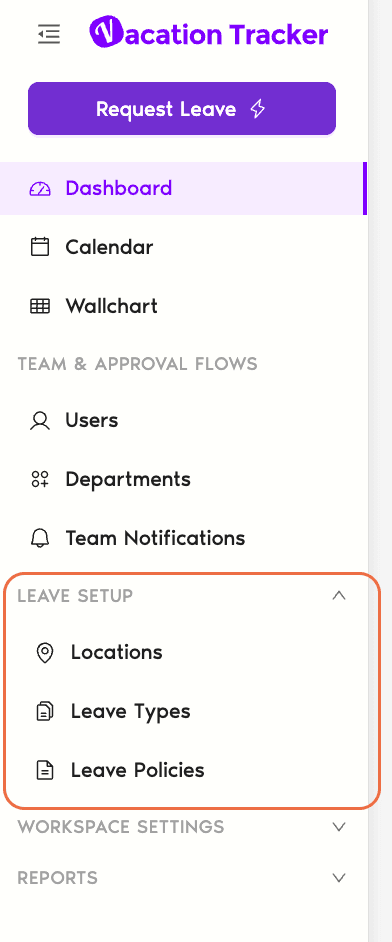
- In the left-hand menu, expand Leave Setup and click Locations.
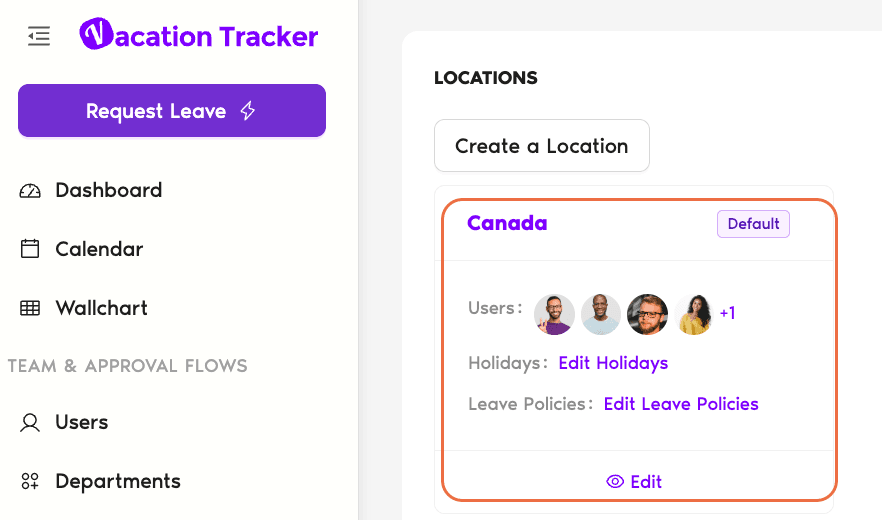
- Find the Location you want to configure and click Edit Leave Policies on that Location's card.
- On the Leave Policies tab, you'll see a table of any existing policies with their Status, Leave Type Name, Yearly Leave Quota, Approval Required, and Shortest Leave Duration columns.
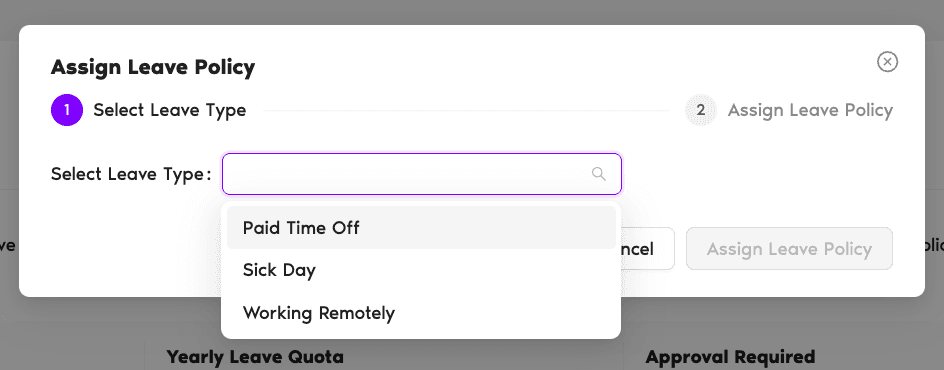
- Click Assign Leave Policy in the top-left corner.
- Select a leave type from the drop-down (e.g., Vacation, Sick Day) and click Assign.
- Choose how to start using the Copy Policy From drop-down at the top of the form:
- Configure the core policy settings. These appear just below the Copy Policy From field — set each one to match how this leave type should work at this Location.
Not sure what a setting does? Click any setting below for details.
When turned on, leave requests need manager approval before they take effect. When off, requests are auto-approved.
Lets Users request leave even after using their full quota.
Amy used all 20 PTO days but needs one more day off. With this on, she can still submit. Her manager still approves if Approval Required is enabled.Removes any cap on days/hours for this leave type. Great for types like Working from Home. When enabled, the Yearly Leave Quota field is hidden. Approval rules still apply.
The total days or hours each User gets per year. Use the up/down arrows or type a number directly. The unit (Days or Hours) is shown next to the field. This is the base quota — individual Users can be adjusted separately under Customize Leave Quotas.
The minimum leave a User can request, selected from a drop-down. Available on both plans, but anything shorter than a half-day is only available with the Complete plan (down to 15-minute increments).
Oscar has a dentist appointment and only needs 2 hours off. On the Complete plan, he can request exactly that.Users must write a reason when submitting a request for this leave type. Useful when managers need context before approving.
Allows Users to submit or modify leave for dates that have already passed.
Ron forgot to log a sick day last week — he can still add it. Anna returned early from vacation and can shorten her leave after the fact.Hides the leave type name from other Users. Colleagues only see that someone is away, not why.
Jack is on medical leave, but his team only sees he's out — not the reason. - Set up the optional sections. Below the core settings, the form includes three more sections — Accruals, Brought Forward, and Time Off In Lieu. Configure any that apply to this policy, or leave them at their defaults. Each has its own guide — see Additional Policy Settings below.
- Click Update to save. Your new policy appears in the Leave Policies table for this Location and applies to everyone based there.
Additional Policy Settings
Below the core settings on the same page, you'll find three more sections. These are optional but powerful — they control how leave is earned, how unused leave is handled at year-end, and whether employees can bank overtime as extra time off. Each one has its own dedicated guide:
Accruals Complete
By default, employees get their full yearly quota upfront. Accruals let you distribute it gradually — monthly, biweekly, or weekly — so employees earn leave as they work. You can also set an accrual cap to prevent balances from growing too large.
Set up AccrualsBrought Forward (Rollover)
Controls what happens to unused leave at year-end. You can let it all carry over, cap the rollover at a specific amount, or reset balances to zero. You can also set an expiry date for rolled-over days and decide whether negative balances carry forward.
Configure RolloverTime Off In Lieu (TOIL) Complete
Lets employees earn extra leave in exchange for overtime or additional hours worked. Instead of overtime pay, they get equivalent time off added to their balance. You control who can request it and when it expires.
Enable TOIL Book a Call