
Last updated on June 10, 2025
How Can I View User Profile Logs?
Each User's profile has a Logs tab that records every change affecting them — quota adjustments, rollover days, accruals, role changes, location / department changes, activations, deactivations, and more. As an Admin or Approver, you can open another User's profile and check their Logs tab to see what's been happening to that account.
Steps
- Sign in at app.vacationtracker.io with an Admin or Approver account.
- In the left-hand menu, click Users.
- Find the User whose logs you want to check and click their name to open their profile.
- Click the Logs tab at the top of the profile (next to Profile and Leaves).
- Use the filter dropdown to narrow by category if you want, and pick a date range to scope the view.
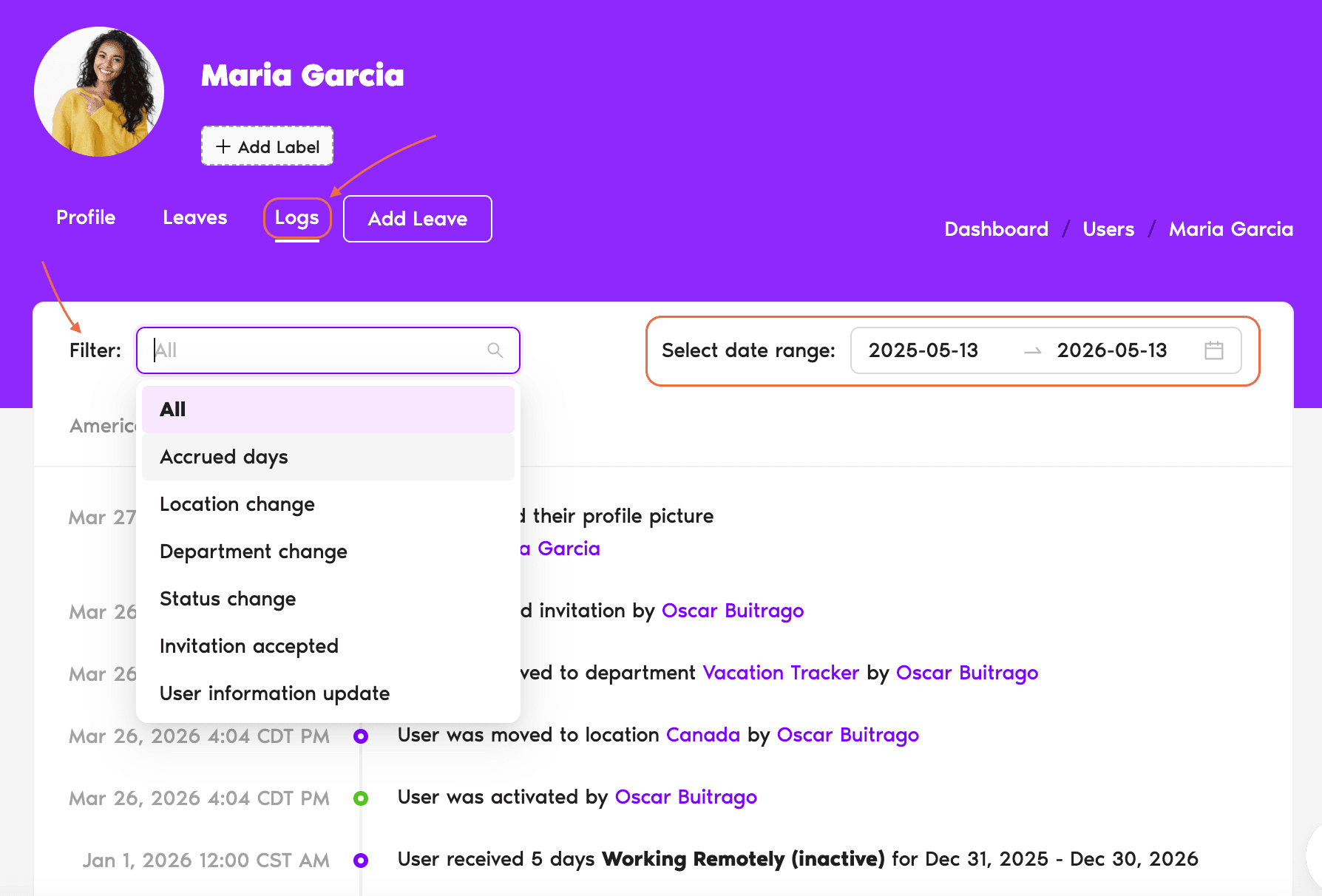
What Shows Up
Each entry includes the timestamp, the actor (the Admin or Approver who made the change), and the field-level details — what changed from and to.
Common Questions
No — individual leave edits (changes to a specific leave's dates, hours, or reason) live on the Leaves tab, tied to the leave record. The Logs tab focuses on profile-level changes. If you're tracing edits to a specific leave, open Leaves first.
Logs are kept for the lifetime of the User's account — events from years ago are still browsable. The date-range filter lets you zoom into a window if you only care about a specific period.
No. Approvers can only open profiles for Users in Departments where they're listed as an Approver, so logs follow the same scope. Admins can view anyone's logs.
 Book a Call