
Last updated on October 10, 2025
How Can I Change a User's Location?
Moving someone from one office or region to another? Vacation Tracker gives you two paths — one through the user's profile (fast, direct) and one through the Location itself (useful when you're already editing Locations). Both end up in the same place.
Method 1: Directly on the User's Profile
This is the cleaner path — no ping-ponging through the Default Location.
- Sign in at app.vacationtracker.io.
- In the left-hand menu, under Team & Approval Flows, click Users.
- Find the user you want to move and click their name to open their profile.
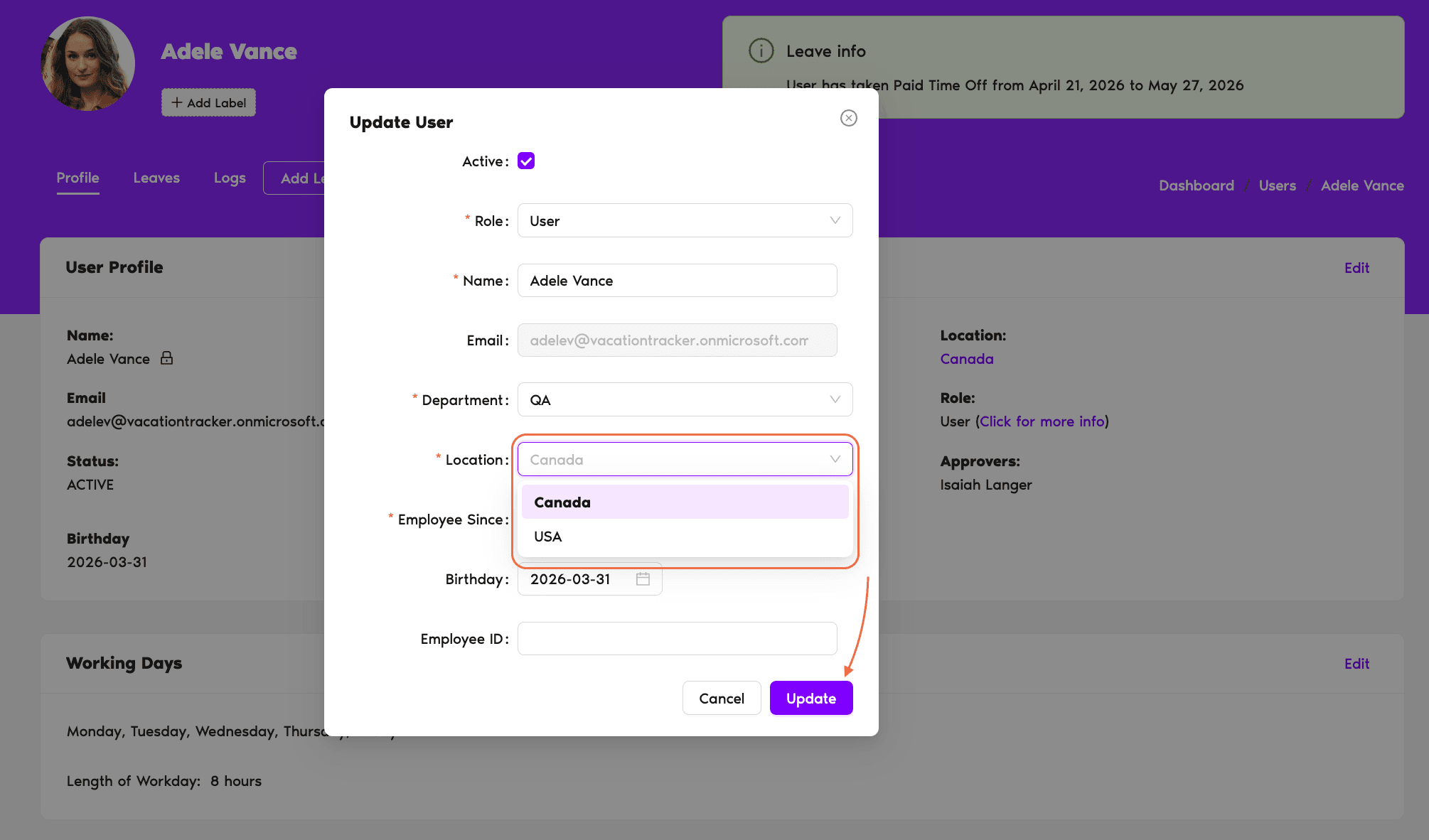
- In the User Profile section at the top of the page, click Edit.
- A pop-up opens. Under the Location field, pick the new Location from the dropdown.
- Click Update to save. The new Location shows on the profile immediately.
Method 2: Through the Location Edit Form
This path works well when you're already editing Locations (e.g., onboarding a new office) and want to re-shuffle users in the same flow. Heads up: removing a user from their current Location doesn't let you immediately drop them in a new one — it sends them to your workspace's Default Location first, and you add them to the destination from there.
- In the left-hand menu, expand Leave Setup and click Locations.
- On the original Location (the one the user is currently in), click Edit.
- In the Users section, click the X next to the user's name to remove them. They're automatically sent to the Default Location.
- Click Update Location to save.
- Go back to the Locations list and open the destination Location.
- Click Edit, add the user from the Users dropdown, and click Update Location.
What Happens When You Change a Location
The user immediately picks up everything the new Location defines:
Common Questions
No — each user belongs to exactly one Location at a time. If someone splits time between offices, pick the Location that best reflects their leave calendar and policies.
Balances for Leave Types that exist in both Locations carry over. Balances for Leave Types only available in the old Location stop being visible once they're moved. If you need custom balances on the user's profile after the move, see How Do I Customize Leave Quotas for Individual Users?
Yes — Location is a Vacation Tracker concept, not something pulled from Slack or Teams. You set and change it inside Vacation Tracker regardless of your integration. Profile fields like name and email may be synced from the integration source, but Location assignment is yours to manage in-app.
 Book a Call