
Last updated on February 13, 2026
How Do I Add TOIL for a User?
Time Off In Lieu can be added two ways: a User can request it themselves, or an Admin or Approver can add it on their behalf. This article covers the latter — when you've confirmed someone worked extra hours and want their TOIL balance updated without making them file the request.
Steps
- Sign in at app.vacationtracker.io with an Admin or Approver account.
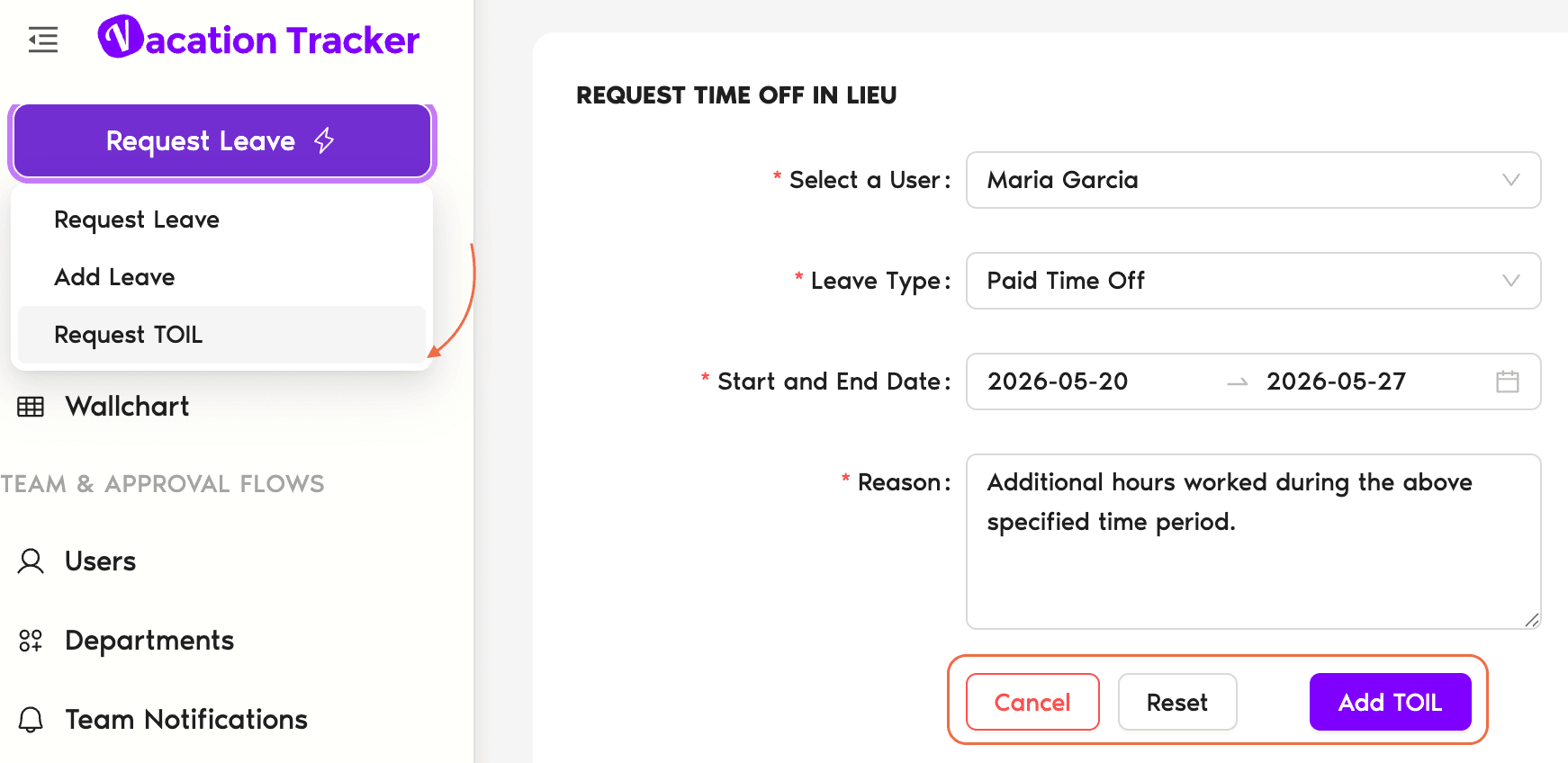
- Click Request Leave in the top-left corner of the dashboard.
- Switch to the Request TOIL tab in the modal.
- Select the User you're adding TOIL for.
- Choose the Leave Type (must be one with TOIL enabled on the User's Location).
- Enter the Start Date and End Date — these are the dates the User actually worked the extra time.
- If the Leave Policy allows half-day or hourly TOIL, tick the checkbox that appears below the Leave Type, then enter the specific time the User worked.
- Edit the Reason if you want — Vacation Tracker prefills it; add detail if useful for the audit trail.
- Click Add TOIL. The hours or days are added to the User's quota for that Leave Type immediately.
Common Questions
Yes — Vacation Tracker sends them a notification through their integration channel (Slack DM, Microsoft Teams chat, or email) confirming TOIL was added, with the date(s), amount, and Leave Type. The entry also shows up on their profile's Logs tab and counts in any future leave balance reports.
Yes. The form accepts past, today, and future dates — so if you've already agreed someone will work extra hours next Saturday, you can credit their TOIL balance now rather than waiting until afterwards.
TOIL has to be enabled on the policy that ties the Leave Type to the User's Location. Check Leave Setup → Locations → Edit Leave Policies on that Location, find the Leave Type, and make sure Enable Time Off In Lieu is set to Yes. Once enabled, the Leave Type will appear in the Request TOIL dropdown for that User.
 Book a Call