Time Off In Lieu (TOIL) lets employees bank overtime hours as additional leave instead of receiving overtime pay. Unlike regular leave (which comes from the Yearly Leave Quota), TOIL is earned on top of the base quota when employees put in extra time.
Plan requirement
TOIL is available on the Complete plan.
Someone works 4 extra hours on a Saturday. Those 4 hours get added to their leave balance as TOIL, and they can use that time off later — just like regular PTO.
In the left-hand menu, expand Leave Setup and click Locations.
Click Edit Leave Policies on the Location you want to configure.
Click the edit icon next to the leave policy where you want to add TOIL.
Scroll to the bottom of the page to find the Time Off In Lieu section.
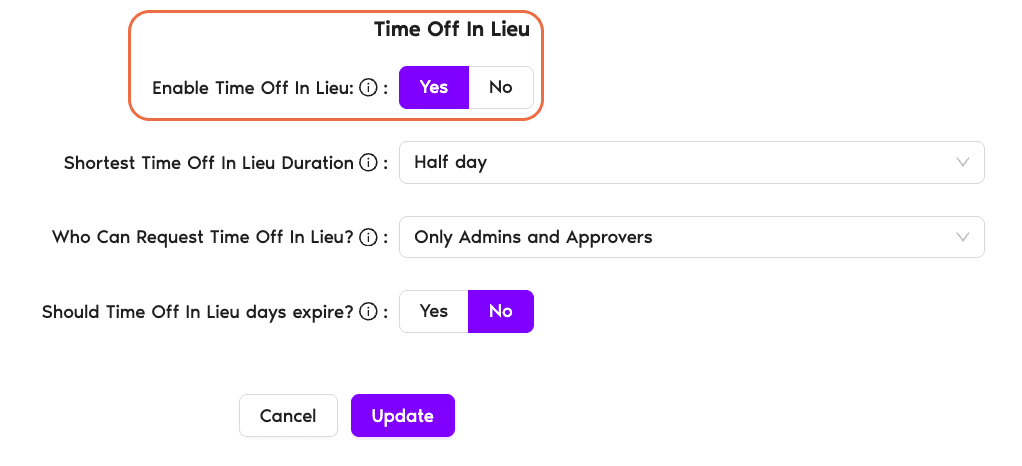
Click Yes next to Enable Time Off In Lieu.
Once enabled, three additional settings appear. Configure each one below.
TOIL Settings
Sets the minimum amount of TOIL an employee can request at one time, selected from a drop-down. This works just like the Shortest Leave Duration setting on the main policy.
Options include: Full day, Half day, and shorter increments down to 15 minutes (depending on your plan).
Your team often works an extra hour or two in the evening. Setting the shortest duration to "1 hour" means employees can request TOIL in small, practical chunks rather than needing a full or half day.
Controls who is allowed to submit TOIL requests. Choose from the drop-down:
Only Admins and Approvers — managers and admins submit TOIL on behalf of employees. This gives management full control over when TOIL is granted. Employees cannot add TOIL to their own balance.
All Users — employees can submit their own TOIL requests. This is more flexible and works well when there's trust that employees will accurately log overtime hours. Approval rules from the leave policy still apply.
A law firm wants tight control over overtime tracking, so they set this to "Only Admins and Approvers." A startup with a flexible culture sets it to "All Users" so developers can self-report their weekend deployments.
Toggle Yes or No.
When set to Yes, an Expiration drop-down appears with these options:
End of calendar year — TOIL expires at the end of the leave year. This isn't always December 31 — if your Location's quota reset is set to a different date (for example, the Location's fiscal year start, or each User's start date), the TOIL expiration follows that same reset date instead.
1 month — TOIL expires 1 month after it's earned (i.e. 1 month after the TOIL request is approved)
3 months — TOIL expires 3 months after it's earned (3 months after approval)
6 months — TOIL expires 6 months after it's earned (6 months after approval)
Important: TOIL is "earned" the moment a TOIL request is approved, not the moment the overtime was worked. The 1, 3, and 6 month timers start counting from the approval date. If a request is filed for overtime worked weeks ago and is approved today, today is what the timer is anchored to.
When set to No, TOIL hours stay in the User's balance indefinitely until used.
Your company wants to encourage employees to use comp time soon after earning it. Setting expiry to "3 months" means if Dev's TOIL request for 8 hours is approved on January 15, those hours need to be used by April 15 or they'll expire.
Click Update to save your changes.
Tip
TOIL hours are added to a User's balance when a TOIL request is approved through the standard request flow — not from the User profile editor. Depending on the Who Can Request Time Off In Lieu? setting, either the User submits the request themselves and an Approver/Admin approves it, or an Admin/Approver submits it on the User's behalf.

 Book a Call