
Last updated on January 27, 2026
How Do I Deactivate a User?
Some employees need to step away for a while — extended leave, a sabbatical, a long contract gap — and you don't want them counted in your seat total or receiving Vacation Tracker pings while they're out. Deactivating moves them to the Inactive list: they can't access the system, you stop being billed for them, but everything (history, balances, settings) stays preserved for when they come back.
Deactivate a User
- Sign in at app.vacationtracker.io.
- In the left-hand menu, under Team & Approval Flows, click Users.
- Find the user (use the search field at the top if your team is large) and click their name to open the profile.
- In the User Profile box, click Edit in the upper-right corner. The Update User modal opens.
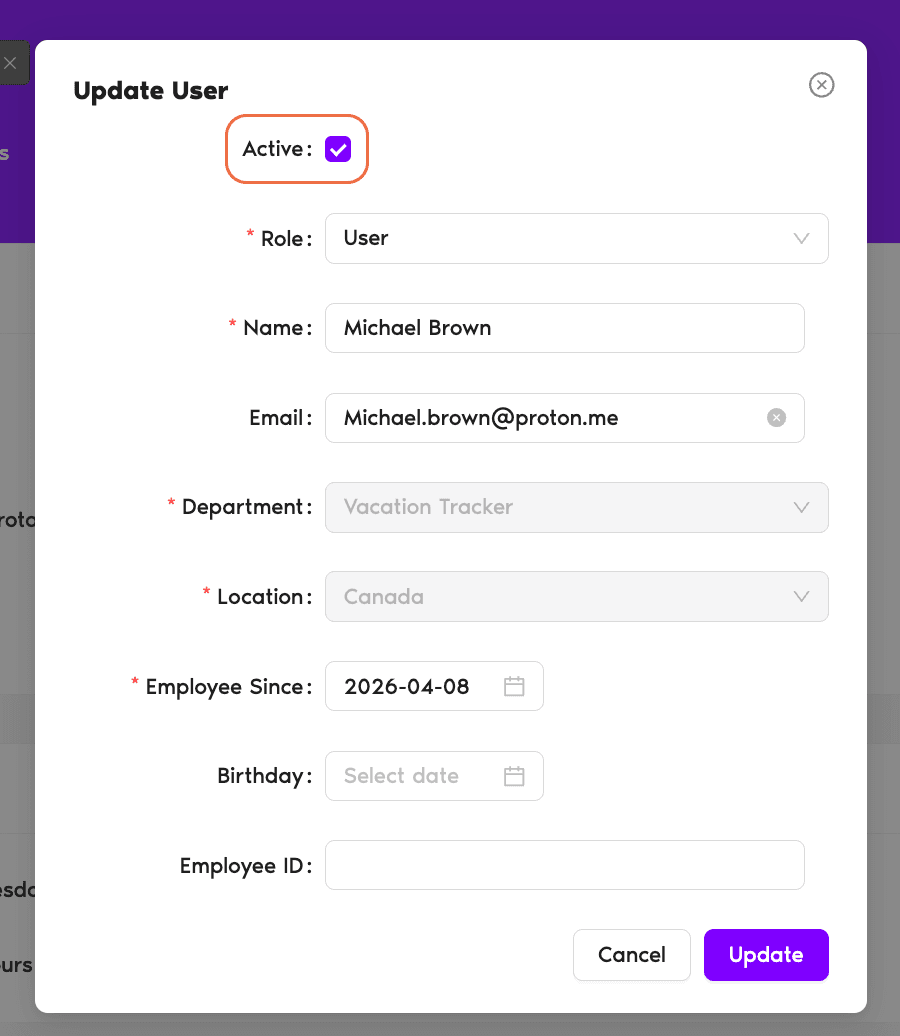
- At the top of the modal, uncheck the Active checkbox.
- Click Update at the bottom of the modal.
The user immediately moves from the Active tab to the Inactive tab on the Users page.
Reactivating a User
Same flow, in reverse. Open the Users page, switch to the Inactive tab, click the user's name, click Edit, tick the Active checkbox back on, and click Update. They land back on the Active tab with all their settings, leave history, and balances exactly as they were.
What Changes — and What Doesn't
What changes
The user can no longer sign in, submit leave requests, or be approved for new leaves. They stop receiving any Vacation Tracker notifications, and they're not counted toward your billing seat total — so deactivating saves money on your subscription.
What doesn't change
Their leave history, balances, Brought Forward amounts, working days, Department/Location assignment, and every other piece of profile data stay exactly where they were. Admins can still open the user's profile and edit fields if needed, even while the user is on the Inactive list.
Common Questions
Yes — Inactive users don't count toward your seat total and your organization isn't billed for them. The same applies to Deleted users. Only Active users factor into your subscription pricing.
Deactivating is something you do manually — uncheck Active, click Update. Deletion happens automatically when someone is removed from your Slack/Microsoft Teams/Google Workspace directory. Inactive users can be reactivated by an Admin from inside Vacation Tracker; Deleted users can only return if they're re-added to the source integration first. See What is the Difference Between Inactive and Deleted Users?
Pending requests aren't auto-cancelled when you deactivate a user. Approvers can still act on them as normal. The user just can't submit any new requests until they're reactivated.
 Book a Call