
Last updated on October 10, 2025
How Do I Edit a Location?
Renaming a Location, changing the workweek, switching time zones, flipping the leave reset basis — it's all handled from the same Edit form, plus a Delete option at the bottom. Changes affect every user in the Location, so it's important to be careful with what you're updating.
How to Edit a Location
- Sign in at app.vacationtracker.io.
- In the left-hand menu, expand Leave Setup and click Locations.
- On the Location card you want to edit, click the Edit link at the bottom of the card. You'll land on the Location's General tab.
- On the top right of the General tab, click Edit Location General Settings.
- Make your changes in the form.
- Click Update Location at the bottom to save.
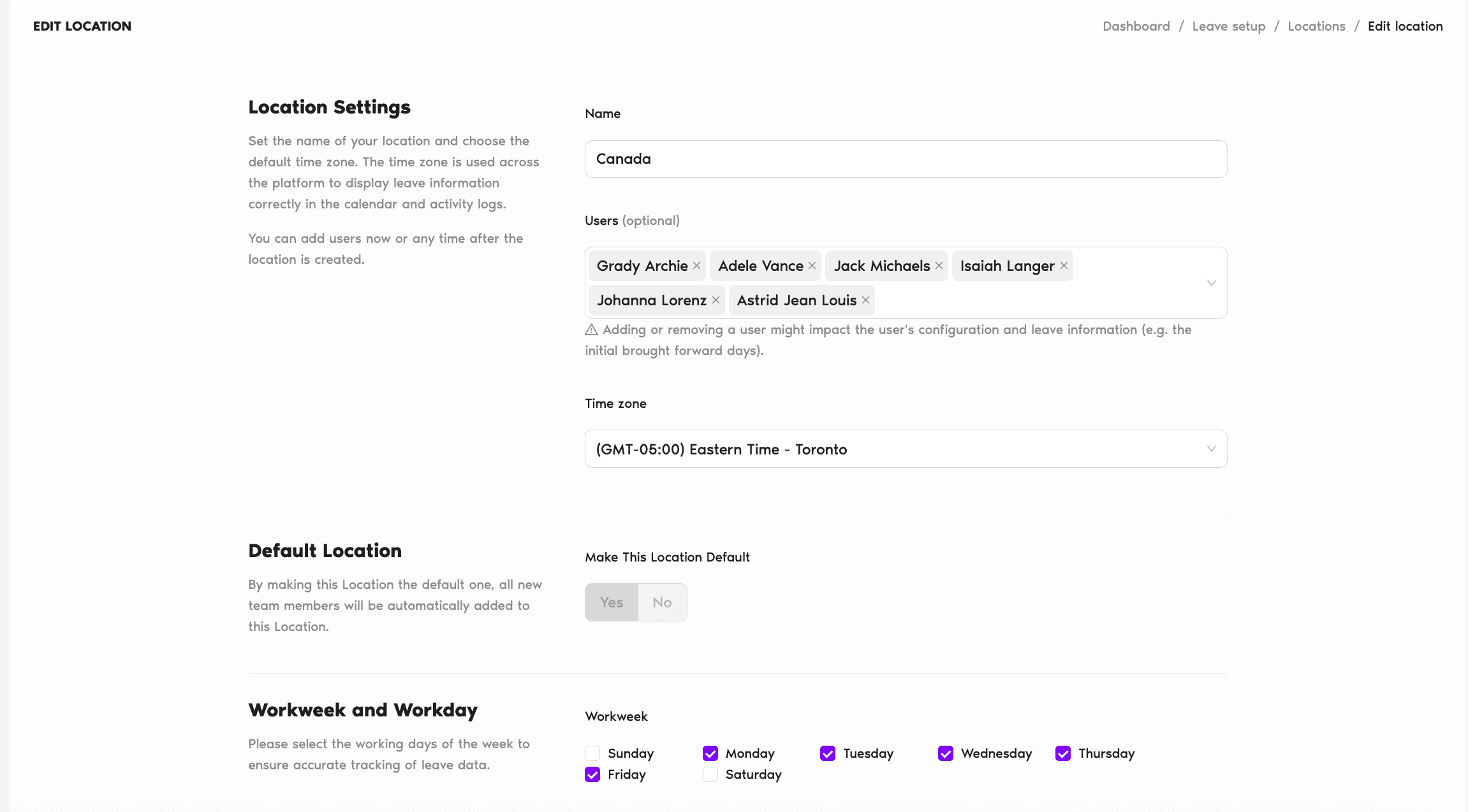
What You Can Change
The Edit form mirrors the Create form, with one extra field — Override User Settings. Every other field works exactly the same way as during creation.
Name
Rename the Location (for example, "USA" → "United States - East Coast"). The change takes effect immediately; existing users stay assigned.
Workweek & Week Starts On
Adjust which days count as working days and which day the Calendar weeks start on. By default, changes only apply to users who don't already have custom Workweek settings on their profile — see the Override option below.
Length of Workday Complete plan only
Change the standard workday hours (8 by default). Editing this section is only available on the Complete plan. Changing it disables Half-day leaves, so most teams keep it at 8h unless they have a specific reason.
Time zone
Pick a different time zone for the Location. Leave calculations, calendar displays, and activity logs will shift to the new zone.
Users
Add users to this Location or remove them. Users can only belong to one Location at a time — moving someone here removes them from their current Location.
Make This Location Default
Flip to Yes to make this the destination for newly imported users. Only one Location can be default at a time — setting a new default automatically unsets the old one.
Fiscal Year Start & Leave Quota Reset Based On
Change when the leave year resets and whether it resets for everyone together (Accounting Year) or on each user's anniversary (User Employment Date). These changes also affect any rollover policies set up for this Location.
About the Override User Settings Option
This is the one field that doesn't exist on the Create form — it shows up specifically because editing can bump into users whose Workweek has already been customized on their individual User Profile by an Admin.
In plain terms:
How to Delete a Location
- Follow steps 1–4 above to open the Edit Location form.
- Scroll to the bottom of the page. You'll see a Delete Location button next to Cancel and Update Location.
- Click Delete Location. A confirmation prompt opens.
- Click Delete Location in the prompt to confirm. The Location is removed.
Common Questions
Switching from Accounting Year to User Employment Date (or the reverse) recalculates each user's reset date based on the new rule. Existing balances stay, but when they next reset changes. Be deliberate about this — it's a policy-level shift that affects everyone in the Location.
Because users can only belong to one Location, you'll want to reassign them to another Location before deleting — otherwise you'll lose context for their leave policies, holidays, and balances. Move users off the Location first, then delete it.
No — deletion is permanent. If you've hit delete by accident and need to restore data, reach out to Support as soon as possible.
 Book a Call