
Last updated on June 29, 2026
How Do I Edit my Billing Information?
Need to update the company name on your invoices, change the billing address, or swap the email address that receives receipts? Admins can do all of this directly from the Vacation Tracker dashboard. Changes show up on your next invoice.
How to Edit Your Billing Info
- Sign in at app.vacationtracker.io as an Administrator.
- In the left-hand menu, expand Workspace Settings.
- Click Billing.
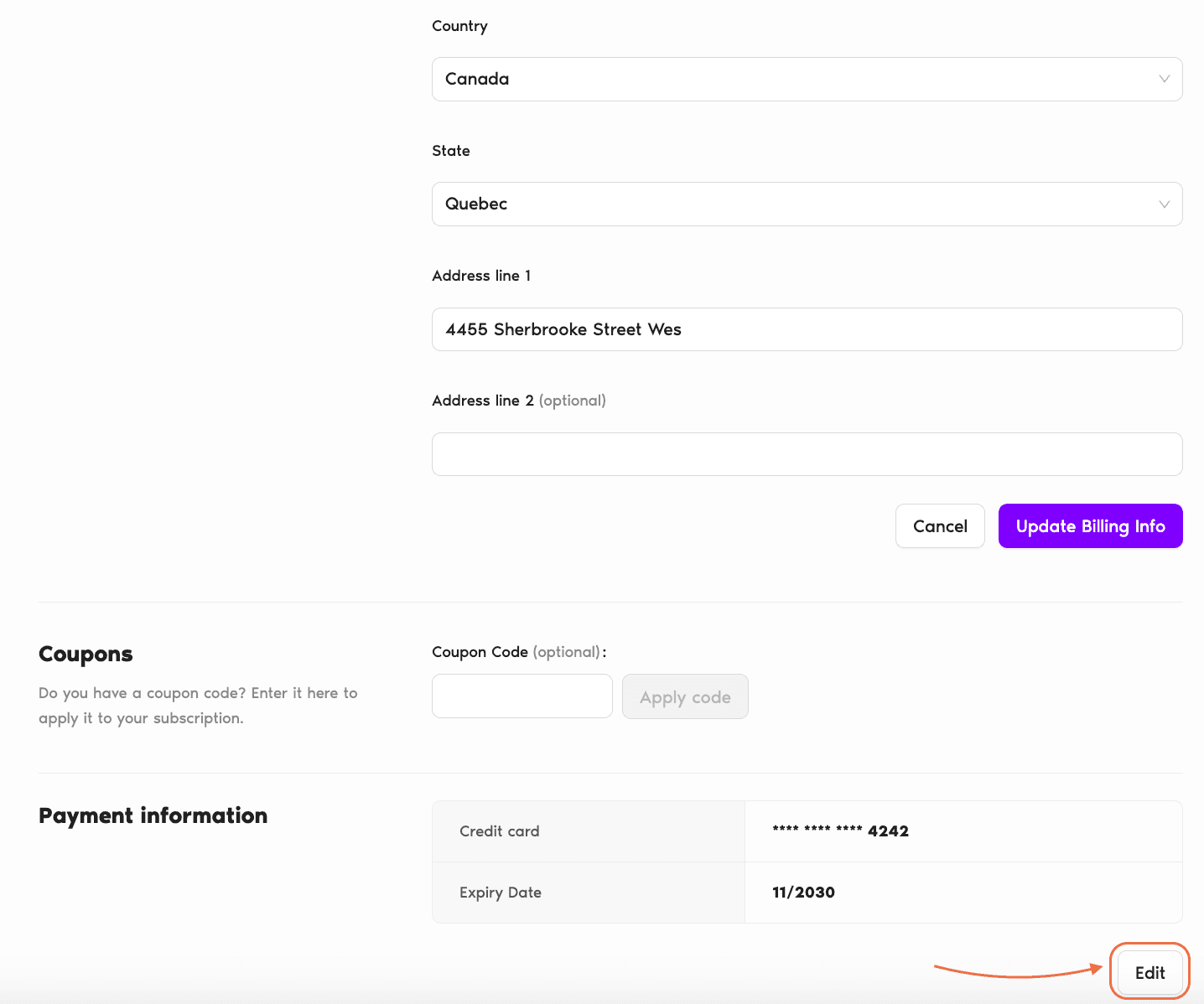
- In the Billing information section, click Edit. The section expands inline into an editable form.
- Update the fields as needed — Company Name, Billing Email (add or remove as many as you want), City, Country, State, Address line 1, and Address line 2 (optional).
- Click Update Billing Info to save, or Cancel to discard changes.
What Each Field Drives
Company Name
The name that appears at the top of each invoice. Use the legal name your finance team needs on receipts (rather than an informal brand).
Billing Email
The addresses that receive invoices and billing notifications. You can enter multiple email addresses — each one appears as a removable chip, so add as many as you need (finance inbox, individual admin, accountant, etc.). Every listed recipient gets a copy of each invoice.
City, Country, State
Where your company is billed. City and Address fields are free text; Country and State are dropdowns. Used for tax handling and appears on every invoice.
Address line 1 & Address line 2
Street address for your billing location. Address line 1 is required; Address line 2 is optional (for suite numbers, floor, etc.).
Common Questions
Only Administrators on the workspace. Regular users and Approvers don't have access to the Billing page.
Yes — the Billing page has a separate Payment information section (showing card number masked and Expiry Date) with its own Edit button. For deeper payment history, receipts, and past invoices, use the Customer Portal link at the bottom of the Billing page — see How Do I Access My Customer Portal (Billing Information)?
Yes — the Billing Email field accepts multiple addresses. Each email you add appears as a chip with an × to remove it, so you can have any combination of shared inboxes (finance@yourcompany.com) and individual contacts. Every listed recipient gets a copy of each invoice and billing notification.
 Book a Call