
Last updated on May 21, 2026
How do I edit the templated OOO (Out of Office) message?
With the Out of Office feature, we have a templated message that you can set right away when turning on the OOO reply. You can also edit this message and set a customized message using the steps below.
One reminder per approved leave
Each newly approved leave will trigger its own OOO reminder.Editing the Templated Message
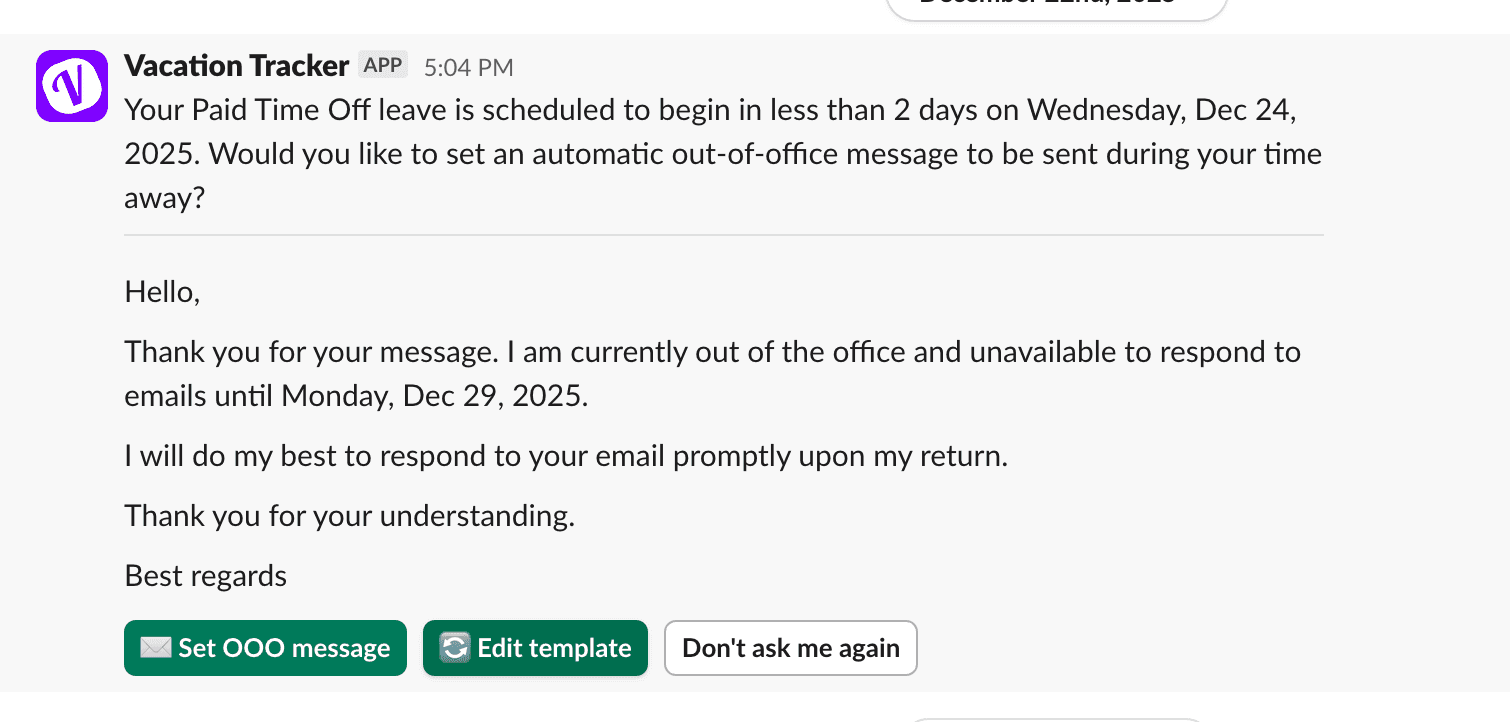
- 2 business days prior to the start date of your approved leave, you will receive a reminder to set your OOO message.
- Once you receive the reminder, you can edit the templated message by clicking on Edit template.
- You will be taken to the Vacation Tracker online dashboard where you will be able to choose your email provider.
- You'll first see the pre-created template.
- Edit your message, and once done, click on Set OOO Message.
Editing locks after sending
If you set the OOO message, you aren't able to edit it again within Vacation Tracker. You must go into your email provider settings to either remove or edit the message.Editing the Message Directly in Your Email Provider
More on the feature
For more information on our OOO (Out of Office) feature, see Guide: Automatic Out of Office (OOO) Reply (Autoreply).Turning OOO on/off
For more information on turning on/off the OOO feature, see How can I turn Out of Office (OOO) reply on / off? Book a Call