
Last updated on February 13, 2026
How do I enable the OOO (Out of Office) autoreply feature?
The Out of Office (OOO) reply feature connects your Vacation Tracker account with your email provider and allows you to set an Out of Office reply for your approved leaves automatically.
Steps
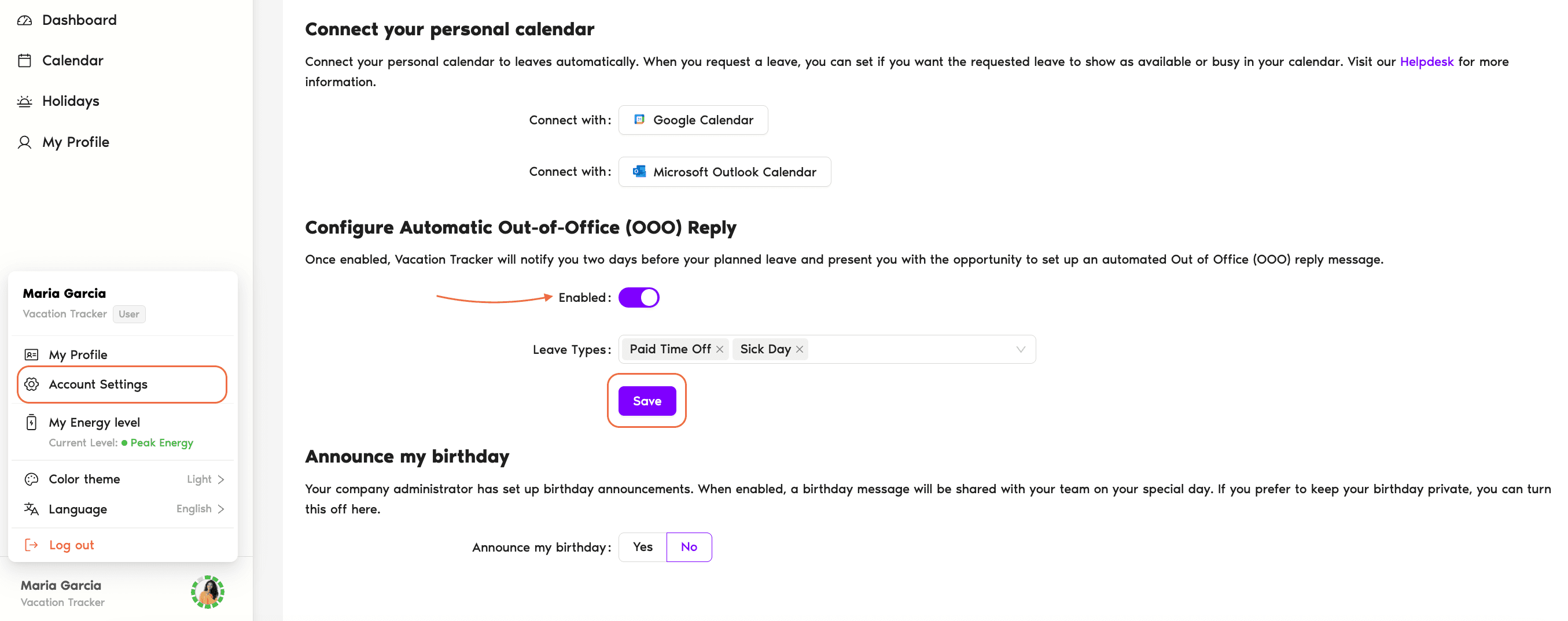
First, make sure you enable the option under Account Settings within Vacation Tracker (accessed from your profile in the bottom-left corner of the dashboard):
- Go to app.vacationtracker.io/app/settings/personal.
- Under Account Settings you will see the option to Configure Automatic Out-of-Office (OOO) Reply.
- To turn it on, click the Enabled toggle.
- Once you enable the option you will need to connect your calendar / email provider.
- Whether you click on Google or Outlook, you will be taken to a step to provide the permissions that will allow Vacation Tracker to set your Out of Office message.
- Once you've logged in and accepted the permissions you will be able to use the Out of Office feature.
Logging In and Accepting Permissions
More on the feature
For more information on the OOO feature, see Guide: Automatic Out of Office (OOO) Reply (Autoreply).Choosing which leave types trigger OOO
For more information on choosing the leave types that will send the OOO reminders, see Can I choose which leave types have the Out of Office (OOO) message? Book a Call