
Last updated on July 1, 2026
How Do I Enable Half-Day Holidays?
Some holidays don't take the whole day — Christmas Eve, New Year's Eve, an afternoon-off company perk. Mark them as half-day holidays and Vacation Tracker treats them as half of the workday everywhere: calendar, notifications, balance math.
How to Set a Half-Day Holiday
- Sign in at app.vacationtracker.io.
- In the left-hand menu, expand Leave Setup and click Locations.
- On the Location card, click Edit Holidays (or click into the Location and open the Holidays tab).
- Click Add a Holiday at the top right.
- Fill in the Name and Assign to Locations.
- In the Holiday type dropdown, pick Half-day holiday.
- Set the date (or recurrence rule, if Recurring is Yes).
- Click Save.
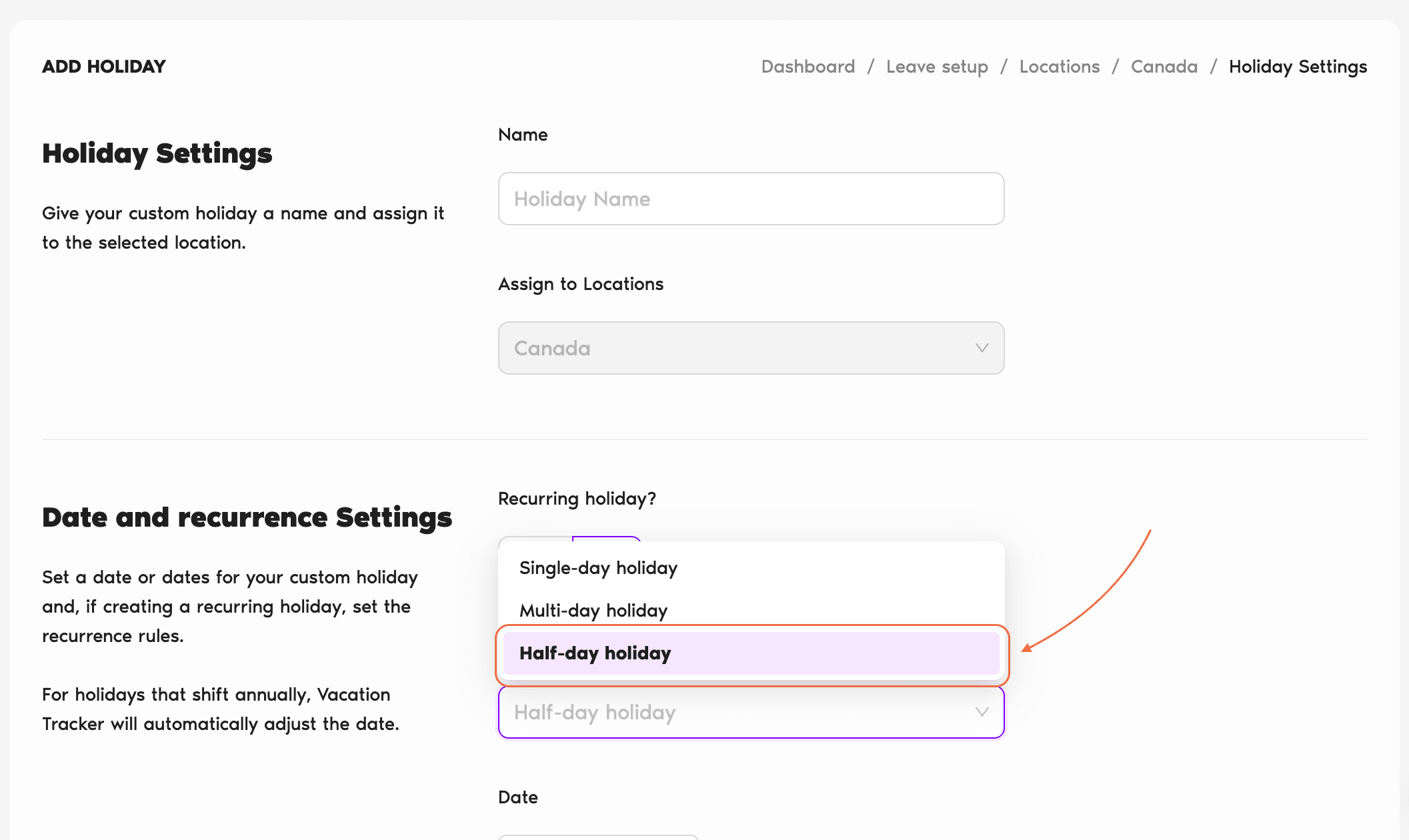
How Half-Day Holidays Show Up
Common Questions
Vacation Tracker treats half-day holidays as counting for half of the workday — it doesn't hard-specify AM or PM. In practice, most companies treat the afternoon off (e.g., early close on Christmas Eve). The accounting is what matters; the specific half is a company convention.
Half-day leaves require an 8-hour Length of Workday. If your Location uses a different workday length (set up under Edit Location General Settings on the Complete plan), half-day leave options are disabled — which means the Half-day holiday type is for Locations on the standard 8-hour workday.
Yes. When you set Recurring = Yes on the Add a Holiday form, the Half-day option in Holiday type still applies — the holiday repeats each year as a half-day observance (e.g., every Christmas Eve afternoon).
 Book a Call