
Last updated on January 20, 2026
How Do I Enable or Disable the Automatic User Import?
If your team uses Slack, Microsoft Teams, or Google Workspace, Vacation Tracker can pull new hires in automatically — every time someone's added to your workspace directory, they show up in Vacation Tracker without anyone needing to lift a finger. Toggle the switch off if you'd rather invite people manually instead.
Turn Auto-Import On or Off
- Sign in at app.vacationtracker.io.
- In the left-hand menu, expand Workspace Settings and click General.
- Scroll to the Import Users Configuration section.
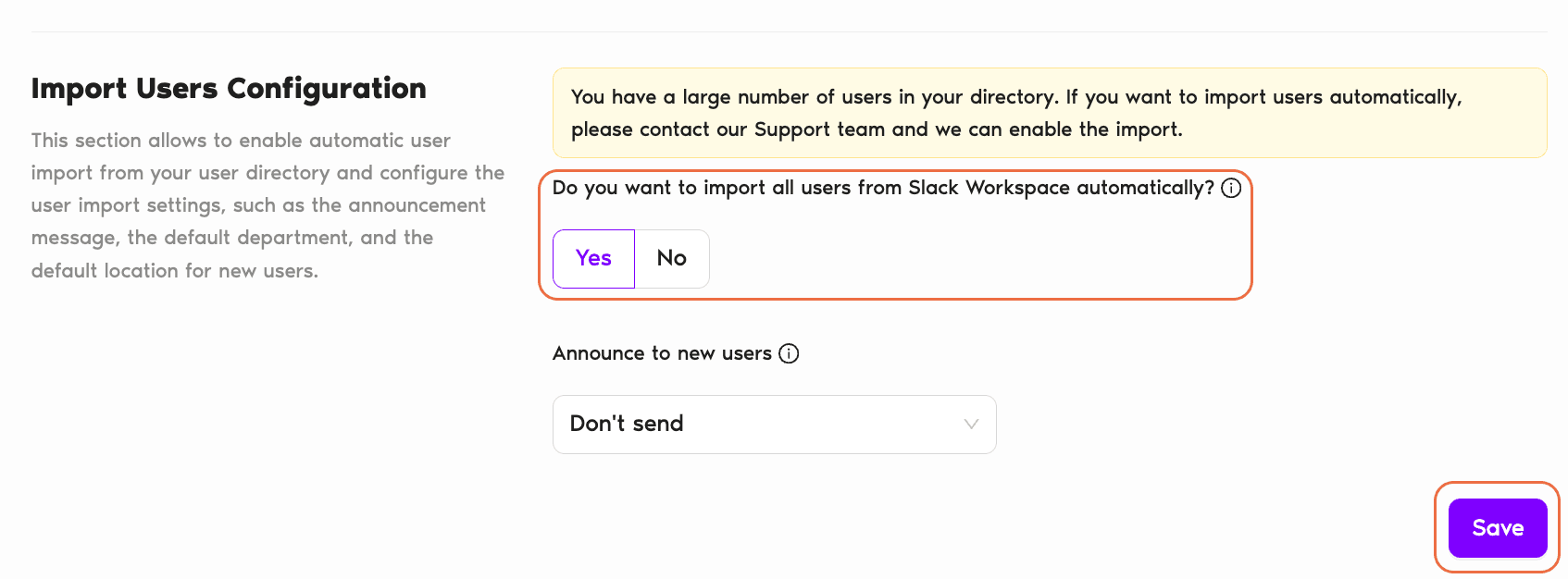
- Set Do you want to import all users from [your integration] automatically? to Yes (enable) or No (disable).
- Optional: under Announce to new users, choose whether new auto-imported users should receive the default announcement message. The message itself is fixed copy sent by the Vacation Tracker bot via Slack / Teams / email — it can't be edited. Set the dropdown to Don't send if you'd rather they hear about Vacation Tracker through your own onboarding.
- Scroll down and click Save.
What Happens When Auto-Import Is On
New users land in Vacation Tracker automatically
The moment someone is added to your Slack workspace, Microsoft Teams team, or Google Workspace directory, Vacation Tracker imports them as an Active user — no manual step needed.
They get an announcement message
If the Announce to new users dropdown isn't set to Don't send, the new user receives Vacation Tracker's default announcement as soon as they're imported, telling them they've been added to the account and how to start using it. The default message is fixed — it can't be customized. Set the dropdown to Don't send to skip this.
Default Department and Location apply
New auto-imported users are placed in your workspace's default Department and default Location. Configure those defaults in the relevant Department's Edit form (Make This Department Default = Yes) and on each Location's General Settings (Default Location = Yes).
Quotas may be prorated
Depending on your leave policy configuration, the new user's leave quotas can be prorated to the portion of the year remaining at their import date — so someone joining in October doesn't get a full year's allotment by mistake. Whether proration applies depends on the leave policy attached to their assigned Location.
What Happens When Auto-Import Is Off
New people in your Slack/Teams/Google Workspace directory won't automatically appear in Vacation Tracker. You'll need to add them manually using the Add Users button on the Users page. See How Do I Add (Import) Users? for the manual flow.
Existing users in Vacation Tracker are unaffected — turning auto-import off only stops future automatic imports, not anyone who's already in the system.
Common Questions
Admins. Workspace Settings is in the Admin-only section of the menu — Approvers and regular Users don't see it.
No. Auto-import requires an integration that has a workspace directory to read from — Slack, Microsoft Teams, or Google Workspace. The Email integration doesn't sync from a directory, so users have to be added manually or in bulk via spreadsheet upload. See How Do I Bulk Import Users? (Email Only Integration)
Yes — when someone is removed from your Slack/Teams/Google Workspace directory, they're moved to the Deleted list in Vacation Tracker. Their leave history is preserved for HR or audit purposes, but they can't sign in or use the system. See What is the Difference Between Inactive and Deleted Users?
 Book a Call