
Last updated on February 13, 2026
How do I set the Maximum Users Away automation?
While everyone needs to take a leave, you also need to make sure the number of vacations taken at the same time isn't too high — so coverage stays seamless. The Maximum Users Away automation lets you set a limit to the number of Users that can simultaneously take a leave, so you're always covered.
Setting It Up
- Log in to your Vacation Tracker account at app.vacationtracker.io/signin.
- On the left-hand side, click Workspace Settings → Add-ons.
- Click View on the Maximum Users Away card under My Add-ons. If you haven't subscribed yet, switch to the Discover More Add-ons tab and select Maximum Users Away there.
- Click on Create policy in the top-right corner.
- Fill in the options (see field reference below).
- Choose who this policy applies to.
- Once everything is set, you'll see a summary of the automation you created at the bottom. If you're happy with how everything looks, click on Save.
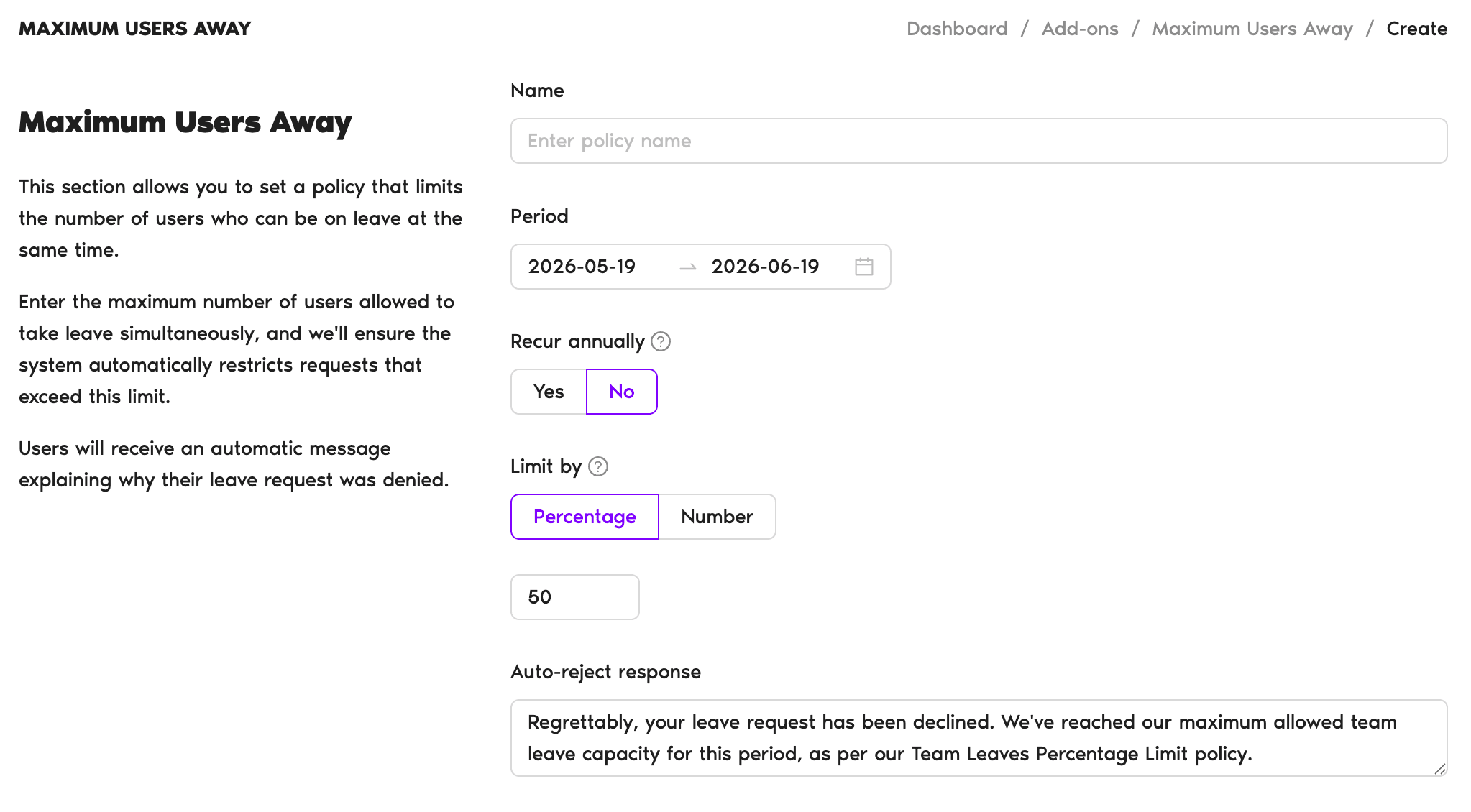
Policy Fields
- Name — Enter the policy name.
- Period — Select what time period the policy covers.
- Recur annually — Choose if the policy will be applied in the following years as well.
- Limit by — Toggle between Percentage and Number, then enter the cap in the field below. For example, if you have 4 Users and you want a maximum of 2 Users away, you can enter 50% or 2.
- Auto-reject response — A message Users will receive when their leave request exceeds the limit. The field is pre-filled with default copy ("Regrettably, your leave request has been declined. We've reached our maximum allowed team leave capacity for this period, as per our Team Leaves Percentage Limit policy.") which you can edit.
Who the Policy Applies To
- Apply to all Users — If you select No, you'll be able to filter the Users in order to apply the automation to a specific department, location or label.
- Filter by — Choose which locations, departments and labels this applies to. You can select multiple options.
- Leave Types — Select the leave types this will be applied to. For example, you might want to limit Vacations, but allow Users to take Sick Days if necessary.
Reviewing & Editing the Policy
After you've created your first policy, you'll be able to review it by opening Workspace Settings → Add-ons → Maximum Users Away. You can deactivate or delete the policy there, with an option to edit the details being available if you click on the policy name.
Limit individual leave length
If you also want to cap how many days each User can take in a season, see How Do I Limit Users' Leave Duration?See all available automations
To learn about other automations we offer, take a look at the helpdesk overview: Guide: What Automations does Vacation Tracker offer?Admins only
Only Admins can create and configure Add-ons / Automations. Approvers can view the Add-ons panel but can't modify automations. Book a Call