
Last updated on October 14, 2025
How Do I Unsubscribe From an Automation?
Since you can configure multiple automations at the same time (for example, you can have multiple Blackout Periods in a year), simply deleting a configured automation doesn't unsubscribe you from the automation. Here's how to actually cancel the subscription.
Cancel an Automation Subscription
- Go to the Vacation Tracker Dashboard — https://app.vacationtracker.io/signin.
- On the left-hand side menu, click Add-ons under Workspace Settings.
- On the My Add-ons tab, click View on the Add-on you would like to unsubscribe from.
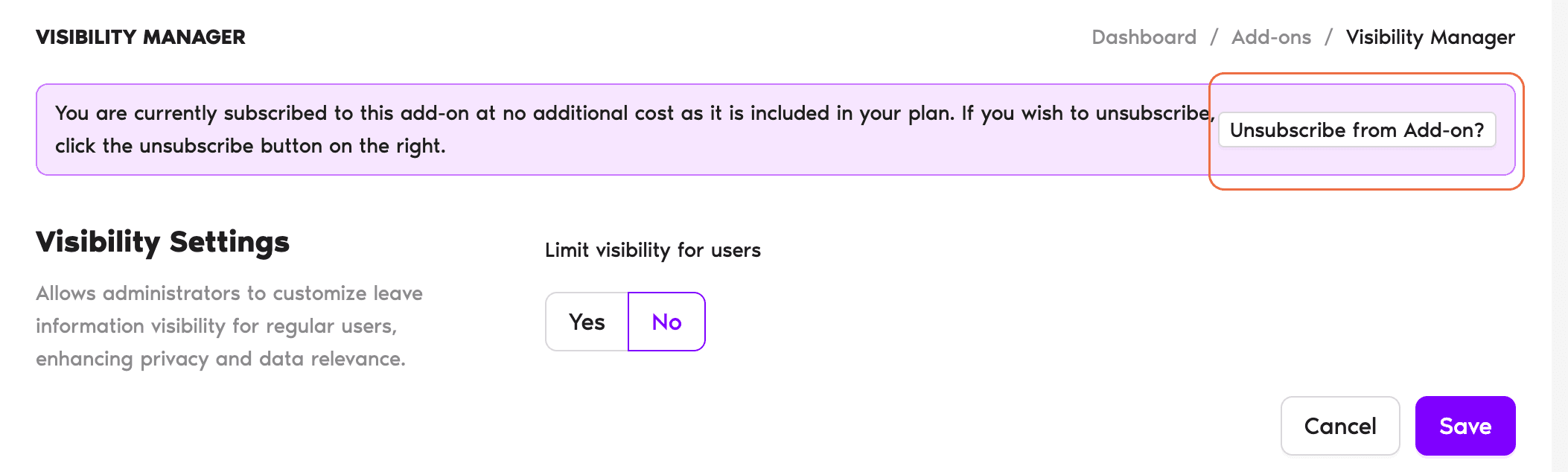
- In the banner at the top of the page, click the Unsubscribe from Add-on? button on the right.
- Confirm your decision in the pop-up window that appears.
Active until end of cycle
The Automation will remain active until the end of your subscription cycle.Settings are kept
After they're deactivated, configured Automations will remain visible in the Automations window, so you won't need to configure them again if you buy them back later.Browse all automations
If you want to learn more about the automations we currently offer, read: Guide: What Automations does Vacation Tracker offer?Set up Seniority Entitlement
To learn how to set up Seniority Entitlement, follow: How Do I Set Up Seniority Based Entitlement (SBE) Automation? Book a Call