
Last updated on August 6, 2026
How Do I Set Up Seniority Based Entitlement (SBE) Automation?
Seniority Based Entitlement (SBE) automatically gives employees extra leave once they reach the years-of-service milestones you set. The days are added on top of their existing quota.
1 Add the Add-on
2 Configure the Automation
On the Seniority Entitlement page, click Create automation (top-right) to open the form. Open each step, set it, then move to the next. You will preview and save at the end.
1Automation detailsName + who it applies to
Name the automation, then choose who it applies to.
2Which leave type gets the extra days?Where days are added
The seniority days are added on top of the existing quota for the leave type you pick.
3Seniority tiersYour milestones
Add one tier per milestone. Add tier adds another; the red minus removes one.
After 5 years → grant +2 days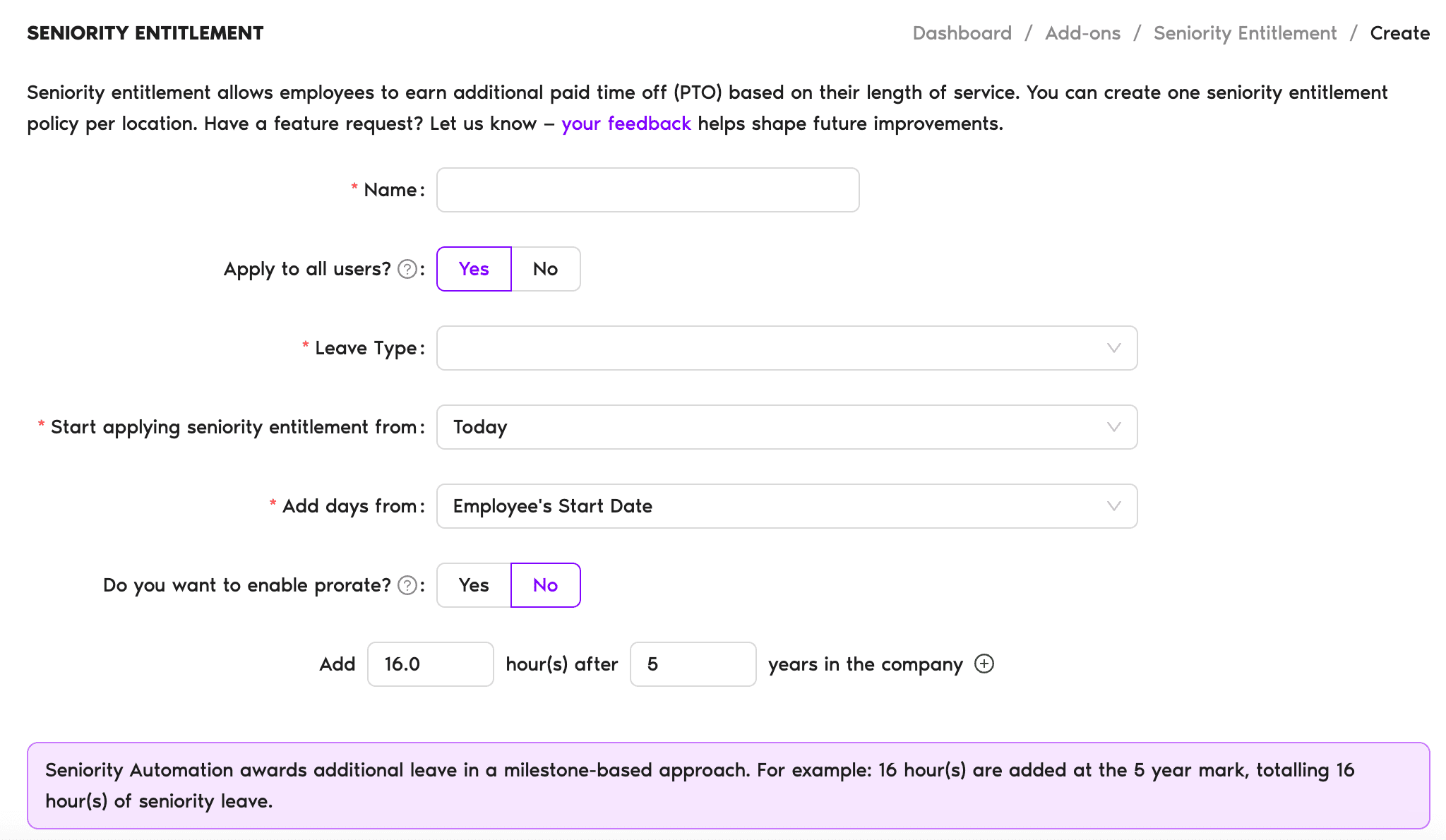
4When the rule starts applyingMost important choice
This decides how much of each employee's past counts.
| Employee | Milestone | Result |
|---|---|---|
| Ana | 2 years, already passed (started Jan 12, 2022) | Admin adds the 5 days manually. |
| Stacy | 2nd anniversary upcoming (Sep 3, 2024) | System adds 5 days automatically. |
| Rick | 4th anniversary upcoming (Mar 3, 2024) | System adds 5 days (10 total). The 2-year milestone from 2022 must have been added manually. |
5When days are added to the balanceWhen days land
Split the award across fiscal years (toggle under work anniversary): a tier that lands mid-year is split. Part is added on the anniversary, the rest at the next fiscal-year start.
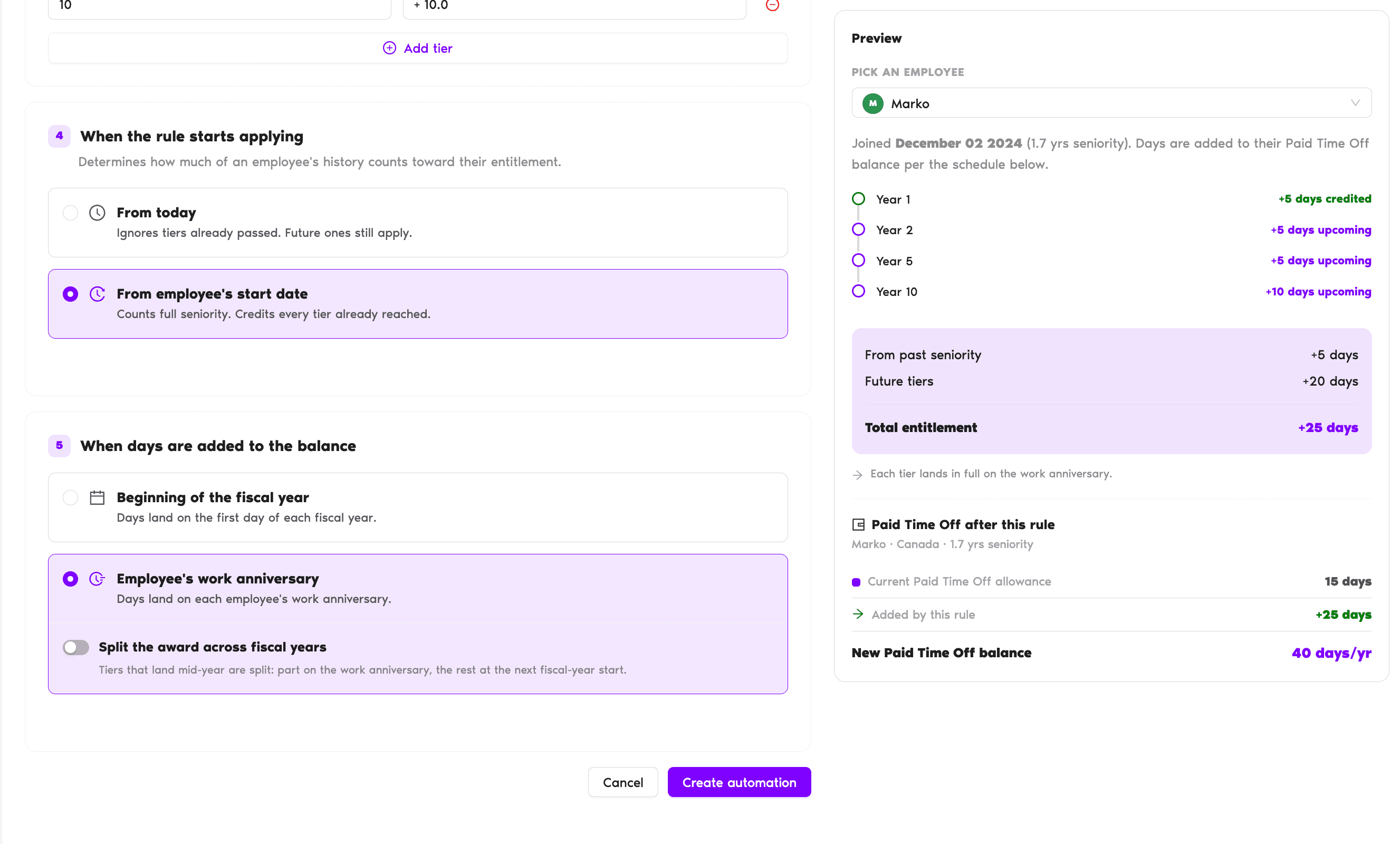
6Preview before you saveCheck the result first
Pick any employee in the Preview panel to confirm the result is what you expect. Nothing is saved yet, so adjust the steps above until it looks right.
Create the automation
When the Preview looks right, click Create automation at the bottom of the form to save. Remember: it cannot be edited afterwards, so double-check steps 1 to 6 first.
You can revisit your automations under Workspace Settings → Add-ons → Seniority Entitlement.
 Book a Call