
Last updated on February 13, 2026
How Does an Approver Assign a Substitute Approver?
When an Approver takes leave, requests from their team still need to move. The Substitute Approver field on the Request Leave form lets you nominate someone to cover approval duties for the exact window you're out — so nothing sits in limbo while you're away.
Assign a Substitute Approver from the Dashboard
The Substitute Approver field lives inside the standard Request Leave form. It only appears when the system can tell approvals would otherwise stall while you're out — specifically, when you're the sole Approver for at least one of your Departments.
- Sign in at app.vacationtracker.io.
- Click Request Leave at the top of the left-hand menu.
- Pick your Leave Type from the dropdown (for example, Vacation or Paid Time Off).
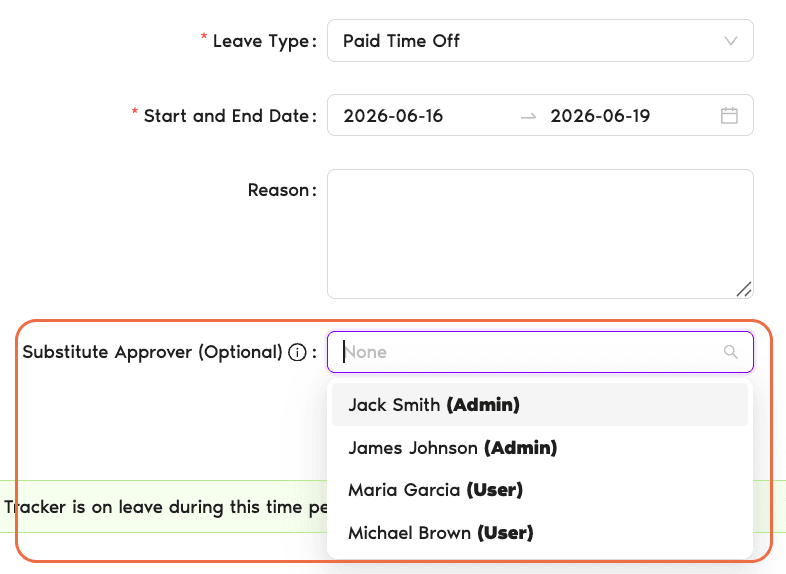
- Set your Start and End Date. Once the dates are in, the form expands and — if you qualify — the Substitute Approver (Optional) row appears.
- Open the Substitute Approver dropdown and choose the person who should cover for you. The list is searchable, so you can type a name to filter. Each person is tagged (Admin) or (User) next to their name.
- Add a reason if your policy requires it, pick how the leave should show on your calendar, and click Request Leave to submit.
When the Field Does — and Doesn't — Appear
The Substitute Approver dropdown isn't shown on every Request Leave form. Vacation Tracker looks at who'd be left to approve requests for your Department(s) while you're out, and only asks you to nominate a substitute when nobody else is configured.
You're the sole Approver for a Department
The field appears. Without a Substitute, any requests from that Department during your leave would have no one to approve them.
Your Department has other Approvers configured
The field is suppressed. The other Approvers can handle requests while you're out, so Vacation Tracker doesn't prompt you for a substitute.
You're not an Approver for any Department
The field doesn't apply — there are no incoming approvals to hand off — so it doesn't appear on your form.
Assign a Substitute Approver from Slack or Microsoft Teams
If your workspace uses the Vacation Tracker Slack or Microsoft Teams integration, the same Substitute Approver step is available inside the bot's Request Leave flow.
Slack
Run /vacation in any channel the bot is in, choose Request Leave, and go through the leave details. When the bot gets to the Substitute Approver step, pick the colleague who should cover your approvals.
Microsoft Teams
Open the Vacation Tracker app in Teams, start a new leave request, and the bot walks you through the same sequence — including the Substitute Approver selection.
Common Questions
The field only shows when you're the only Approver on at least one Department. If every Department you approve for already has another Approver, nothing would stall while you're away, so Vacation Tracker doesn't prompt you for a substitute. The field is also only visible after you've picked a Leave Type and your Start/End dates.
The dropdown lists people from your workspace, each tagged as (Admin) or (User). People who are already on approved leave during your window won't appear in the list — Vacation Tracker filters them out so you don't accidentally hand coverage to someone who'll also be away.
It's labelled (Optional), and the default value is None, so you can submit without assigning one. But if you're the only Approver for a Department, leaving it blank means incoming requests for that Department will wait until you're back to act on them.
 Book a Call