
Last updated on June 6, 2025
How Do I Respond to a Leave Request?
As an Approver (or Admin), where you respond to a leave request depends on which integration your workspace uses. Slack workspaces respond through the Slack bot. Microsoft Teams workspaces respond through the Teams bot. Google Workspace and Email Only workspaces respond via email. The dashboard is available to all four, and is always there as a fallback.
From Slack or Microsoft Teams
When someone in your Department submits a leave, the Vacation Tracker bot sends you a message containing the request details (requester, dates, leave type, reason) and three action buttons:
Click any of the three from the bot message — you don't need to open the dashboard. The bot also offers a Snooze action that suppresses the next reminder for this request without committing to a decision.
From Email
Email notifications are the response channel for workspaces on the Google Workspace and Email Only integrations. The email contains the request details and the same three action options — Approve, Deny, and Deny with Reason — as links. Clicking takes you to a confirmation page in your browser; confirm and you're done.
From the Dashboard
- Sign in at app.vacationtracker.io.
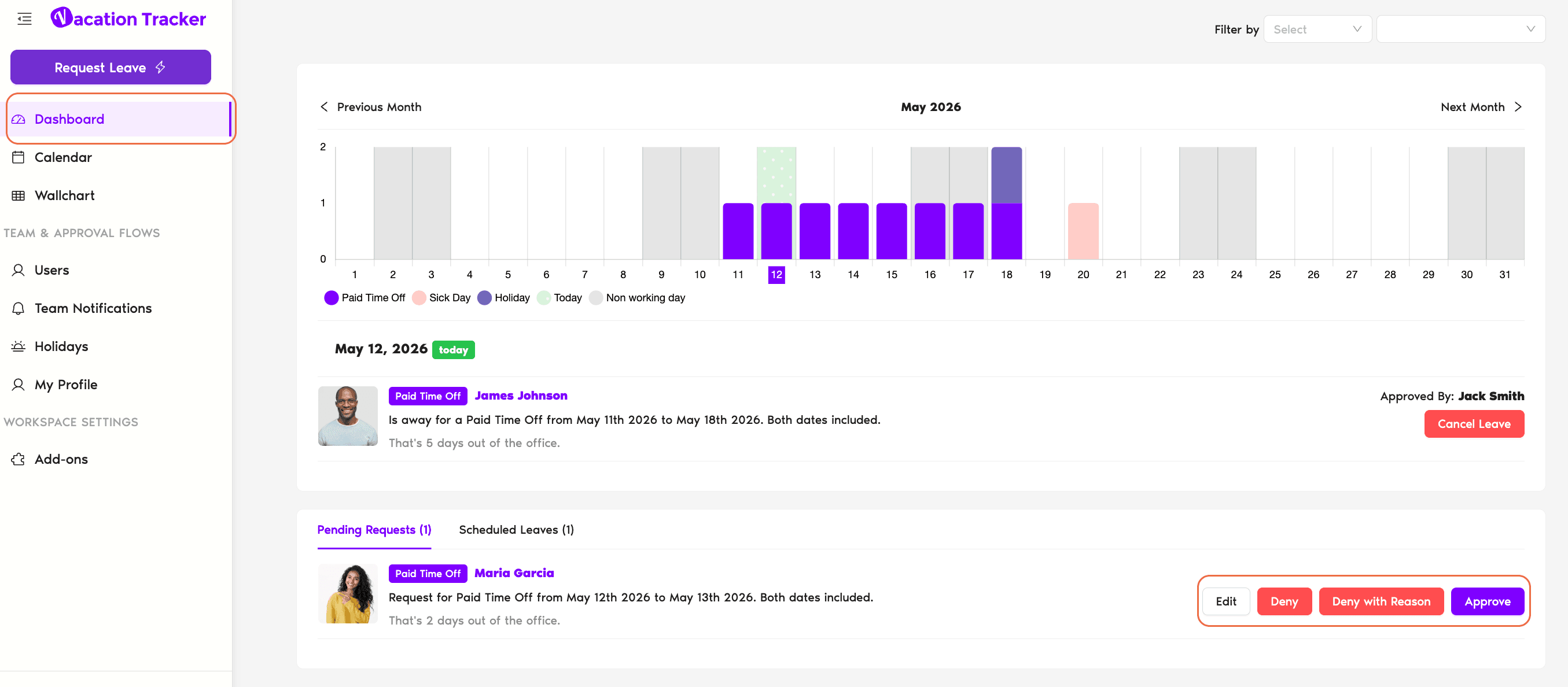
- On the Dashboard, scroll to the Pending Requests section.
- Each pending request is laid out in full on the page — requester, Leave Type, dates, reason, all visible without clicking. There's no separate detail view to open.
- Use the three buttons on the request card: Approve, Deny, or Deny with Reason. Deny with Reason opens a text field so you can explain why.
Reminders if You Don't Act
If you don't approve or deny within the reminder window, Vacation Tracker sends up to 3 reminders before the request auto-expires. The expiration timing depends on a few variables:
For the full breakdown, see Reminder Schedule and What happens if a leave isn't responded to right away?
Multi-Level Approvals
If the Department is configured with Multi-level Approval (Complete plan), each request moves through First Level, then Second Level, in sequence. Where you fit in depends on which level you're on:
So as a Second Level Approver: if a request lands on you, that's confirmation that First Level has already approved. Your job is the final yes/no. See How To Set Up Multi-Level Approvals for the full flow.
Common Questions
No. The bot, email, and dashboard all read and write to the same record. Approving from Slack or Teams updates the dashboard at the same time; the request disappears from the Pending Requests panel the moment you act.
No. Expired requests are closed records — the buttons aren't available anymore. The User has to submit a new request for the same dates if they still want the time off.
Two possibilities. Either nobody in your Department has submitted a request lately — in which case nothing's wrong. Or you might not be assigned as an Approver on any Department. Open Departments and check that you're listed in the Approver(s) field of at least one. If you're on Multi-level and on Second Level only, you also won't see requests until First Level has acted on them.
 Book a Call