
Last updated on June 23, 2025
What Types of Reports Can I Export?
The Reports page in Vacation Tracker offers five report types — three exportable data reports, an audit log viewer, and a scheduled-report scheduler. Find them all under Reports in the left menu (Admins only).
Where to Find Reports
Sign in at app.vacationtracker.io, then in the left menu expand Reports and click Reports.
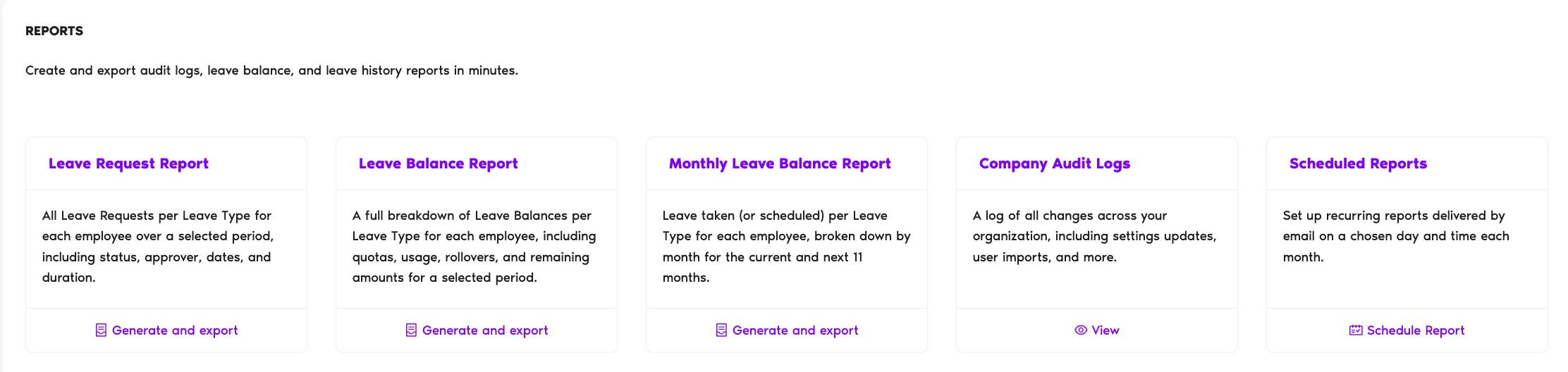
The Five Reports
Leave Request Report
Per the page: "History of all leave requests (approved, denied, expired) per Leave Type for each employee for a specific time period."
Best for: auditing leave history, payroll inputs, end-of-quarter or end-of-year reviews.
Leave Balance Report
Per the page: "The amount of entitled and taken leaves per Leave Type for each employee for a specific time period."
Best for: a snapshot of where everyone stands today, or a year-over-year comparison.
Monthly Leave Balance Report
Per the page: "The amount of taken (or scheduled) leaves per Leave Type for each employee for the current and the following 11 months."
Best for: headcount planning, forecasting how balances will look across the year as accrual cycles tick over.
Company Audit Logs
Per the page: "History of all changes on the company, location, department and leave type level for a specific time period."
Best for: change tracking — who changed what setting and when. Cross-reference: How Can I View Company Logs?
Scheduled Reports
Per the page: "Configure and schedule reports that we'll deliver to the selected list of emails on a selected day and time each month."
Best for: automatic recurring delivery — payroll wants the Leave Request Report on the 1st of every month? Set it once and forget it.
Plan note: Scheduled Reports is a Complete plan feature. On Free and Core, the Schedule Report option is hidden — generate-and-export still works for the other report types.
Exporting from a Report
For each of the three exportable data reports (Leave Request, Leave Balance, Monthly Leave Balance), clicking Generate and export opens the report view with filters at the top. From there:
 Book a Call