
Last updated on October 10, 2025
How Do I Export Employee Leave Balances?
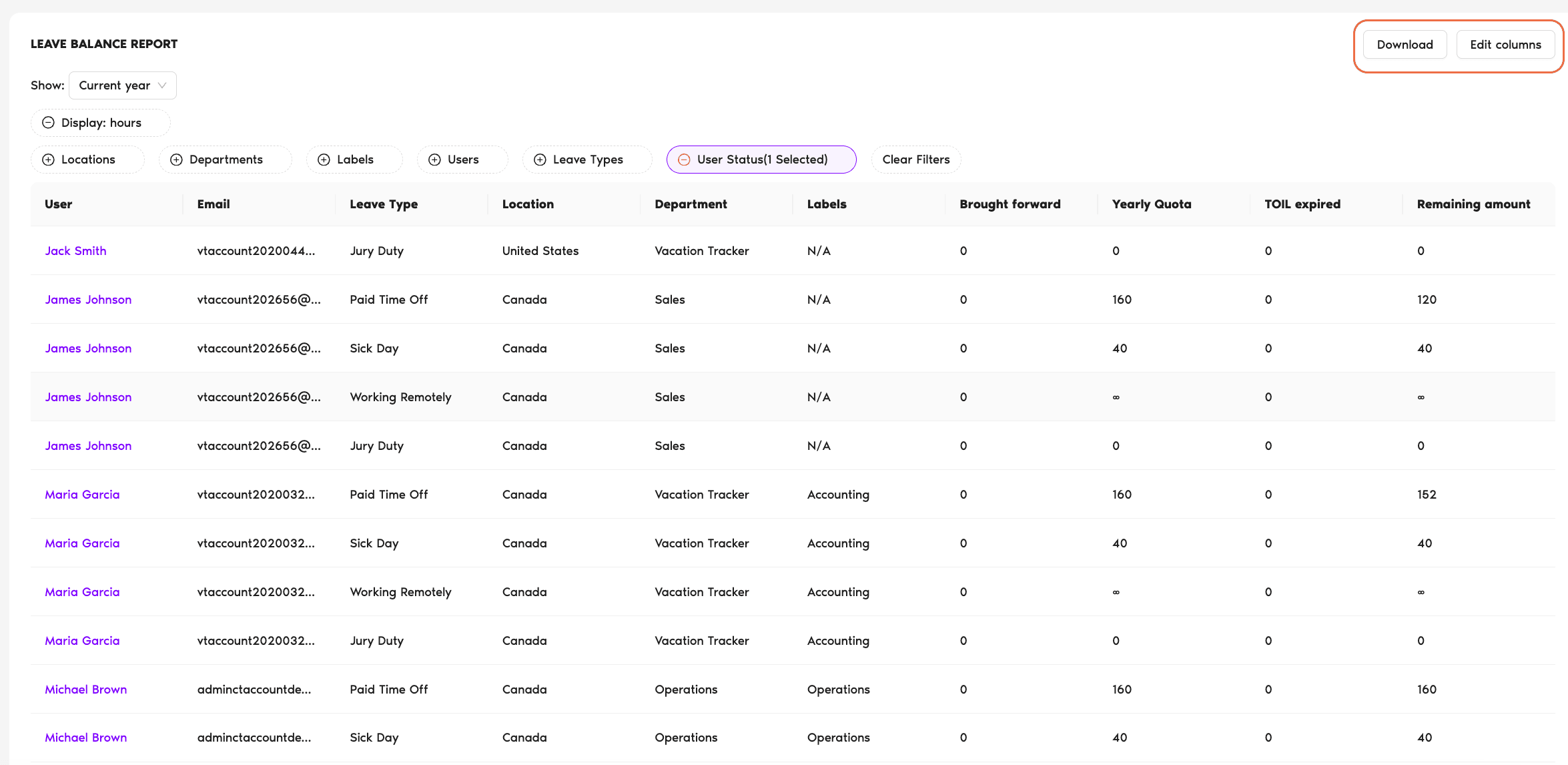
The Leave Balance Report exports each User's entitled, taken, and remaining balance per Leave Type for whichever period you pick. Quickest way to get a workspace-wide snapshot of where everyone stands.
Steps
- Sign in at app.vacationtracker.io as an Admin.
- In the left menu, expand Reports and click Reports.
- On the Reports page, click Generate and export on the Leave Balance Report card.
- Adjust the filters along the top of the report.
- Optionally click Edit columns in the top-right to add or hide specific columns.
- Review the report table below the filters, then click Download in the top-right and pick CSV or Excel.
Filters You Can Apply
| Filter | What it controls |
|---|---|
| Show | Time period — Current Year, Last Month, Previous Year, Next Year. |
| Display | Show balances in Days or Hours. |
| Locations | Filter to specific Locations only. |
| Departments | Filter to specific Departments only. |
| Labels | Filter by labels assigned to Users. |
| Users | Pick specific Users when other filters aren't enough. |
| Leave Types | Show only the Leave Types you want. |
| User Status | Include inactive and deleted Users (active-only by default). |
A Clear Filters button at the bottom of the filter panel resets everything.
What's in the File
Per User, per Leave Type: entitlement, days/hours taken, scheduled (upcoming approved leaves), brought-forward, and the remaining balance. Plus identifying fields — Department, Location, Employee ID — for cross-referencing in payroll or HR systems.
Edit Columns
Use Edit columns in the top-right to toggle which fields appear. Useful when you only need entitlement vs. remaining for a year-end check, and want to drop the rest.
 Book a Call