
Last updated on January 27, 2026
How Do I Add (Import) Users?
When you don't want auto-import enabled — or when only a handful of new hires need to come into Vacation Tracker — manual import is the right tool. Pick the specific people you want from your workspace directory, configure their starting Department, Location, and prorated quotas, and bring them in. With the Email integration, the flow swaps to Create Users instead.
How User Login Works
If your workspace uses Slack, Microsoft Teams, or Google Workspace, Vacation Tracker pulls user identity from the directory — imported users sign in with their existing integration credentials, no new password needed.
If your workspace uses the Email integration, users get an email invitation, click the link, and create their own password to sign in. Different mechanism, but the end state is the same: they land on the Active Users list.
Add Users (Slack, Microsoft Teams, Google Workspace)
- Sign in at app.vacationtracker.io.
- In the left-hand menu, under Team & Approval Flows, click Users.
- Click Add Users at the top of the page. A new page opens.
- You'll be asked whether to import all users from your workspace directory at once. No is selected by default.
- In the Select Users to Import field, type a name to search or scroll through the list to pick specific people. Selected users appear listed below the field.
- Toggle on Configure Settings for selected Users to expose the optional configuration block (covered below).
- Click Import. A confirmation pop-up summarizes what you're about to do — number of users, settings applied, and a billing impact reminder. Confirm to proceed.
The new users appear on the Active Users list immediately.
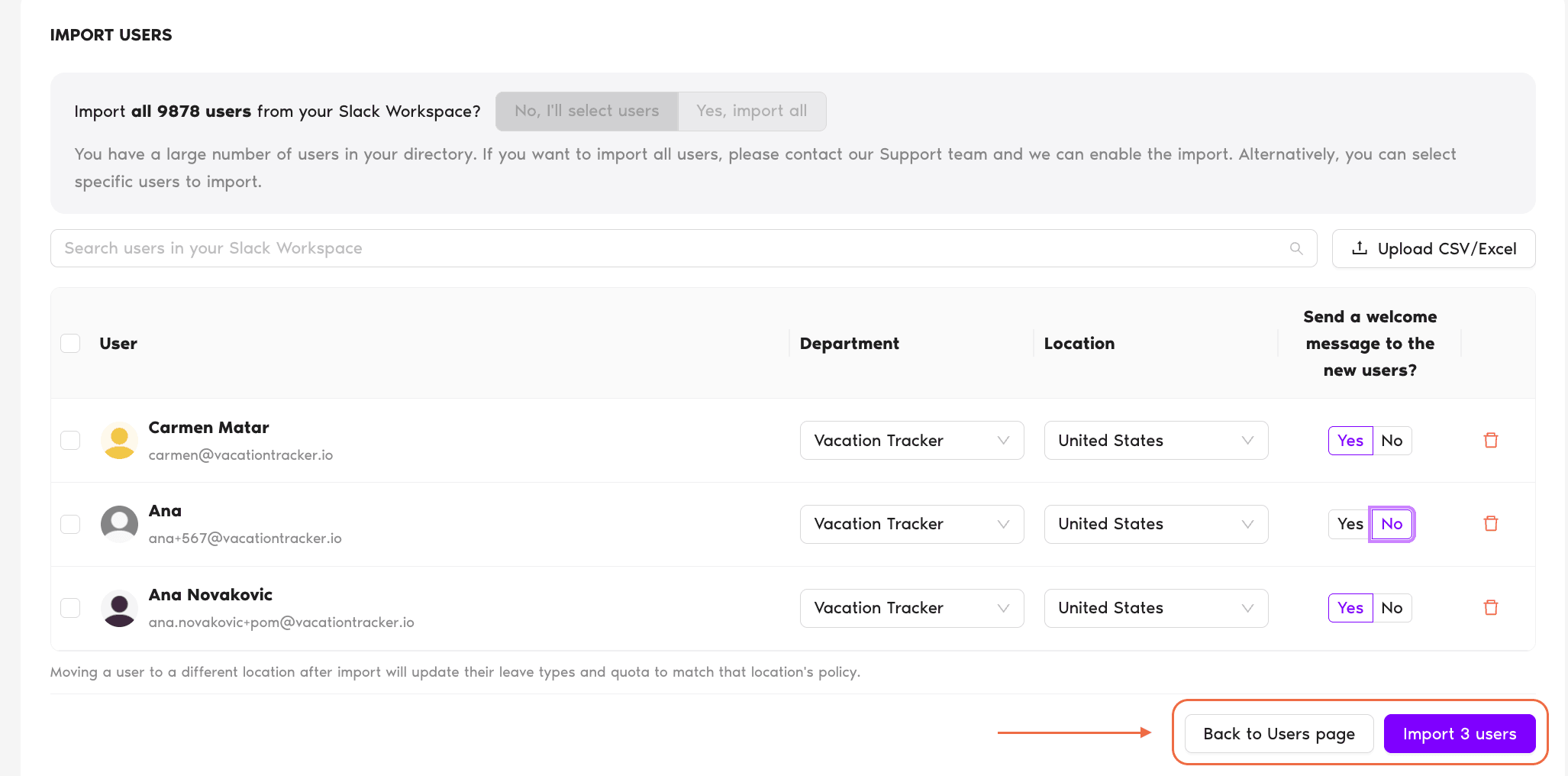
Configure Settings for Selected Users
The toggle reveals four configuration options that apply to all the users you've selected in this batch:
Announce to New Users
Sends a welcome notification to the imported users letting them know they've been added to Vacation Tracker. Helpful if you don't want to message them yourself.
Department
Pick which Department to add the new users to. If left unset, they go to the workspace's default Department.
Location
Pick which Location the new users belong to. The Location determines holidays, leave policies, and quotas they're subject to.
Prorate the new users' quota for this year
If you set this to Yes, the system automatically reduces the user's first-year quota proportionally to the part of the year remaining at their import date — so a user joining in October doesn't get a full year's allotment. You can pick which leave types this applies to. Set to No and they receive the full annual quota as defined in the leave policy, regardless of import date.
The "Yes — Import All Users" Option
The pop-up's first question lets you import the entire directory in one shot. Useful for the initial setup, but worth being deliberate about — it imports everyone in your Slack/Teams/Google Workspace directory and counts them all toward your billing seats.
Email Integration
The Email integration doesn't have a workspace directory to read from, so users are added through their own dedicated flows. See:
Common Questions
Admins. The Add Users / Invite Users button on the Users page is part of the Admin-only Team & Approval Flows section. Approvers and regular Users don't see it.
Refresh the page — the list sometimes doesn't auto-update right after the import completes. If they still don't appear on the Active list, contact Support.
Auto-import (Workspace Settings → General → Import Users Configuration) brings every new directory member into Vacation Tracker as soon as they're added in Slack/Teams/Google Workspace. Manual import via the Add Users button is one-off — you choose the exact set of people each time. Use whichever fits your team's onboarding rhythm. See How Do I Enable/Disable the Automatic User Import?
 Book a Call