
Last updated on October 15, 2025
How to Add Users With the Email Integration?
If your account is on the Email Only integration, you can add Users from the dashboard with any email address — no Slack workspace, Microsoft tenant, or Google domain required. The Create Users page bundles three flows in one: create a single User, invite-by-email, and bulk import.
Open the Create Users Page
- Sign in at app.vacationtracker.io with an Admin account.
- In the left-hand menu, click Users.
- At the top of the Users page, click Create Users.
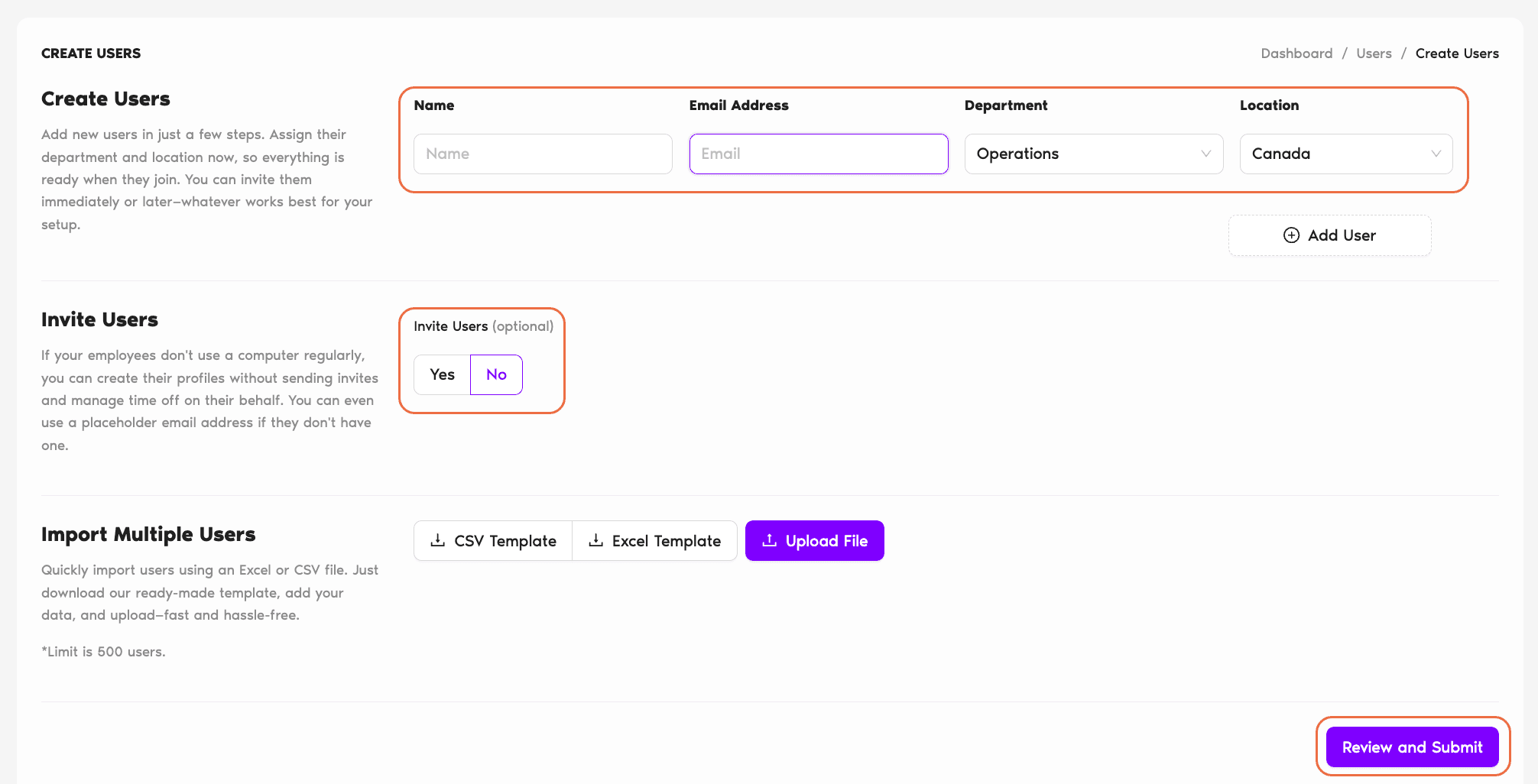
The Create Users page has three sections that all live on the same screen:
1. Creating a User
For a single User (or a handful you'd rather type than upload), fill in the fields directly:
Name
The display name as it'll appear in Vacation Tracker — calendars, reports, notifications, the Users table.
Email address
A valid email. With the Email Only integration, this is how the User signs in (email + password) and where Vacation Tracker sends them approval requests, reminders, and notifications.
Department
Pick the Department to assign the User to. If you haven't created the Department yet, do that first — see How Do I Create a Department?
Location
Pick the Location to assign the User to. Same — create the Location first if needed: How Do I Create a Location?
Adding these details up front means everything is ready to go when the User signs in for the first time.
2. Inviting Users
After you've entered a User's details, the page asks whether you want to send the sign-in invite right away. Two options:
3. Importing Users in Bulk
For a large batch, scroll to the Import Multiple Users section on the same page. The flow is:
- Download the CSV or Excel template Vacation Tracker provides.
- Fill in the Users' information (Name, Email, optionally Department and Location).
- Upload the completed file. Vacation Tracker validates and creates the Users.
For the full bulk-import walk-through (template fields, validation rules, edge cases), see How Do I Bulk Import Users? (Email Only Integration).
Common Questions
Both live on the same Create Users page, so you can switch as you go. As a rough rule: 1–5 Users → use the typed form (faster than downloading a template). 6 or more → use the bulk template, especially if your team list is already in a spreadsheet somewhere.
Yes — that's the main reason teams choose the Email Only integration. You can add Users with any valid email address (mixed domains, contractors with personal emails, partner organisations, etc.). The integration doesn't require everyone to share the same Slack workspace, Microsoft tenant, or Google domain.
Email is the unique identifier for a User on Email Only accounts. Trying to add a User whose email already exists will fail — the existing User stays unchanged. To update an existing User's profile information, edit their profile directly: see How Do I Edit User's General Information?
 Book a Call