
Last updated on October 10, 2025
How Do I Create a Department within Vacation Tracker?
New hires, reorgs, a new product line — teams grow in shapes that don't always fit one bucket. Out of the box, Vacation Tracker drops every active user into a single Default Department. Creating extra Departments lets you route different teams to different Approvers, configure approval flow independently, and keep leave requests organized by the way your company actually works.
Create a New Department
The form opens on its own page, grouped into five sections. Name and at least one Approver are required — every Department needs an active Approver before it can be created. Users and the other fields can be left for later and edited in via the Edit Department flow.
- Sign in at app.vacationtracker.io.
- In the left-hand menu, under Team & Approval Flows, click Departments.
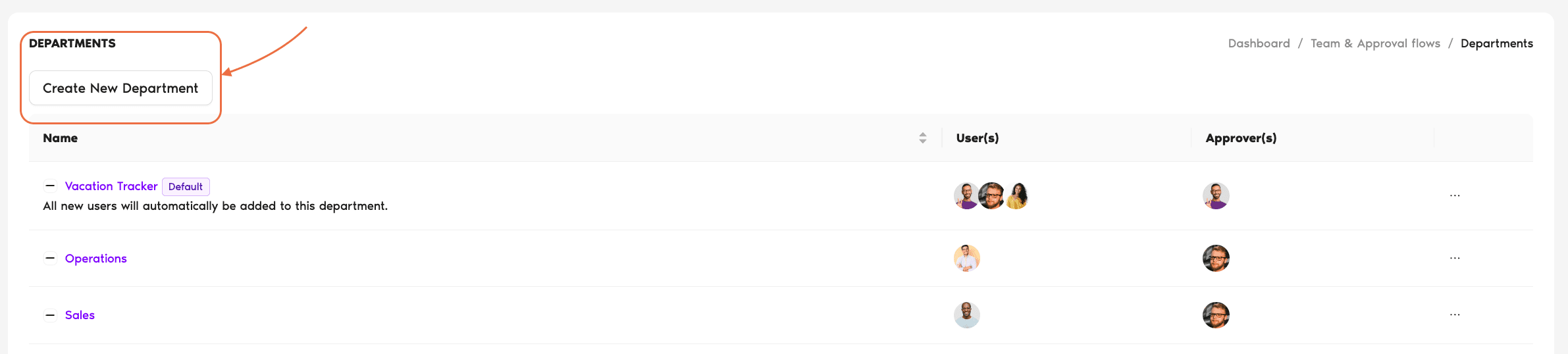
- At the top of the Departments page, click Create New Department.
- Work through the five sections of the Create Department form (covered below).
- Click Create Department at the bottom. Use Cancel to back out without saving.
What to Fill Out
1. Department Settings
The top of the form sets the basics — Department name and the initial roster of Users.
2. Approval Flow
Sets who approves leave requests and how those approvals flow.
3. Leave Request Expiration
Controls how long pending requests hang around before expiring. The field asks Keep future pending requests open? with a Yes/No toggle (defaults to No).
Yes — keep them open
Pending requests stay open until the leave end date. No auto-expiry along the way.
No — auto-expire
Pending requests expire after 7 working days or on the leave end date, whichever comes first. This keeps stale requests from piling up indefinitely.
4. Default Department
Every workspace needs exactly one default Department — the one new users land in automatically. The Make This Department Default toggle lets you flag the one you're creating as the new default.
5. Subdepartment Settings
Lets you nest the new Department under an existing one for structural grouping. The Choose Parent Department dropdown defaults to None.
Save the Department
Scroll to the bottom of the form and click Create Department. The new Department appears on the Departments page immediately, and any users you assigned to it are moved in. If you clicked Cancel instead, nothing is saved.
Common Questions
Admins. The Departments page and the Create New Department button sit under the Admin-only Team & Approval Flows section of the left menu, so regular Users and Approvers don't see them.
Yes, the cap depends on your plan: Free includes 1 Department, Core includes 10, and Complete is unlimited. If you hit your plan's cap when trying to create one, Vacation Tracker will prompt you — and you can upgrade from the Billing page to unlock more.
Approvers — yes. Every Department needs at least one active Approver before it can be saved, so you'll have to assign one up front. If you don't yet know who the final Approver will be (for example, you're creating the Department as part of a bulk import and the real Approver hasn't been added yet), assign yourself or another Admin as a placeholder and swap it out later through Edit Department. Users are different — that field is optional, and you can leave it empty and add people any time afterwards.
 Book a Call