
Last updated on July 3, 2026
How Can I Categorize Users (Adding Labels)?
Labels are a flexible way to group Users beyond Departments and Locations — Full-Time, Contractor, Manager, Project Atlas, Cohort 2024, anything you want. Labels show up as colored chips on the User profile and become filters on Calendar, Wallchart, Reports, and the Users page.
Adding a Label to a User
- Sign in at app.vacationtracker.io as an Admin.
- In the left-hand menu, click Users.
- Click the User you want to label to open their profile.
- At the top of the profile (next to the User's name), click + Add Label.
- Type a new label name to create one, or pick an existing label from the suggestions.
- Press Enter. The new chip appears next to the User's name.
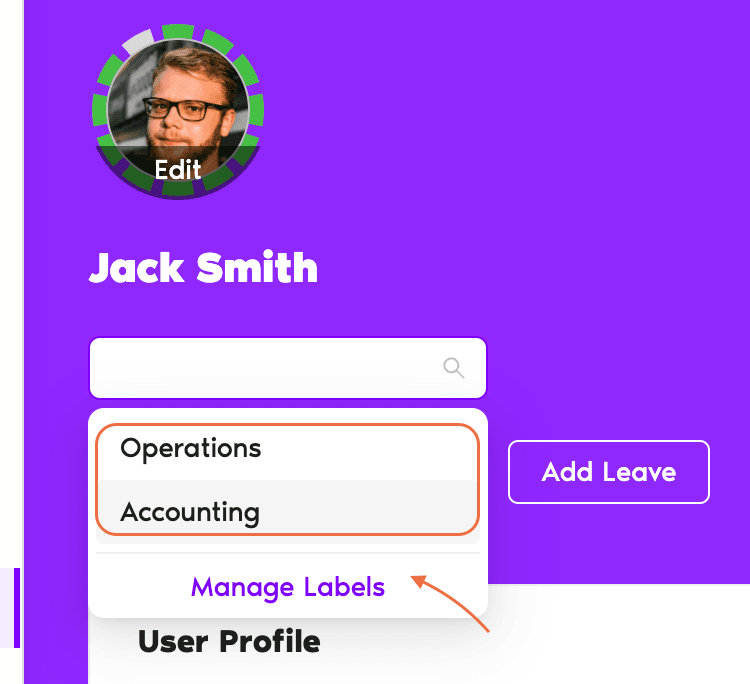
You can add multiple labels to one User. Each label is a chip with an × to remove it.
Manage Existing Labels
When you click + Add Label on a User profile, the dropdown that appears includes a Manage Existing Labels option at the bottom. That opens a pop-up listing every label that exists in your workspace, with controls for editing each one.
- From any User's profile, click + Add Label.
- At the bottom of the dropdown, click Manage Existing Labels.
- In the pop-up, you'll see a list of every label in your workspace. Each row shows the label name, its color, and how many Users currently carry it.
- Use the controls per row to edit:
- Close the pop-up when you're done — changes save as you make them.
What Labels Unlock
Once Users have labels, the label filter appears on every page that supports filtering — Calendar, Wallchart, Users, and Reports. Combine labels with Department and Location filters to drill into very specific slices (e.g. Engineering × US × Manager).
Common Questions
Admins can create it, while Approvers and regular Users can see labels on profiles they have access to, but can't create new labels or apply them.
Yes — any number. Each label is an independent chip on the profile, and the User shows up in filter results for every label they carry. There's no limit, though too many labels per User typically means the labels are too narrow.
Renaming a label preserves automation targeting — the Entitlement by Role automation, for example, just sees the new name on the same Users. Deleting a label that's used by an automation breaks the targeting; the automation either falls back to its default behavior or stops applying. Edit the automation's label-target field after deletion to point at a different label.
 Book a Call