
Last updated on February 13, 2026
How Can I Use Wallchart to View Upcoming Leaves?
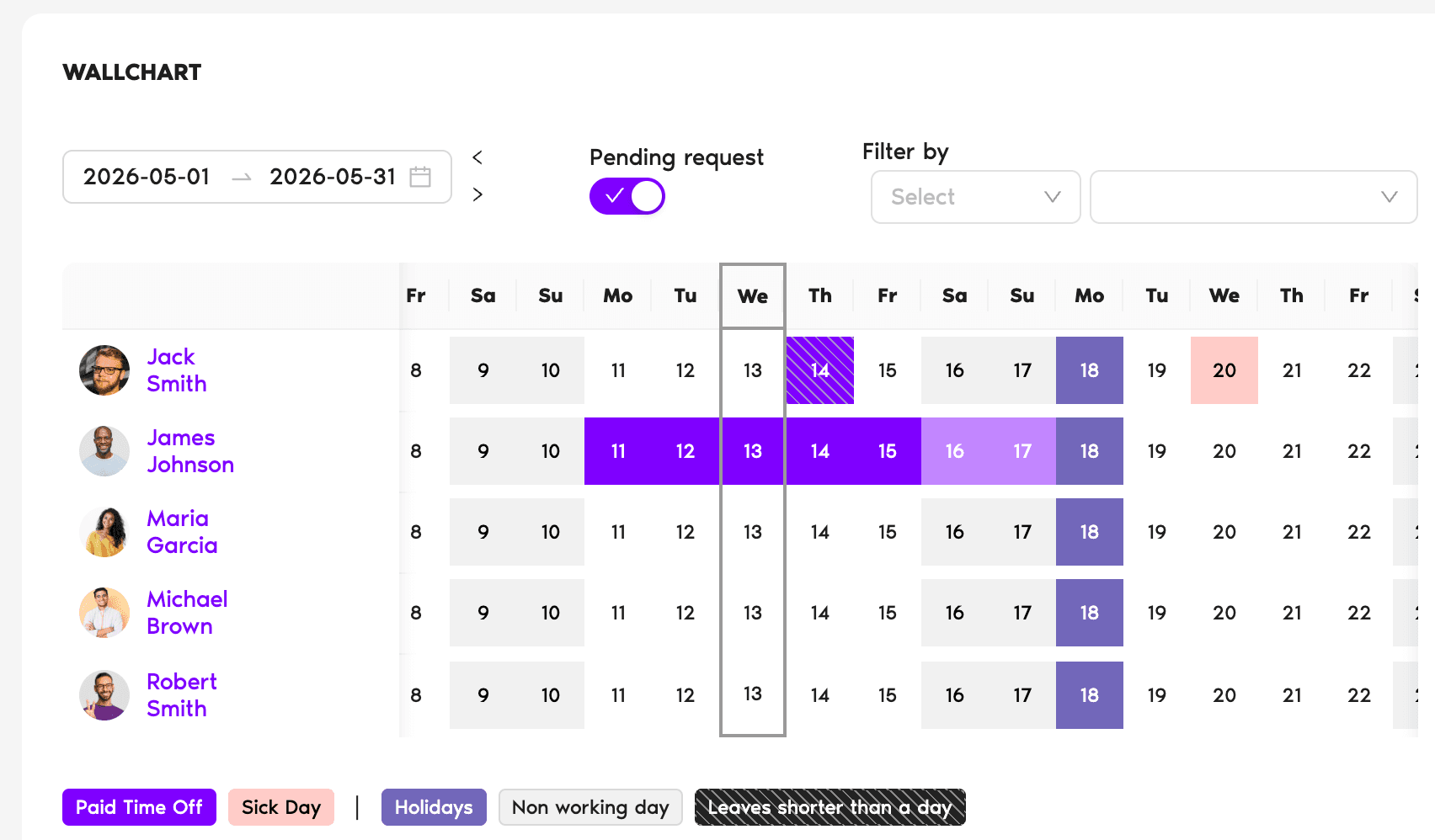
Wallchart is a horizontal grid showing every active User in your visible scope down the left and a strip of days across the top. It's the fastest way for an Admin or Approver to spot overlapping absences, plan around dense periods, and see who's covering for whom — all on one screen.
How to Open Wallchart
- Sign in at app.vacationtracker.io.
- In the left-hand menu, click Wallchart.
You land on a grid: every active User in your visible scope is a row, days run across the top, and approved leaves and holidays are colored blocks within each row.
Reading the Grid
Click any block for details
Click a block on a User's row to open a side panel on the right with the leave's details — Leave Type, dates, status, Approver, reason. Same for Location holidays. Click the User's name to jump to their profile.
View Ranges
The view-range selector above the grid lets you jump between time windows:
Filters
Above the grid, three filter dropdowns let you narrow the visible Users:
You can mix and match — e.g. Engineering Department × US Location × Full-Time label — to drill down to a specific slice. Filters apply on top of the view range, so you can answer "who's out next month in Engineering" with two clicks.
Common Questions
Different layouts for different jobs. Calendar is a standard month grid where each cell is a date and Users are tagged inside — closer to how Google Calendar or Outlook lays things out. Wallchart turns it sideways: each User gets their own row, with days as columns, so you can scan across a single person or down a single day. Wallchart is denser and faster for forecasting; Calendar is better for one-off scheduling.
Wallchart shows approved leaves and holidays. Pending requests don't appear in the colored blocks — for those, use the Pending Requests tab on the Dashboard or filter the Leaves tab on the requesting User's profile.
Two layers determine this. First, your role and what your Admin has set on the Features and Permissions page — that decides whether you can open Wallchart at all. Second, if you can open it, the Visibility Manager automation (if your Admin has it configured) controls which Users you see inside. Admins see everyone by default, while Approvers and Users have their visibility scoped down by the Visibility Manager settings.
 Book a Call