
Last updated on February 13, 2026
How Do I Edit a User's Leave Request?
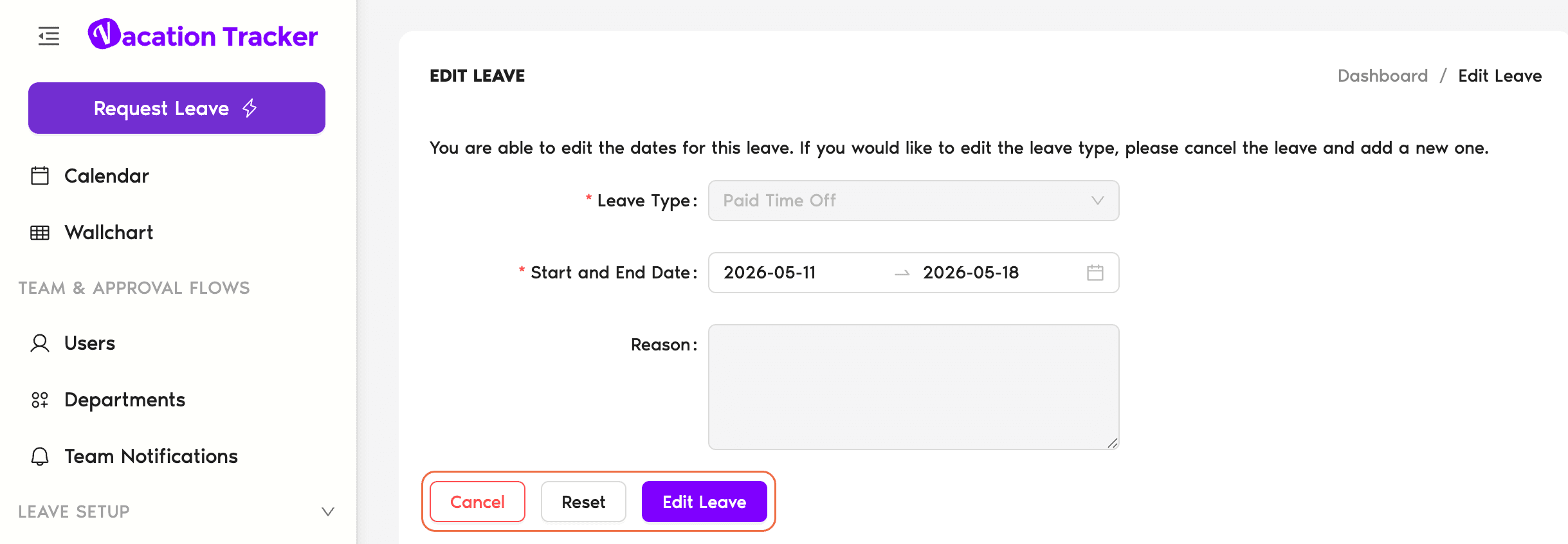
Admins and Approvers can edit a User's leave — change dates, hours, or reason — from the User's profile or from the Pending Requests panel on the Dashboard. The one thing edits can't change is the Leave Type; for that, the User has to cancel and submit a new request.
From the User's Profile
- Sign in at app.vacationtracker.io with an Admin or Approver account.
- Open the User's profile from Users in the left menu.
- Click the Leaves tab — every leave (pending, approved, denied, cancelled, expired) is listed here.
- Find the leave you want to edit, then click the Edit button on that row.
- Change the dates, hours (if it's hourly/half-day), or reason as needed. Leave Type is not editable — that field is read-only on the Edit form.
- Click Save. The User is notified about the change through their integration channel and the User's Leaves tab logs the edit.
From the Dashboard's Pending Requests
If the leave is still pending approval, you can also edit it directly from your Dashboard:
- On the Dashboard, scroll to the Pending Requests section.
- Find the request, then click Edit on its card.
- Change dates, hours, or reason — same constraints as on the profile flow. Save when done.
Common Questions
Each leave is bound to the Leave Type it was created with — the balance is deducted from that Type's quota, and the approval flow / auto-approval rules / colour on the calendar all depend on the Leave Type at creation. Switching mid-request would invalidate all of those. To "change Leave Type," delete the existing request and have the User submit a new one with the correct Type.
Yes — pending requests are editable from the Pending Requests panel on the Dashboard or from the User's Leaves tab. Edit the dates / hours / reason, save, then approve or deny separately.
Yes. Vacation Tracker sends them a notification on their integration channel (Slack DM, Teams chat, or email) explaining what changed.
 Book a Call