
Last updated on February 9, 2026
How Do I Add a Leave for a User?
Admins and Approvers can submit a leave on behalf of a User — useful when someone forgot to file a sick day, you're retro-recording a leave, or you're staging future time off on their behalf. Two entry points: the User's profile, or the Add Leave option in the dropdown next to the Request Leave button.
From the User's Profile
- Sign in at app.vacationtracker.io with an Admin or Approver account.
- In the left menu, click Users.
- Open the User's profile by clicking their name.
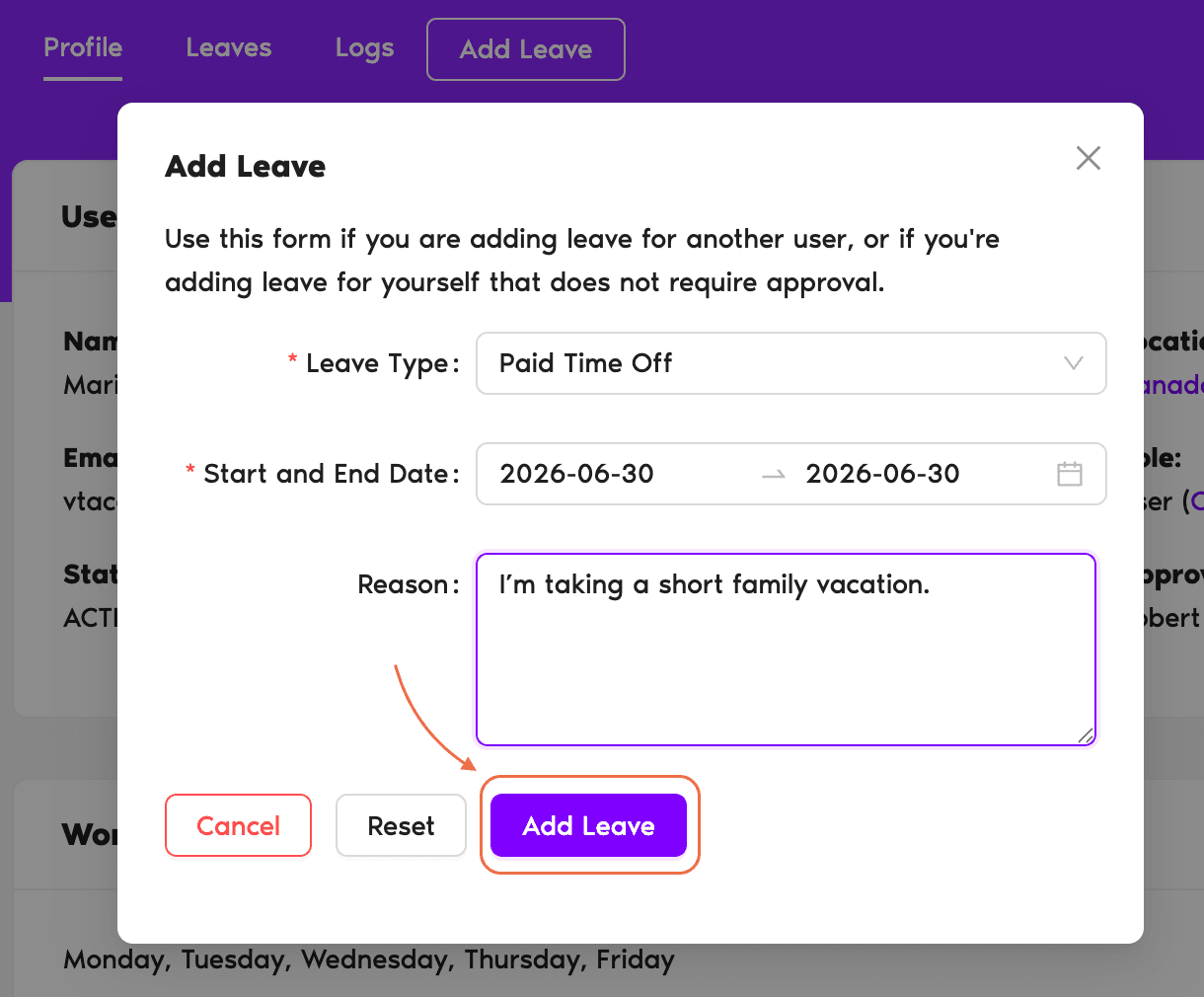
- Click Add Leave at the top of the profile.
- Pick the Leave Type, Start Date, End Date, and add a reason.
- If the policy supports half-day or hourly, the form gives you those options too.
- Click Add Leave. The User is notified and the days come out of their balance immediately.
From the Request Leave Dropdown
The big Request Leave button in the top-left of the dashboard is for your own leaves. To add a leave for someone else, hover that button — a dropdown appears with two options: Request Leave (for yourself) and Add Leave (for another User).
Picking Add Leave opens a separate form (different from the Request Leave form, even though they share a button) that starts with a User picker, then Leave Type, dates, and reason. Fill it out and click Add Leave.
Common Questions
Yes. Vacation Tracker sends them a notification through whatever integration they use (Slack DM, Teams chat, or email) confirming the leave was added on their behalf, with the dates and Leave Type.
Request Leave is the standard flow when you're submitting your own leave — it follows the Department's approval flow and goes to your Approver(s). Add Leave is for Admins/Approvers adding a leave for someone else, and it skips approval entirely. They share a button on the dashboard (the dropdown next to Request Leave), but they're two different forms with different behaviors.
Whether you can add the leave depends on the Leave Policy. Some policies block negative balances entirely; others allow Admins/Approvers to push a User into negative balance with a warning. The form tells you which case applies before you confirm.
 Book a Call