
Last updated on January 20, 2026
How Do I Change the Company Name on the Online Dashboard?
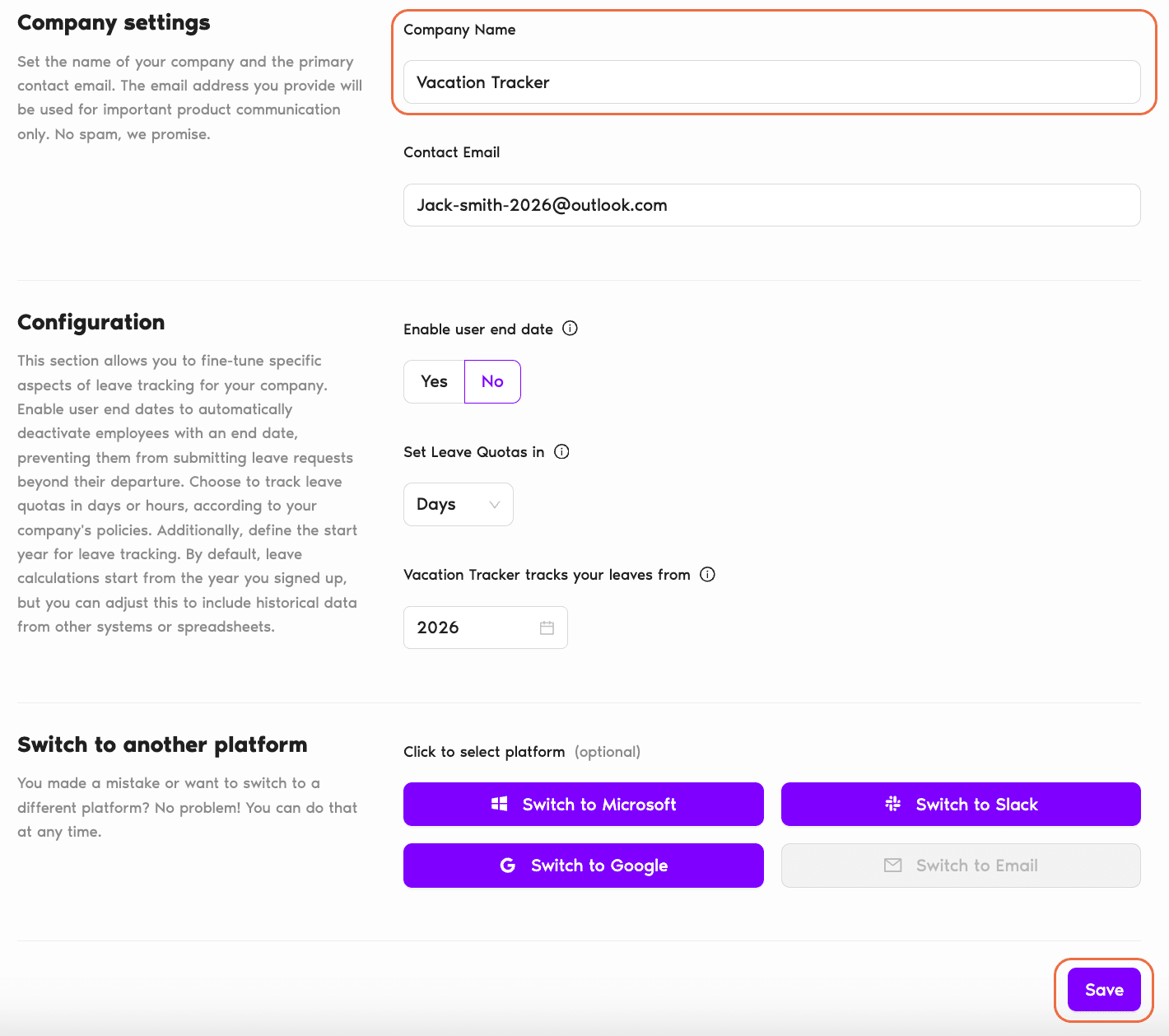
Companies rebrand, get acquired, change their legal name, or simply outgrow whatever placeholder went into the signup form. Updating the company name on Vacation Tracker is a one-field edit on the General settings page. Type the new name, hit Save, done.
Update the Company Name
- Sign in at app.vacationtracker.io.
- In the left-hand menu, expand Workspace Settings and click General.
- At the top of the page, in the Company settings section, find the Company Name field. It's pre-filled with whatever name was set during signup.
- Replace the existing value with your new company name.
- Scroll to the bottom of the page and click Save.
Common Questions
Admins. Workspace Settings sits in the Admin-only section of the menu — Approvers and regular Users don't see it.
In the bottom-left of the sidebar, directly beneath your User name (next to your avatar), plus exported reports and account-related notifications. Once saved, the new name shows up in all those places without you having to refresh anything else.
No. The Company Name is a display label for the workspace itself. Users, Departments, Locations, leave types, balances, and history all stay exactly the same. Only the name shown in the header and on reports changes.
 Book a Call