
Last updated on January 20, 2026
How Do I Choose My View Preferences?
Are your eyes tired from using the white background at night? Do you speak a different language? Do you prefer 24-hour time over 12-hour AM/PM? You're in the right place — the View Preferences tab on your account lets you change all three.
What You Can Change
The following changes can be made on the View Preferences tab:
How to Open View Preferences
- Go to app.vacationtracker.io/signin.
- Log in with your credentials (Microsoft Teams, Slack, Google, or Email).
- Click on your profile on the bottom left-hand side of the dashboard.
- Select Account Settings from the menu.
- Click on the View Preferences tab at the top of the page.
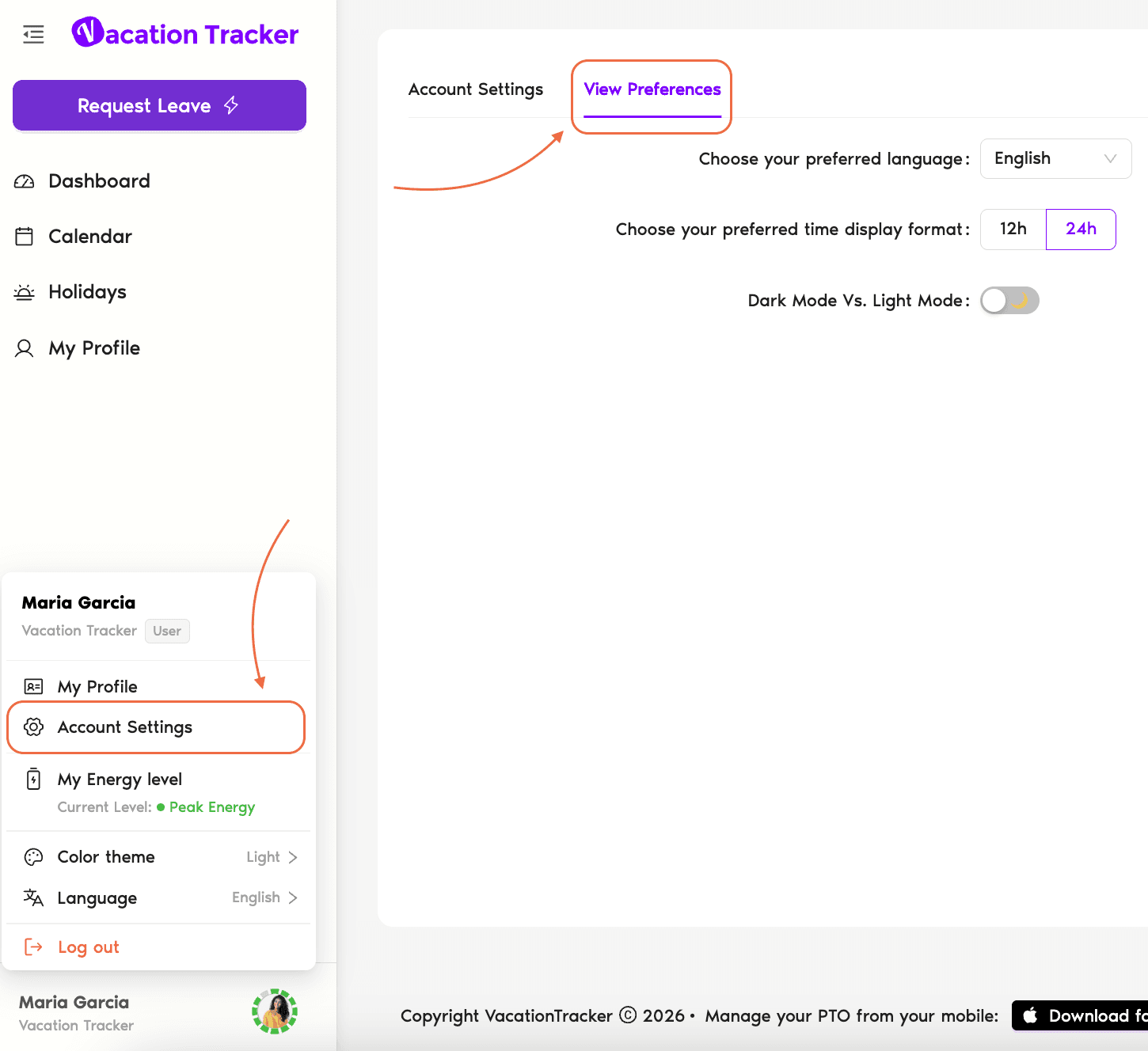
Preferred Language
On Vacation Tracker there are a total of 9 different language options that you can choose from. They appear in the dropdown in their native form:
Preferred Time Display Format
You decide how you want to view time on Vacation Tracker:
- 12h — 12-hour clock with AM/PM (e.g., 3:00 PM).
- 24h — 24-hour clock, also known as military time (e.g., 15:00).
Dark Mode vs. Light Mode
Changing from Light Mode to Dark Mode is a click away — toggle the Dark Mode Vs. Light Mode switch on the View Preferences tab.
 Book a Call