
Last updated on February 13, 2026
How Do I Edit User's General Information? (Role, Team, Location, Start Date and Birthday)
Sometimes changes need to be made to your previous settings. Whether it's updating a user role, their location, or start/end date, these can all be changed through the user's profile.
Steps
- Go to the Vacation Tracker Dashboard — app.vacationtracker.io/signin.
- On the left-hand side, click Users.
- On that page, click on the User you wish to change.
- On their profile page, you will see a User Profile box. Click Edit.
- A pop-up will appear where you can make your changes (see field reference below).
- Once you are done editing, click Update to save your changes.
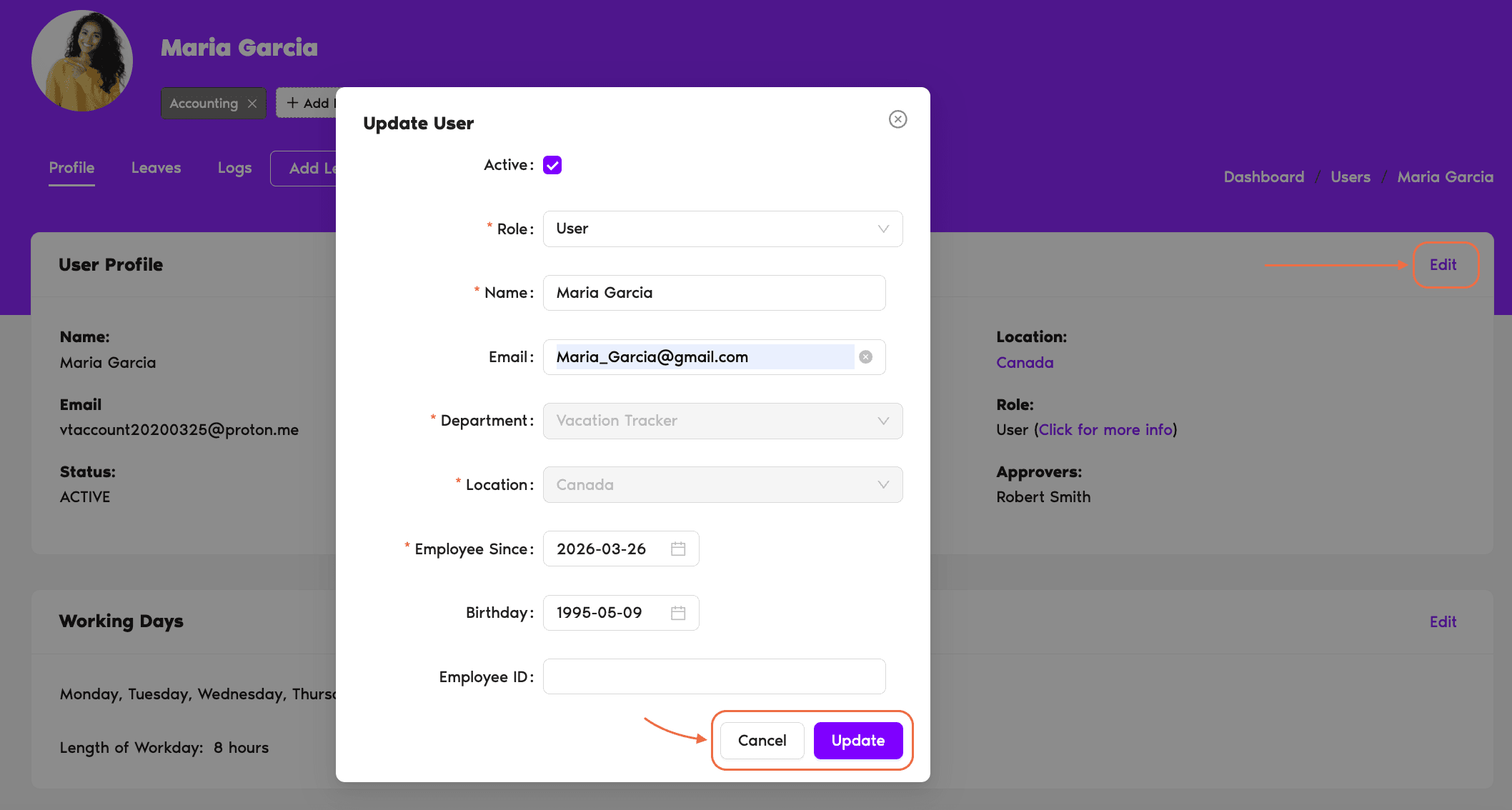
Editable Fields
- Role — Choose whether this user is going to be an Admin or a User.
- Name — Update the user's name within the Vacation Tracker account. This change is only relevant to Vacation Tracker and will not sync information from your workspace directory.
- Department — Select which department the user should belong to. To create a department, see How Do I Create a Department within Vacation Tracker?
- Location — Select the location the user should belong to. To create a location, see How Do I Create a Location?
- Employee Since — Track the employee start date for your own records or for use when the user's location resets quotas based on User Employment Date rather than the Accounting Year.
- Birthday — Save the user's birthday on their profile.
- Employee ID — Enter an employee ID for your user, as you would in an HR system. Reports you export will include a column for Employee IDs.
Approver role isn't here
If you would like to make a User into an Approver, you cannot edit the role through their profile — you have to edit a department and assign a User as an Approver. See How Do I Set an Approver within Vacation Tracker? Book a Call