
Last updated on February 18, 2026
How Do I Delete a User's Leave Request?
Admins — need to delete a user's upcoming or previous leave? It can be done in a few simple clicks.
Steps
- Log in to your online dashboard at app.vacationtracker.io/signin.
- Click on the Users tab on the left-hand side.
- Select the user whose leave you'd like to delete.
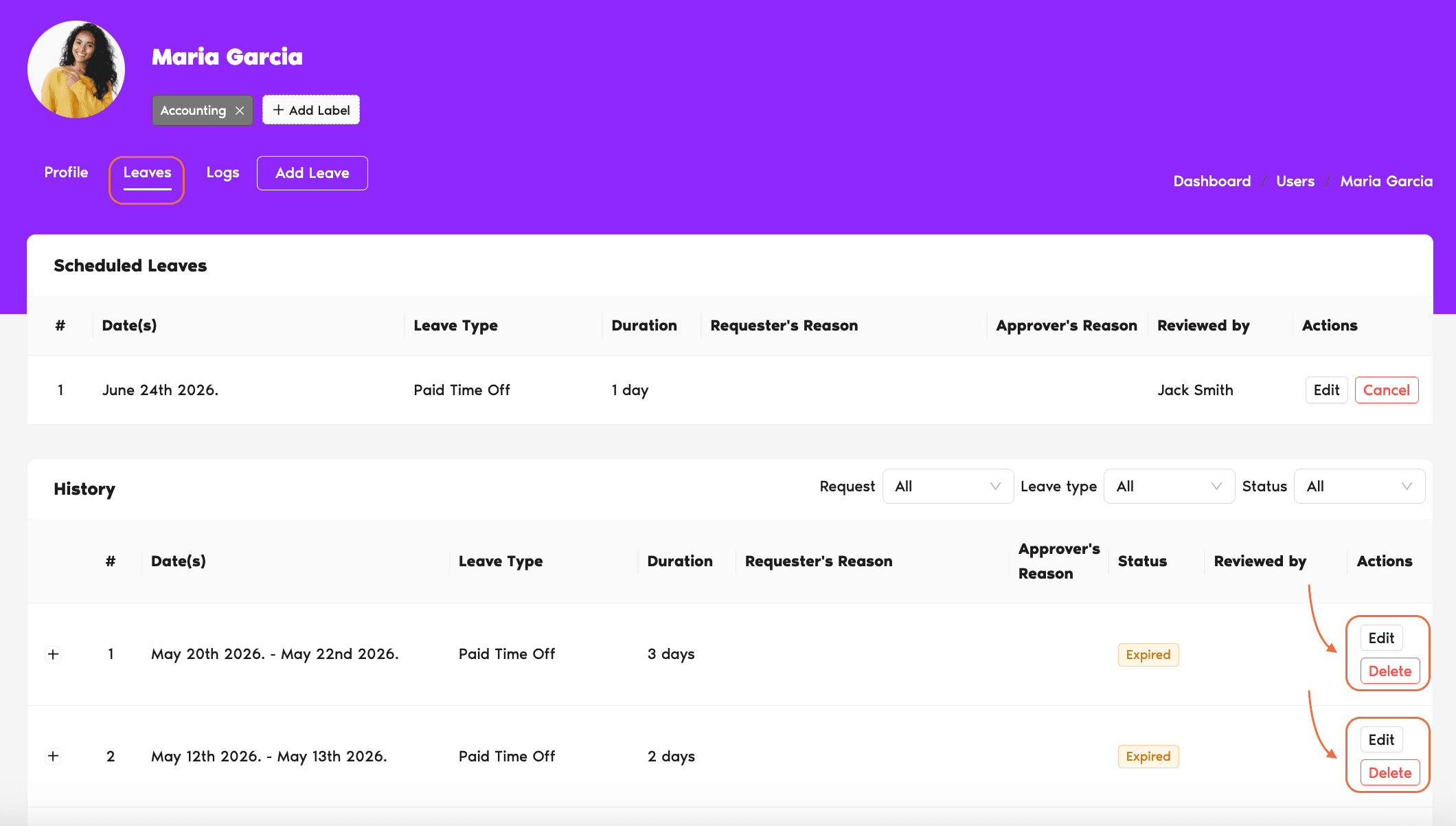
- Once on their profile page, select the Leaves tab.
- Find the leave in the Scheduled Leaves list (for upcoming leaves) or History list (for past or expired leaves).
- Click the Delete button next to the leave / leave request.
Quotas restored automatically
Once the leave has been deleted, the days from that leave will be returned to the user's Leave Quotas.Adding leaves on a user's behalf
As an Admin, you can also add previous, upcoming or future leaves for users. See How Do I Add a Leave for a User? Book a Call