
Last updated on February 13, 2026
How Do I Edit a Substitute Approver?
Plans change — the colleague you picked to cover for you might later end up on overlapping leave, change roles, or simply not be the best fit anymore. Editing the Substitute Approver takes the same path whether you're an Admin updating someone else's coverage or an Approver updating your own. Both routes land on the same Edit Leave form.
As an Admin
Use this path when you're updating coverage for an Approver other than yourself — or for your own leave when it's easier to reach through the Users list.
- Sign in at app.vacationtracker.io.
- In the left-hand menu, under Team & Approval Flows, click Users.
- Use the search field at the top of the Users table to find the Approver whose leave needs updating, and click their name to open their profile.
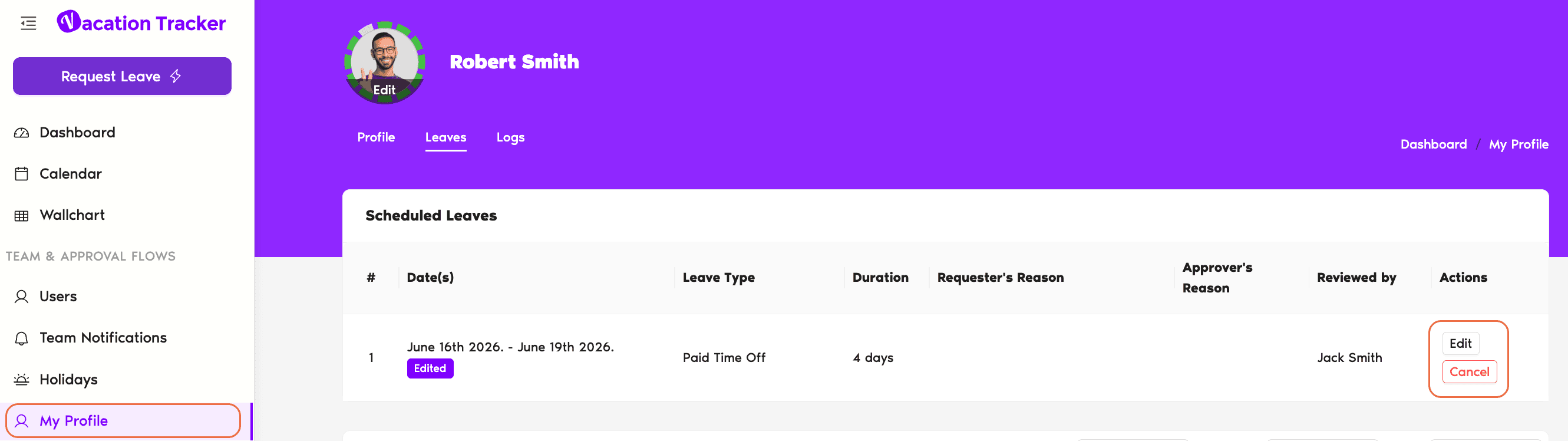
- Switch to the Leaves tab.
- In the Scheduled Leaves section, find the leave where the Substitute was set (or needs to be set) and click Edit.
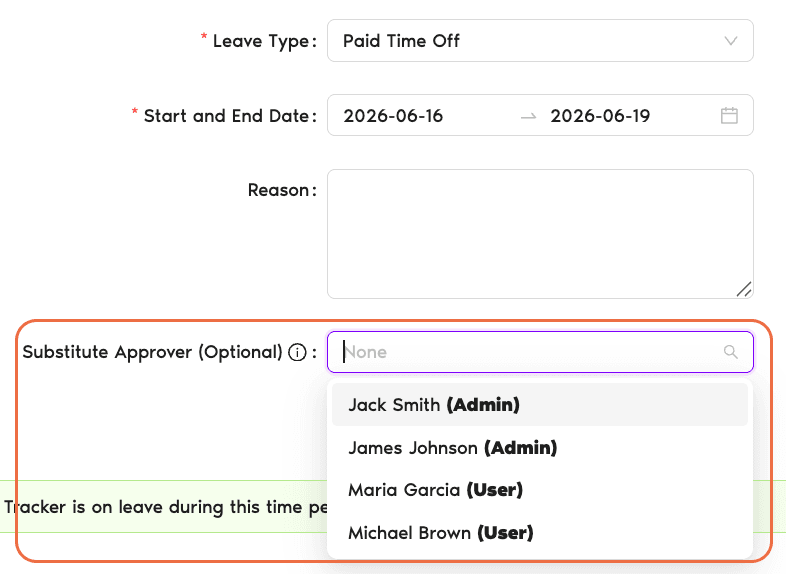
- Change the Substitute Approver field — pick the new person, or set it back to None to clear the assignment.
- Click Edit Leave to save.
As an Approver
If you're editing the Substitute on your own upcoming leave, you don't need to go through the Admin-only Users list. Your own profile has the same Scheduled Leaves section.
- Sign in at app.vacationtracker.io.
- In the bottom-left corner of the sidebar, click your profile name or avatar, then select My Profile from the menu.
- On your profile page, switch to the Leaves tab.
- In the Scheduled Leaves section, find the leave you want to update and click Edit.
- Update the Substitute Approver field to the new person — or set it back to None if you don't want a Substitute anymore.
- Click Edit Leave to save.
What Happens After You Save
Once the change is saved, Vacation Tracker handles the handoff automatically:
The previous substitute is notified
They receive a message telling them they're no longer fulfilling the Substitute Approver role for your upcoming leave. No action required on their part.
The new substitute is notified
They receive a message confirming they've been assigned as the Substitute Approver, along with the dates of your leave. They'll be able to approve or deny incoming requests during that window via Slack, Microsoft Teams, email, or the dashboard — whichever channel your workspace uses.
Common Questions
Two likely reasons. First, the leave may be in the past — the Substitute Approver field only applies to upcoming leaves, so it's hidden on the Edit form for historical entries. Second, the Department the Approver belongs to may have other Approvers available, which means the system didn't surface the Substitute field on that particular request. If you're an Admin, try the leave submitted by the last Approver in that Department to request time off.
If the leave is still in progress (today falls inside its date range), the scheduled leave is still editable, so yes — you can swap the Substitute mid-window. Both notifications go out the same way.
The edit flow runs through the online dashboard. The bots handle submitting new leave requests (including picking a Substitute the first time), but editing an existing scheduled leave happens in the Scheduled Leaves section of the profile.
 Book a Call